Mastering the Command Line
Introduction to CLI
Talking to Your Computer
Imagine sending a text message to your computer, telling it exactly what to do. That's the basic idea behind a command-line interface, or CLI. It’s a way to interact with your computer using text commands instead of clicking on icons and menus with a mouse. You type a command, press Enter, and the computer responds.
A command-line interface is a direct conversation with your computer's operating system. There's no graphical middleman.
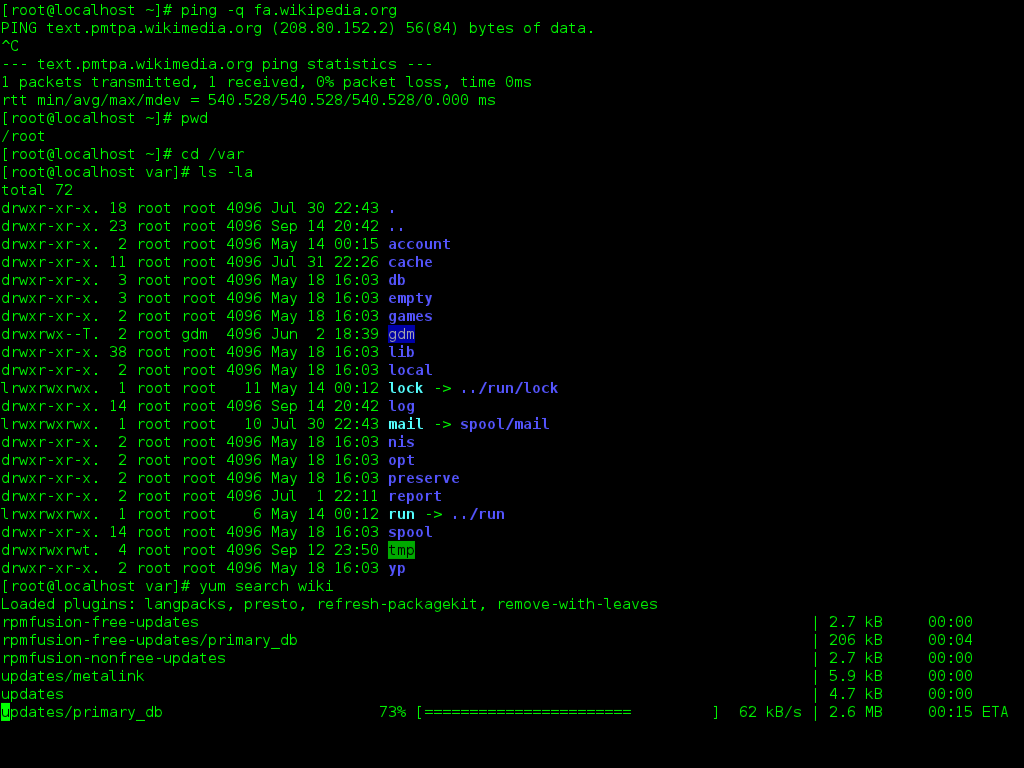
This might sound old-fashioned, but it's an incredibly powerful way to manage files, run programs, and automate tasks. For system administrators, software developers, and scientists, the CLI is an essential tool. It offers a level of precision and control that a graphical user interface (GUI) often can't match.
From Text to Icons and Back
In the early days of computing, the CLI wasn't just an option; it was the only option. Users typed commands on devices that looked like typewriters connected to large mainframes. There were no windows, icons, or mouse pointers. Every interaction was a text-based command and response.
Then, in the 1970s and 80s, the graphical user interface arrived, popularized by companies like Xerox and Apple. The GUI was revolutionary. It used visual metaphors like desktops, folders, and trash cans to make computers intuitive for everyone. Instead of remembering a command to delete a file, you could just drag the file's icon to the trash. This made personal computing possible.
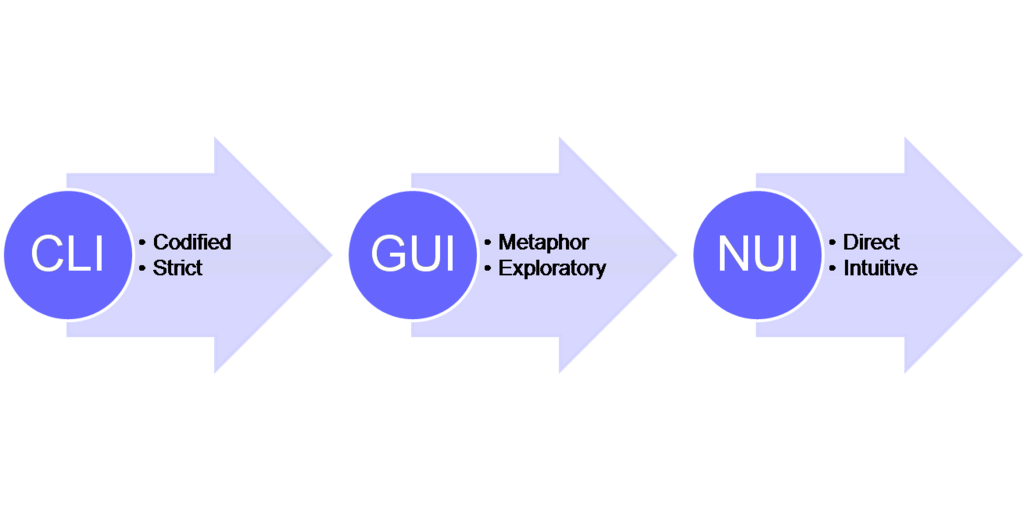
So if GUIs are so easy to use, why did the CLI stick around? Because for certain tasks, it's simply better.
The GUI makes easy tasks simple. The CLI makes difficult tasks possible.
The main advantages of the CLI are its power, efficiency, and ability to automate. You can combine simple commands to perform complex operations in a single line. You can write scripts that run these commands automatically, saving you hours of repetitive clicking. CLIs also use far fewer system resources than GUIs, which is critical for managing servers and other remote systems where you don't need a fancy visual display.
Different Flavors of CLI
While the core concept is the same, different operating systems have their own command-line environments, often called a "shell."
| Operating System | Common CLI Environments |
|---|---|
| Windows | Command Prompt: The classic Windows CLI. PowerShell: A more modern and powerful shell that's deeply integrated with the Windows OS. |
| macOS | Terminal: The application that runs a shell. By default, modern macOS uses Zsh (Z shell), which is similar to Bash but with more features. |
| Linux | Bash (Bourne Again Shell): The most common and popular shell in the Linux world. It's the default on most Linux distributions. |
Despite their differences, these environments share many core principles and even some basic commands. Learning the fundamentals in one environment makes it much easier to pick up another. The journey begins with understanding that a simple line of text can be the most powerful tool you have.