Mastering the Command Line
Introduction to CLI
Talking to Your Computer
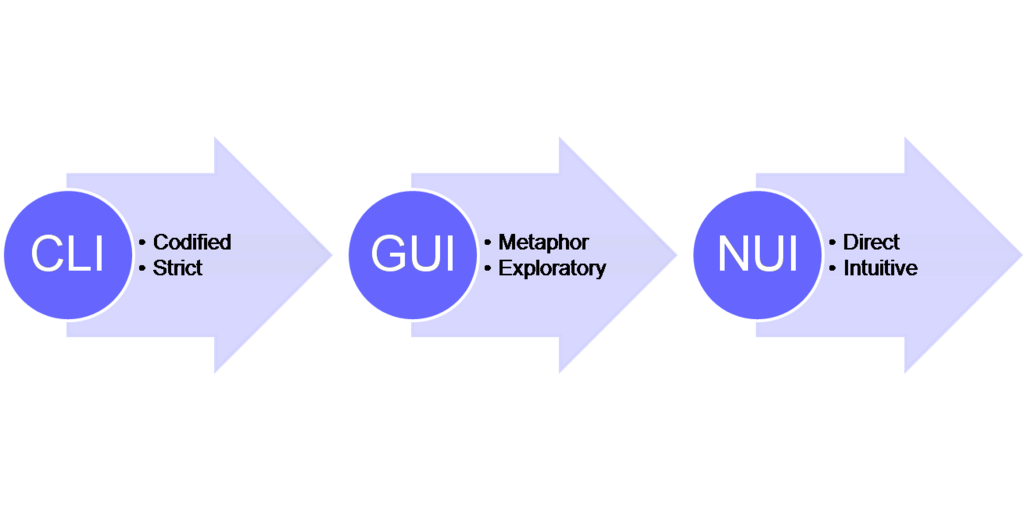
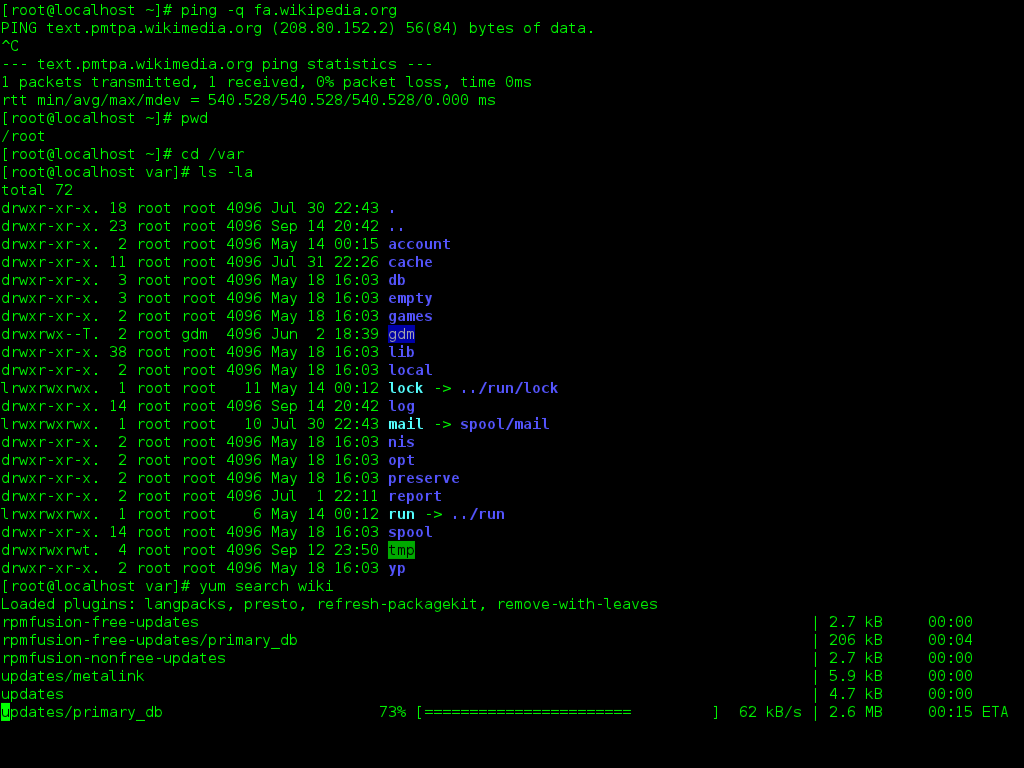
Before clickable icons and colorful windows, there was just a blinking cursor on a dark screen. To get a computer to do anything, you had to type commands. This text-based method of communication is called a Command-Line Interface, or CLI.
Think of it as a direct conversation. Instead of pointing and clicking on visual metaphors like folders and trash cans, you issue specific, typed instructions. This might seem old-fashioned, but it's an incredibly powerful and efficient way to interact with a computer's operating system.
When you use a CLI, you're not talking directly to the core of the operating system. You're interacting with a special program called a shell. The shell acts as an interpreter; it takes your typed commands, translates them into instructions the operating system can understand, and then shows you the result.
The shell is the program that processes your commands and returns output. It's the intermediary between you and the operating system.
Why Bother with Text?
With modern Graphical User Interfaces (GUIs), why would anyone choose to type commands? While GUIs are intuitive and great for many tasks, CLIs offer some distinct advantages, especially for developers and system administrators.
| Advantage | Description |
|---|---|
| Speed | For experienced users, typing a single command can be much faster than navigating through multiple windows and menus. |
| Automation | CLIs excel at automating repetitive tasks. You can write scripts—sequences of commands—to perform complex jobs with a single instruction. |
| Resource Efficiency | CLIs use far fewer system resources (like memory and CPU power) than GUIs. This is critical for servers and less powerful devices. |
| Power & Control | Many advanced system settings and powerful tools are only accessible through the command line, offering more granular control. |
Using a CLI is like a chef using a specific knife for a specific job, while a GUI is more like a multi-tool. Both are useful, but the specialized tool often provides more precision and efficiency.
CLIs Across Operating Systems
While the concept is universal, the CLI environment looks different depending on the operating system you're using. Each has its own history and common shells.
Windows: The traditional CLI is the Command Prompt (cmd.exe). A more modern and powerful option is PowerShell, which is deeply integrated with the Windows ecosystem. The new Windows Terminal app can host both of these shells and more.
macOS: The default CLI application is called Terminal. Under the hood, macOS is based on Unix, so it uses Unix-like shells. For years, the default shell was Bash, but newer versions of macOS use Zsh (Z Shell).
Linux: Linux and the CLI are inseparable. The command line is a core part of the Linux experience. The most common shell by far is Bash (Bourne Again Shell), but many other options like Zsh and Fish are also popular.
No matter the system, the fundamental idea is the same: you type a command, the shell interprets it, the operating system executes it, and you see the output. It's a foundational skill that unlocks a deeper level of control over your computer.
What is the primary way a user interacts with a computer through a Command-Line Interface (CLI)?
In a CLI environment, what is the role of the 'shell'?