Mastering TestRail for Software Testing
Introduction to TestRail
What is TestRail?
Software testing can get chaotic. Spreadsheets get messy, communication breaks down, and it's hard to know what's been tested and what hasn't. TestRail is a tool that brings order to this chaos. It's a web-based platform for managing, tracking, and organizing all your software testing efforts in one place.
Think of it as a central hub for your entire quality assurance (QA) team. It helps everyone stay on the same page, from creating test cases to running tests and reporting on the results. Using a tool like TestRail provides clear visibility into your testing progress, making it easier to see what’s working, what's failing, and how close you are to release.
Finding Your Way Around
When you first log in to TestRail, you'll land on the Dashboard. This is your mission control, giving you a high-level view of recent activity and the status of ongoing test runs across all your projects.
The main navigation is usually at the top or side of the screen. Here are the key areas you'll use most often:
- Dashboard: Your starting point. It summarizes what's happening now.
- Projects: This tab takes you to a list of all the projects your team is working on. Each project has its own dedicated space.
- To-Do: This is your personal task list. It shows all the test runs and cases that are assigned to you, so you know exactly what you need to work on.
- Test Cases: This is the library where all your test instructions are stored and organized.
- Test Runs & Results: This area is for executing tests and viewing the history of past test runs.
- Reports: Here, you can generate detailed reports to track progress and analyze results over time.
Setting Up a Project
Everything in TestRail is organized into projects. A project typically corresponds to a specific product, application, or a major version you are testing. Creating one is the first step.
From the Dashboard, you'll find an “Add Project” button. Clicking it opens a simple form. You’ll give your project a name, like “Mobile App v2.0” or “Website Redesign.”
You will also be asked to choose how to manage your test cases. A common choice is to use a single repository for all cases. This is the simplest approach and works well for most teams. It means you'll have one master list of test cases for the entire project, which you can organize into sections and subsections.
Keeping a single, well-organized repository of test cases makes them easier to reuse for future testing cycles, like regression testing.
Creating and Running Tests
Once your project is set up, it's time to populate it with test cases. A test case is a set of instructions for a tester to follow to verify a specific piece of functionality. For example, a test case might detail the steps to check if a user can successfully log in.
| Element | Description |
|---|---|
| Title | A short, descriptive name for the test, like "Verify successful user login". |
| Preconditions | Any conditions that must be met before starting, like "User account must exist". |
| Steps | The specific actions to perform, numbered for clarity. |
| Expected Result | What should happen if the feature works correctly. |
Test cases are grouped into suites and sections. You could have a suite called "Login Functionality" with sections for "Valid Logins," "Invalid Logins," and "Forgot Password."
When you're ready to start testing, you create a Test Run. A test run is a snapshot of the test cases you want to execute for a specific purpose, like a sprint or a new feature release. You select which test cases to include, assign them to testers, and start the run.
As testers work through the list, they record the outcome of each test case. TestRail provides simple statuses to mark the result:
- Passed: The feature works as expected.
- Failed: The feature is broken. A bug was found.
- Blocked: The test cannot be completed due to an external issue.
- Retest: The test needs to be run again, often after a bug fix.
Understanding Reports
One of TestRail's most powerful features is its reporting. Instead of manually compiling data from spreadsheets, you can generate insightful reports with a few clicks. These reports help you communicate the status of testing to managers and stakeholders.
The Summary report is a great place to start. It provides an overview of a project or a specific test run, showing charts and statistics on the status of your tests. You can quickly see the percentage of passed, failed, and blocked tests. This gives you a clear, visual snapshot of your product's quality at any moment.
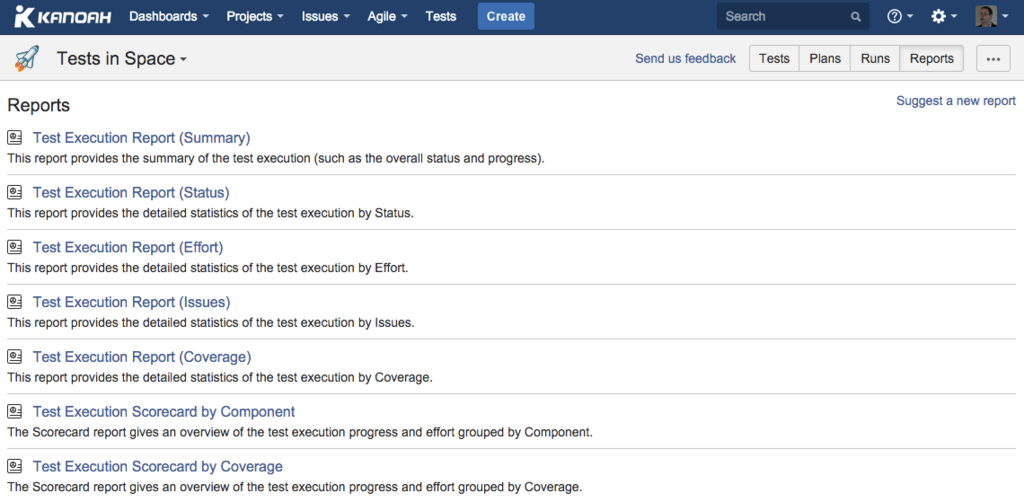
Other reports can show you how testing is progressing over time, which tests fail most often, and how workload is distributed across the team. By analyzing these reports, you can spot trends, identify risky areas of your application, and make informed decisions about when a product is ready to ship.
Now that you understand the basics, you're ready to start exploring TestRail on your own.
What is the primary purpose of a 'Test Run' in TestRail?
When a tester cannot proceed with a test case due to an external issue, such as a server being down, which status should they use in TestRail?
That's a quick tour of TestRail's main features. You've learned how it helps organize testing, what its key interface elements are, and how to create projects, write cases, execute runs, and generate reports.