Mastering Revit Professional Workflows
Advanced View Management
Managing Complex Models
Creating views is one thing; managing them is another. As projects grow, a Revit model becomes less of a 3D drawing and more of a complex database. The key to efficiency isn't just modelling skill, but disciplined data management. Without a system, your Project Browser can become a chaotic list of hundreds of views, making it nearly impossible to find what you need or maintain consistency across drawings.
This is where professional-level view management comes in. By moving beyond basic creation tools, you can standardize how your project looks, dynamically control what information is displayed, and organize your workspace for large, multi-disciplinary projects. It’s about making the model work for you, not the other way around.
Standardize with View Templates
Consistency is crucial in professional documentation. Every floor plan, section, and elevation should follow the same graphical rules. The most powerful tool for enforcing this consistency is the View Template_._ A View Template is a saved collection of view properties, like scale, detail level, visibility settings, and graphic overrides. Instead of manually setting up each new view, you apply a template to ensure it instantly conforms to project standards.
Think of it like a style guide for your drawings. You might have one template for overall floor plans, another for detailed wall sections, and a third for electrical plans. Applying a template ensures every drawing of a specific type looks the same, no matter who created it.
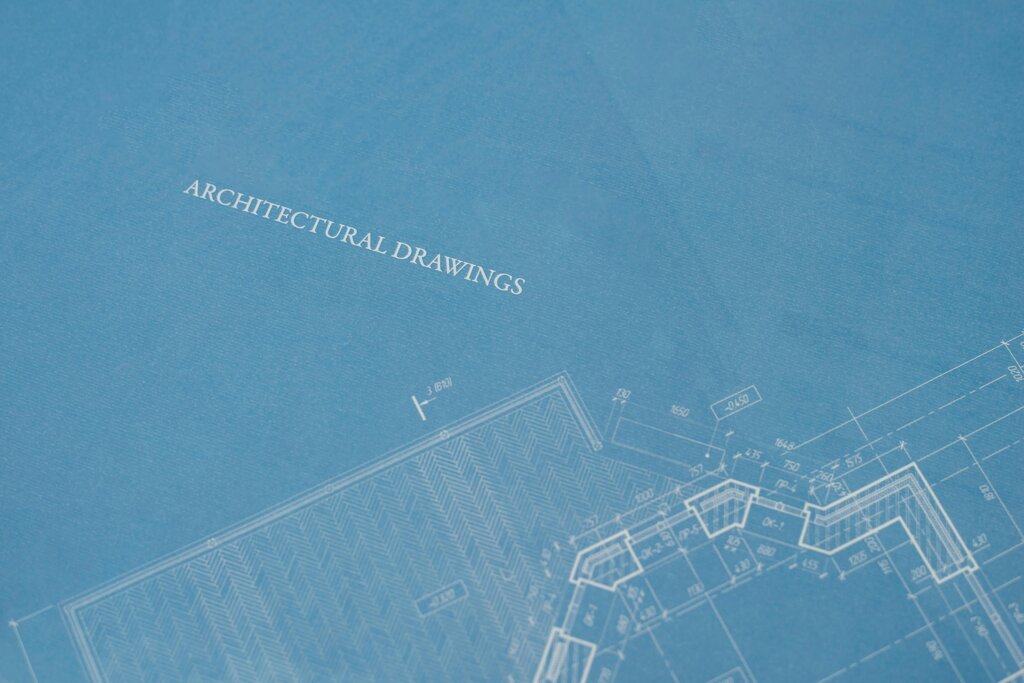
By assigning templates to views, you can also make global changes instantly. If a manager decides all floor plans should be at a different scale, you just update the template. Every view linked to that template updates automatically. This saves hours of manual work and eliminates errors.
Dynamic Control with Filters
Sometimes you need to highlight specific elements based on their properties, not just their category. This is where View Filters shine. A filter is a rule you create that selects elements based on the data stored in their parameters_._ Once elements are selected by the filter, you can apply specific graphic overrides to them, like changing their colour, line weight, or pattern.
The classic example is fire safety plans. You can create a filter that finds all walls with a "Fire Rating" parameter equal to "2-Hour". Then, you can set an override to make those walls appear with a solid red fill. This filter can then be added to a View Template and applied to all relevant floor plans, instantly creating your fire rating drawings.
Filters can be based on multiple parameters, allowing for very specific rules. For example, you could highlight all doors that are both fire-rated and have a hardware set that includes a panic bar. This turns your model from a simple drawing into a visual database query.
Taming the Project Browser
In a large project, the default organization is insufficient. A single, long list of "Floor Plans" or "Sections" becomes unmanageable. To solve this, you can create custom parameters to sort and group your views in a logical hierarchy.
For instance, you could create a project parameter called "View Discipline" and another called "View Sub-Discipline". By applying these to your views, you can configure the browser to group everything first by major discipline (Architecture, Structure, MEP), and then by a secondary category (e.g., Floor Plans, Reflected Ceiling Plans, Elevations).
| Organization Level | Parameter Used | Example Values |
|---|---|---|
| Top Level | View Discipline | Architecture, Structure, MEP |
| Second Level | View Sub-Discipline | Floor Plans, Elevations, Sections |
| Third Level | (default) | Level 1, Level 2, North, East |
This structured approach transforms a chaotic list into a neat, folder-like tree. It makes navigation intuitive and ensures that as the team adds new views, they are automatically filed in the correct location. This level of organization is non-negotiable for serious project management.
Ready to test your knowledge of view management?
What is the primary function of a View Template in Revit?
You need to create a fire safety plan where all walls with a 2-hour fire rating are highlighted in red. What is the most efficient Revit tool for this specific task?
Mastering these techniques elevates you from a basic Revit user to a model manager who can maintain order and consistency on even the most complex projects.