Mastering QSpace for Power Users
Multi-Pane Layouts
Beyond a Single Window
The standard macOS Finder is built around single windows. While you can open many windows, managing them quickly becomes a chore. A multi-pane layout fundamentally changes how you interact with your files by allowing you to view and manage multiple directories within a single, unified window.
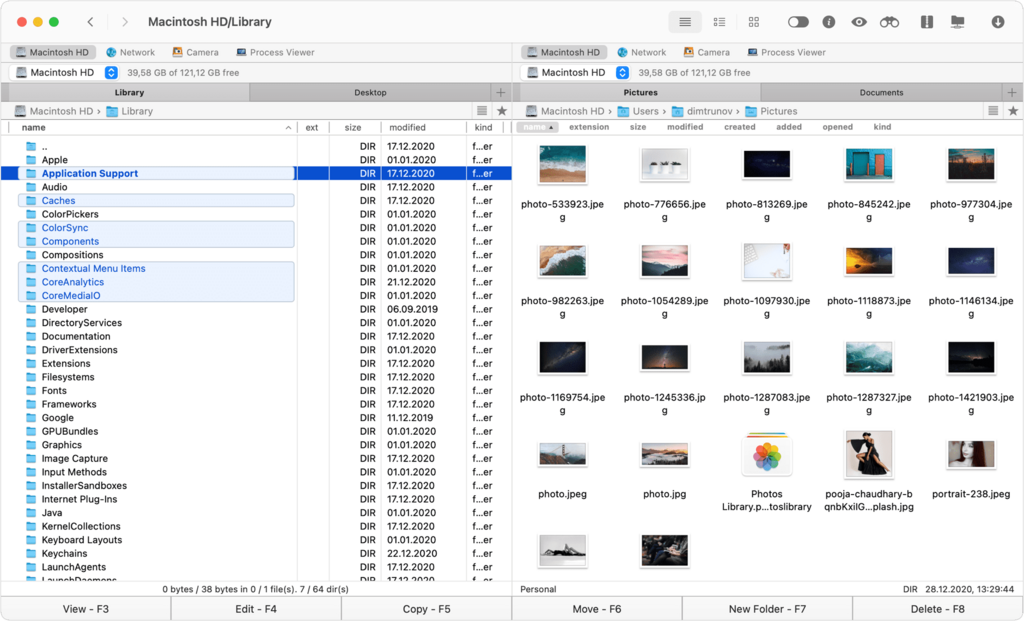
QSpace Pro offers presets for two, three, four, or even more panes. These can be arranged horizontally, vertically, or in a grid. You can access these configurations through the 'Layout Menu' in the toolbar. Once a layout is active, you can drag the dividers between panes to resize them. The application intelligently adjusts the surrounding panes to accommodate the change, ensuring your screen real estate is used effectively.
Saving Your Setups
Switching layouts manually is fine, but the real power comes from saving your configurations as s. A Workspace is more than just a layout; it's a snapshot of your entire setup, including the specific folders open in each pane, their view modes, and sorting preferences. This lets you create context-specific environments that you can summon instantly.
For example, you might create a 'Web Dev' workspace with three vertical panes: one for your project assets, one for a local server folder, and one for your code library. For sorting photos, a 'Photo Cull' workspace with a 2x2 grid might be better, showing 'RAWs,' 'Exports,' 'Selects,' and 'Rejects' folders all at once.
To save a setup, arrange your panes and open your desired folders, then select 'Save Workspace' from the menu. You can assign it a name and even a keyboard shortcut. Over time, you'll build a library of custom Workspaces tailored to your unique workflows, dramatically speeding up the process of getting down to work.
Working in Tandem
One of the most powerful features in a multi-pane setup is s. When enabled, this tool links two panes together. As you navigate through the folder hierarchy in one pane, the other pane mirrors your movements, opening the same folder simultaneously.
This is essential for tasks like comparing the contents of a local folder with its remote counterpart on an FTP server, or for verifying that a backup directory perfectly matches the source. It eliminates the need for constant, repetitive clicking in two separate windows.
Now that you've got the basics of creating, saving, and syncing layouts, it's time to review these core concepts.
Let's check your understanding.
What is the primary advantage of a multi-pane layout in QSpace Pro compared to the standard macOS Finder?
Which feature in QSpace Pro allows you to save a complete snapshot of your setup—including the pane layout, the specific folders open in each pane, and their view modes—for instant recall?
By mastering multi-pane layouts and Workspaces, you transform file management from a series of disjointed actions into a fluid, context-aware workflow.