Mastering Python Fundamentals
Python Installation
Setting Up Your Workspace
Before you can write Python code, you need two things: the Python interpreter and a place to write your code. The interpreter is what reads your Python instructions and tells the computer what to do. Think of it as the engine. The place you write your code is like the driver's seat and dashboard, which we call an Integrated Development Environment, or IDE.
Install the Python Interpreter
First, let's get the engine. The official and safest place to download Python is from the Python Software Foundation's website.
Go to python.org and download the latest version for your operating system (Windows, macOS, or Linux).

When you run the installer, there's one very important step for Windows users. On the first screen of the installation, make sure you check the box that says "Add python.exe to PATH." This allows you to run Python from any directory on your computer, which is incredibly useful.
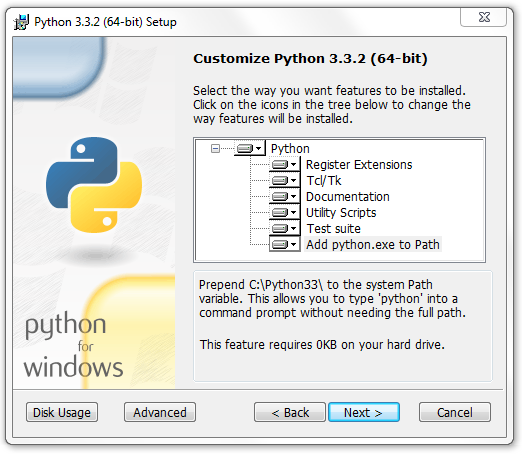
For macOS and Linux users, Python might already be installed. However, it's often an older version. It's still a good idea to install the latest version from python.org to have access to the newest features.
Choose Your Code Editor
Now that Python is installed, you need a program to write and manage your code. While you could use a simple text editor like Notepad, an IDE provides helpful features like syntax highlighting, code completion, and debugging tools. It makes the process of writing code much smoother.
For beginners, we recommend starting with Thonny. It's a simple, lightweight IDE designed specifically for learning Python. It comes with Python built-in, so it's ready to go right after installation.

As you get more experienced, you might want to switch to a more powerful IDE. PyCharm is a popular choice used by many professional developers. It has more advanced features for managing large projects, but for now, Thonny has everything you need.
Using the Interactive Shell
Python also comes with an interactive shell, also known as a REPL (Read-Eval-Print Loop). This is a tool that lets you type single lines of Python code and see the result immediately. It's perfect for quick experiments, testing a small piece of logic, or doing simple calculations without having to create a full script file.
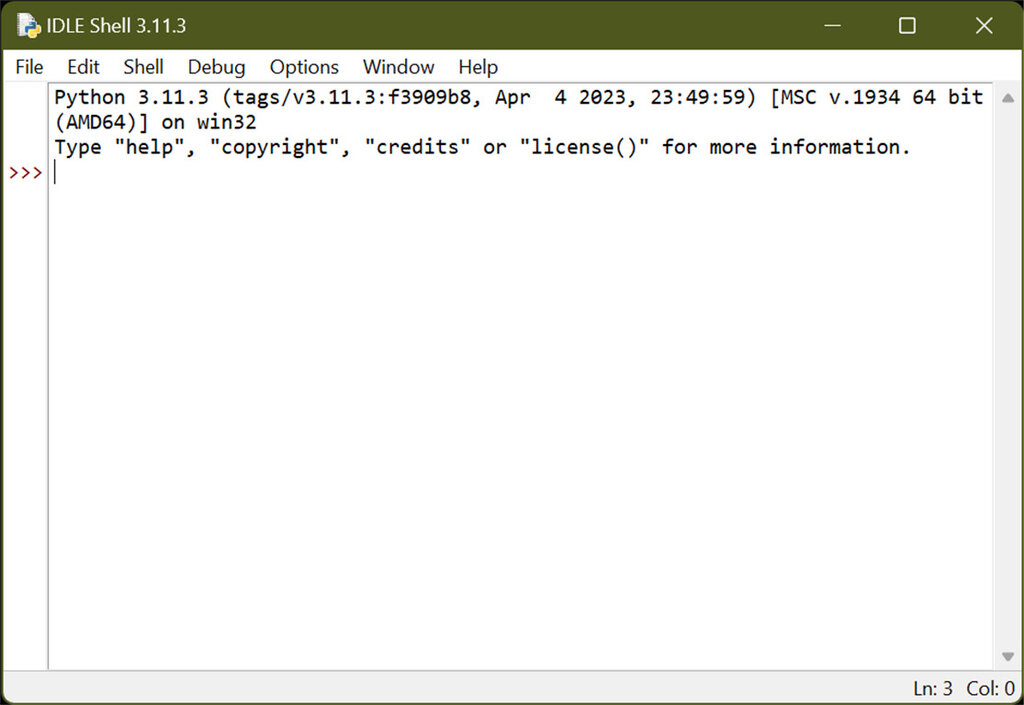
To access it, you can open your computer's terminal (Command Prompt on Windows, Terminal on macOS/Linux) and type python or python3. You'll know you're in the shell when you see the >>> prompt.
C:\Users\User> python
Python 3.11.3 (main, Apr  4 2023, 23:49:59) [MSC v.1934 64 bit (AMD64)] on win32
Type "help", "copyright", "credits" or "license()" for more information.
>>>
Thonny and other IDEs have a shell built right into their interface, making it even easier to access.
Ready to check your understanding?
What is the primary role of the Python interpreter?
For Windows users, what is the most critical option to check during the installation process to allow running Python from any directory?
Now that your environment is set up, you're ready to start writing some code.