Mastering Practical Excel Workflows
Logical Functions Mastery
Making Decisions in Excel
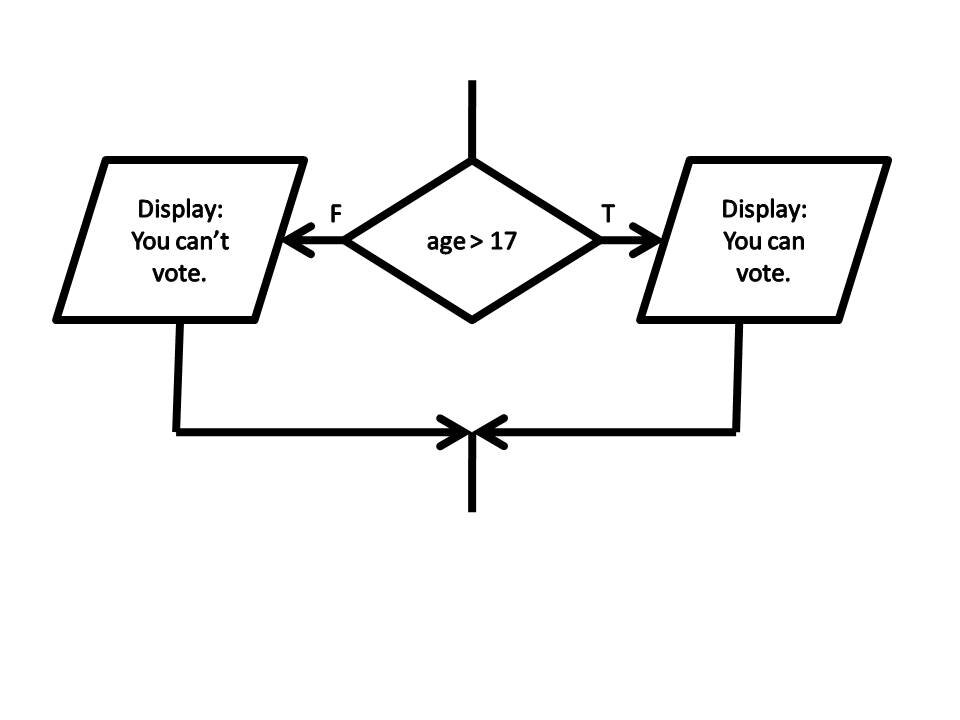
Spreadsheets aren't just for adding up columns of numbers. Their real power comes from making decisions based on your data. The cornerstone of this is the IF function, which allows Excel to perform one action if a condition is met, and a different action if it isn't.
Think of it as asking Excel a yes-or-no question. Based on the answer, it gives you one of two results that you've prepared in advance.
The structure, or syntax, of the IF function is straightforward.
=IF(logical_test, value_if_true, value_if_false)
Let's break that down:
- logical_test: This is the question you're asking. It's a statement that can be evaluated as either TRUE or FALSE. For example, is the value in cell B2 greater than 500?
- value_if_true: What Excel should display if the answer to your question is TRUE.
- value_if_false: What Excel should display if the answer is FALSE.
For instance, if you want to check if a sales figure in cell C5 met a target of $10,000, your formula would be:
=IF(C5>=10000, "Target Met", "Target Not Met")
The logical_test part of the function relies on logical operators to compare values. You're likely familiar with these from basic mathematics.
| Operator | Meaning |
|---|---|
| = | Equal to |
| > | Greater than |
| < | Less than |
| >= | Greater than or equal to |
| <= | Less than or equal to |
| <> | Not equal to |
Handling Multiple Conditions
Sometimes, one condition isn't enough. You might need to check if several criteria are met at the same time, or if at least one of several criteria is met. This is where the AND and OR functions come in. By themselves, they just return TRUE or FALSE. But when combined with IF, they become incredibly powerful.
The
ANDfunction is strict. It returns TRUE only if all of its arguments are true. If even one is false,ANDreturns FALSE.
Imagine a bonus system where an employee must achieve sales over $50,000 (in cell B2) and have a customer satisfaction score above 90% (in cell C2). You can use AND as the logical_test inside your IF function.
=IF(AND(B2>50000, C2>0.9), "Bonus Awarded", "No Bonus")
The OR function is more flexible. It returns TRUE if any of its arguments are true. It only returns FALSE if all arguments are false.
Let's say a customer gets a discount if they are a new member (cell D2 says "Yes") or if they spend over $100 (cell E2 is greater than 100).
=IF(OR(D2="Yes", E2>100), "Discount Applies", "No Discount")
Building Complex Logic
For situations with more than two possible outcomes, you can nest IF functions. This means placing an IF function inside another one, usually in the value_if_false position. This creates a chain of decisions.
A classic example is an automated grading system. A score determines a specific letter grade, requiring several checks.
Suppose a student's score is in cell A2. We want to assign a grade based on these rules:
- 90 or higher: "A"
- 80 to 89: "B"
- 70 to 79: "C"
- Below 70: "D"
The nested IF formula would look like this:
=IF(A2>=90, "A", IF(A2>=80, "B", IF(A2>=70, "C", "D")))
Excel checks the first condition (A2>=90). If it's true, it returns "A" and stops. If it's false, it moves to the next IF function and checks if A2>=80. This continues down the chain until a condition is met or it reaches the final value_if_false.
When building nested formulas, watch out for common errors. The most frequent mistake is mismatched parentheses. Each IF function needs its own opening and closing parenthesis. A good practice is to ensure the final formula ends with a series of closing parentheses, one for each IF you've opened.
What is the correct order of arguments for a standard IF function?
A value of 75 is in cell A1. What will be the result of the formula =IF(A1>=80, "Distinction", "Pass")?
Mastering logical functions transforms Excel from a simple calculator into a dynamic tool for analysis and automation.