Mastering PowerShell
PowerShell Basics
What is PowerShell?
Think of PowerShell as a universal remote for your computer. It's a powerful tool from Microsoft that lets you automate tasks and manage settings. Instead of clicking through windows and menus, you type commands to tell your computer exactly what to do. It’s a command-line shell and a scripting language, all rolled into one.
PowerShell is used by IT professionals to manage networks, automate repetitive tasks like creating user accounts, and configure servers. But it's also handy for everyday users who want more control over their Windows machine. You can use it to quickly find files, manage running applications, or get detailed system information.
Opening Your Terminal
Getting started is easy. PowerShell is built into all modern versions of Windows. There are a couple of ways to open it:
- Via the Start Menu: Click the Start button, type "PowerShell," and select "Windows PowerShell" from the results.
- Via the Power User Menu: Right-click the Start button (or press Win + X) and select "Windows PowerShell" or "Terminal" from the menu.
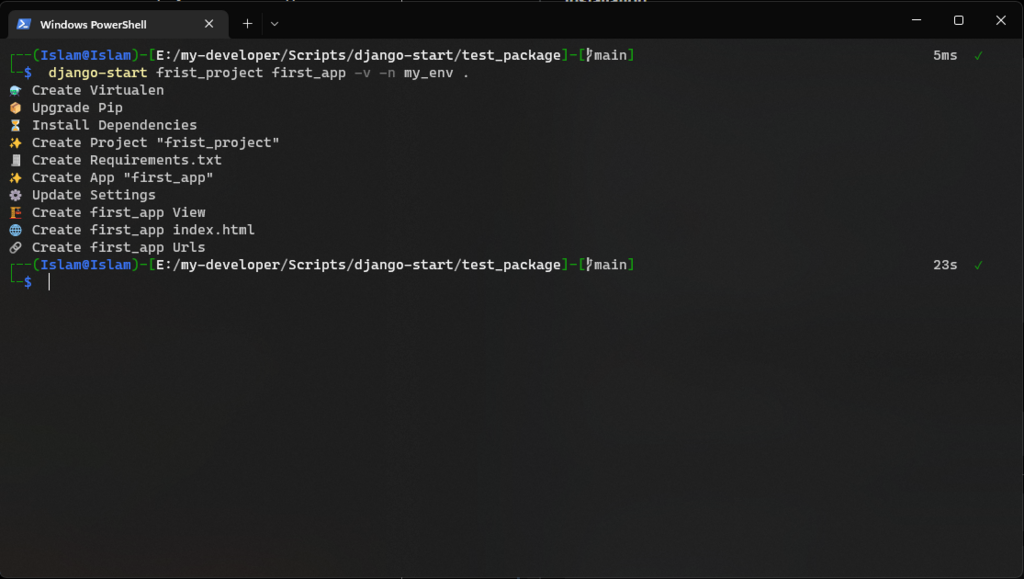
When you open it, you'll see a blue or black window with a blinking cursor. This is the PowerShell command-line interface, or CLI. The text you see, like PS C:\Users\YourName>, is the prompt. It tells you the current location (or directory) you're working in and waits for you to enter a command.
Executing Basic Commands
In PowerShell, commands are called cmdlets. It's a funny name, but the logic is simple: they're small commands that do one specific thing. Most cmdlets follow a clear, predictable naming pattern that makes them easy to remember: Verb-Noun.
The verb describes the action (like Get, Set, or Start), and the noun describes the thing you're acting on (like Process, Service, or Date).
Let's try a few. Type the following command at the prompt and press Enter. You don't need to worry about capitalization; PowerShell isn't case-sensitive for cmdlet names.
Get-Date
As you'd expect, this command gets the current date and time and displays it in the terminal. The action is Get, and the thing you're getting is the Date.
Now, let's try another one. This cmdlet will list all the processes currently running on your computer.
Get-Process
You'll see a table with information about each process, like its name and ID. This is much faster than opening the Task Manager and scrolling through the list.
One of the most useful cmdlets for a beginner is Get-Help. You can use it to learn about any other command. If you want to know more about Get-Process, you can type:
Get-Help Get-Process
This will give you a full description of the cmdlet, how to use it, and what parameters it accepts. It's your built-in guide to PowerShell.
Finally, let's look at a simple cmdlet for navigating your computer's file system. To see a list of files and folders in your current directory, use Get-ChildItem.
Get-ChildItem
This is PowerShell's version of the dir command in the old Command Prompt or ls in Linux. It shows you the contents of your current location. If you want to move to a different directory, you use Set-Location.
# Move to the C:\Windows directory
Set-Location C:\Windows
After running this command, you'll notice the prompt changes to PS C:\Windows>. You've successfully changed your working directory.
What is the best description of PowerShell?
In PowerShell, commands are called cmdlets. What is their standard naming pattern?
That's a quick look at the basics. You've learned what PowerShell is, how to open it, and how to run a few fundamental commands. This is just the starting point for automating tasks on your computer.