Mastering Power BI for Data Insights
Data Import and Transformation
Getting Data into Power BI
The first step in any data analysis project is to connect to your data. In Power BI, this is handled by Power Query, an engine designed to extract, transform, and load data. Think of it as the workshop where you prepare your raw materials before you start building.
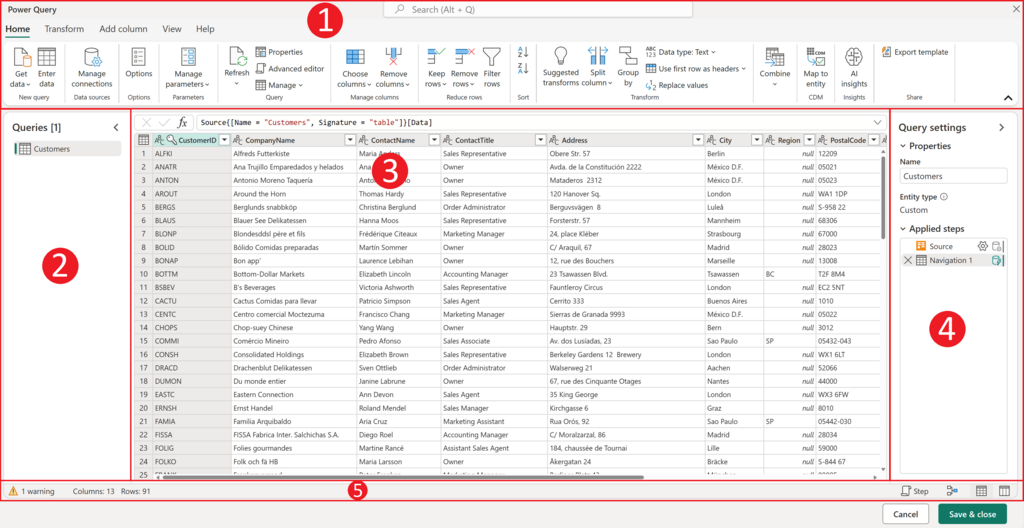
Power BI can connect to hundreds of data sources. You can pull data from a simple Excel file on your computer, a SQL database on a server, or a cloud service like Salesforce. The process starts by selecting "Get Data" from the Home ribbon. No matter the source, Power Query provides a consistent interface for shaping the data to your needs.
Power Query is a data transformation and preparation tool available in Power BI, Excel, and Microsoft Fabric.
Import vs. DirectQuery
When you connect to a data source, Power BI often gives you a choice between two connection modes: Import and DirectQuery. This choice significantly impacts your report's performance and data freshness, so it's crucial to understand the trade-offs.
| Feature | Import Mode | DirectQuery Mode |
|---|---|---|
| Data Location | Copied into the Power BI file (.pbix) | Stored in the original source database |
| Performance | Very fast; queries run against the in-memory copy | Slower; queries are sent to the source database in real-time |
| Data Freshness | Stale; requires a scheduled refresh to update | Always up-to-date; shows the latest data from the source |
| Data Volume | Limited by memory and file size (1 GB on Pro) | Can handle very large datasets (terabytes) |
| DAX Functions | All DAX functions are available | Some DAX functions are limited or unavailable |
| Power Query | Full transformation capabilities | Limited transformation options |
| Use Case | Most common scenarios, smaller datasets, high-performance dashboards | Real-time reporting, massive datasets that can't be imported |
For most projects, Import is the recommended mode. It offers the best performance and the full range of Power BI features. You simply schedule data refreshes to keep your reports current.
DirectQuery is a powerful option for specific situations, like when you're working with a multi-terabyte data warehouse or need a real-time dashboard for a call center. However, it comes with performance costs and limitations, as every visual on your report sends a live query back to the source.
Cleaning and Transformation
Raw data is rarely ready for analysis. It's often messy, with extra columns, incorrect data types, or inconsistent formatting. Power Query provides a user-friendly interface to clean and reshape your data without writing code. Each step you take is recorded and applied automatically every time you refresh the data.
Here are some fundamental techniques you'll use constantly:
- Removing Columns and Rows: Get rid of data you don't need. Right-click a column header to remove it, or use the filter button to remove rows based on specific criteria (e.g., remove all sales from before a certain date).
- Promoting Headers: Often, your data will import with generic headers like "Column1" and "Column2", with the real headers in the first row. The "Use First Row as Headers" button on the Home ribbon fixes this with one click.
- Changing Data Types: Power Query makes a best guess at data types, but it's not always right. A column of numbers might be incorrectly tagged as text, preventing you from performing calculations. Click the icon in the column header (e.g., ABC, 123) to set the correct type, like Decimal Number, Date, or True/False.
- Splitting Columns: You can split a column by a delimiter. For example, a "Full Name" column can be split into "First Name" and "Last Name" using the space character as the delimiter.
A key best practice is to perform transformations as early as possible in the Applied Steps pane. Filtering data early reduces the amount of data that subsequent steps need to process, which speeds up refresh times.
Another best practice is to disable auto-detection of relationships and data types in Power BI's settings. While helpful for beginners, these features can sometimes create incorrect connections or assign wrong data types that you'll have to fix later. Taking manual control ensures your data model is built correctly from the start.
Now, let's test your understanding of these core concepts.
What is the primary function of Power Query within the Power BI ecosystem?
You are building a report on a massive, multi-terabyte data warehouse and need the dashboard to reflect data in near real-time. Which data connection mode is most appropriate for this scenario?
Mastering the data import and transformation phase is foundational. A clean, well-structured dataset makes the subsequent steps of data modeling and visualization much easier and more effective.