Mastering Power BI for Business Insights
Data Import and Transformation
Getting Your Data Ready
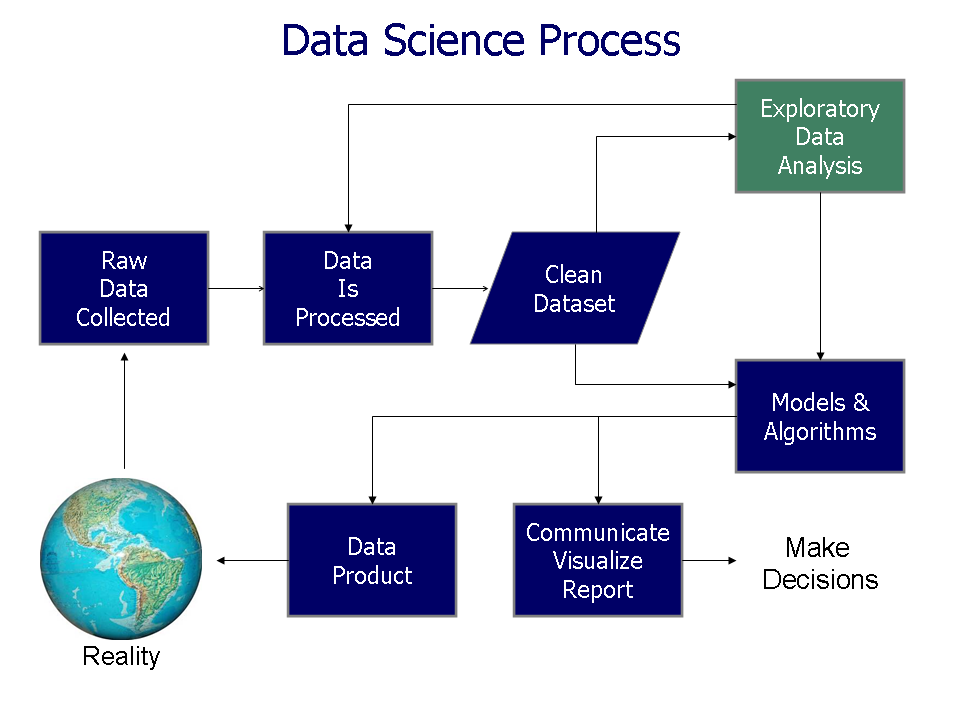
Before you can build insightful reports and dashboards, you need to bring your data into Power BI. This process is more than just a simple import; it's about shaping raw data into a clean, reliable foundation for analysis. Raw data from sources like spreadsheets, databases, or websites is often messy. It might have extra rows, confusing column names, incorrect data types, or missing values. Fixing these issues upfront is critical.
The goal of data transformation is to ensure your data is accurate, consistent, and structured correctly for analysis.
Power BI's tool for this job is the Power Query Editor. It's a powerful data transformation engine that lets you connect to a wide range of data sources, clean up the data, and reshape it to fit your needs. Every action you take is recorded, creating a repeatable process that can be refreshed automatically.
Connecting to Data Sources
Power BI can connect to hundreds of different data sources. You can pull data from a simple Excel file on your computer, a corporate SQL database, a folder of CSV files, or even a public website. The process starts in the main Power BI window by selecting "Get Data."
Once you choose your data source, Power BI establishes a connection. A navigator window will appear, showing you the available tables or sheets within that source. You can select the data you need and choose to either "Load" it directly into your data model or "Transform Data" to open the Power Query Editor first. It's almost always best practice to transform the data first.
Shaping Data with Power Query
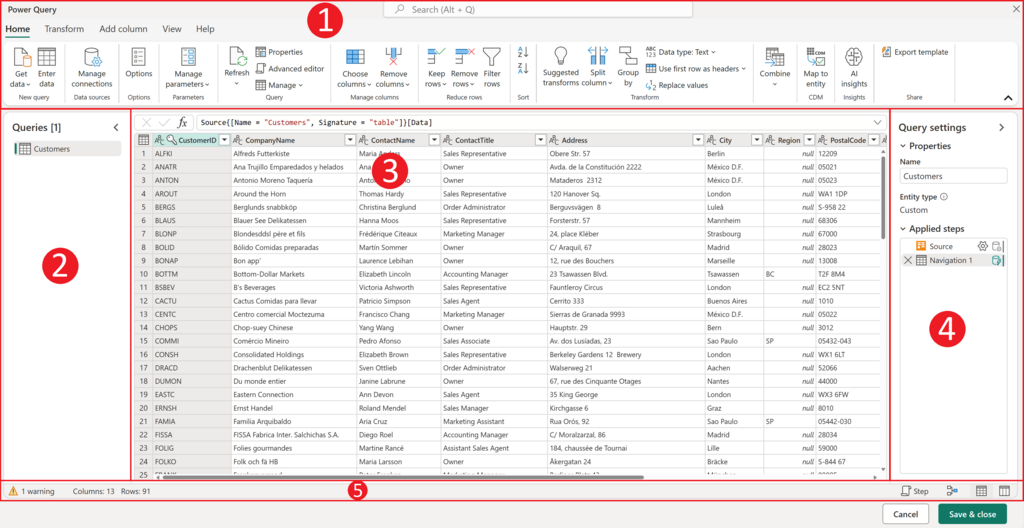
When you choose to transform data, you enter the Power Query Editor. This is where you'll spend your time cleaning and preparing your dataset. The interface has a ribbon with transformation options, a central pane showing a preview of your data, and a pane on the right called "Applied Steps" that tracks every change you make.
Let's walk through some of the most common data cleansing techniques you'll use.
Filtering, Renaming, and Removing: Not all data is useful. You can easily filter rows based on values, just like in Excel. For example, you might remove rows where the sales amount is zero. You can also remove entire columns that aren't needed for your analysis to keep your model lean. Renaming columns to be more descriptive (e.g., changing "CUST_ID" to "Customer ID") is also a crucial step for clarity.
Changing Data Types: Power BI often makes a good guess at a column's data type, but it's important to verify. A column of numbers might be incorrectly identified as text, or dates might not be recognized properly. Setting the correct data type (e.g., Whole Number, Decimal Number, Date) is essential for accurate calculations and creating relationships between tables later.
Handling Missing Values: Empty cells, or nulls, can cause errors in your calculations and visualizations. Power Query gives you a few ways to handle them. You can filter out and remove any row that contains a null value in a specific column. Alternatively, you can use the "Replace Values" feature to replace nulls with something more meaningful, like a zero for numerical columns or "N/A" for text columns. The right choice depends on the context of your data and analysis.
Every step you take to clean your data - removing columns, filtering rows, changing data types - is recorded by the Power Query editor and can be reused over and over.
The "Applied Steps" pane is what makes Power Query so powerful. Each transformation is listed in order. You can click on any step to see what the data looked like at that point, modify a step's settings, or delete a step entirely. When you refresh your data, Power BI runs through these same steps automatically on the new data, ensuring your report is always based on clean, consistently prepared information.
What is the primary role of the Power Query Editor in Power BI?
When you first connect to a data source, what is the recommended best practice?