Mastering Outlook on iPhone
Getting Started
Get Outlook on Your iPhone
First, you'll need to download the Microsoft Outlook app. Open the App Store on your iPhone. Tap the 'Search' icon in the bottom-right corner and type "Outlook" into the search bar. The official app should be one of the top results.
Tap the 'Get' button next to the app. You might need to enter your Apple ID password or use Face ID/Touch ID to confirm the download. The app will then download and install on your home screen. Just wait for the icon to appear, and then you can open it.
Add Your Email Account
When you open Outlook for the first time, it will prompt you to add an account. Don't worry, it works with more than just Outlook.com and Microsoft 365 accounts. You can add Gmail, Yahoo, iCloud, and many other types of email accounts.
Enter your full email address when prompted and tap 'Add Account'. On the next screen, you'll be asked for your password. Enter it carefully and continue.
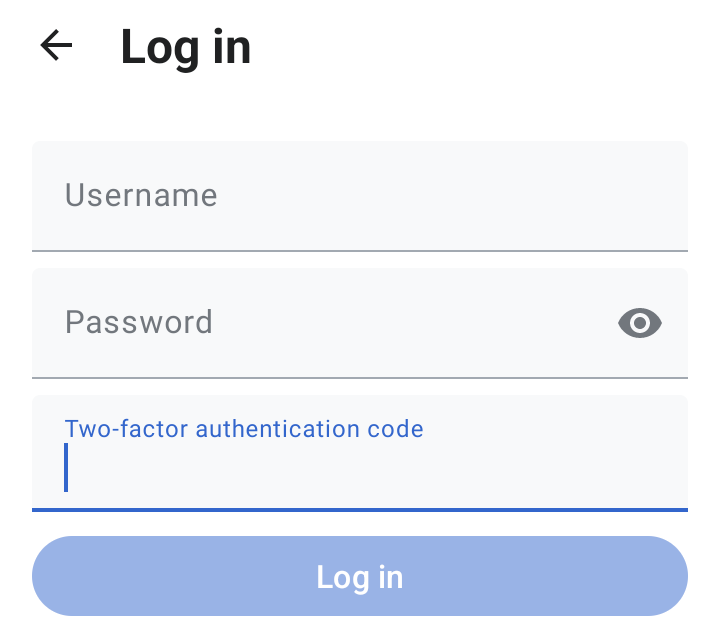
If you have two-factor authentication (2FA) set up for your email, you'll be asked to verify your identity. This might involve entering a code sent to your phone or approving the sign-in from another device. Follow the on-screen instructions to complete the process. Once you're signed in, Outlook will start syncing your emails, which might take a few moments.
A Quick Tour of the Interface
After setting up your account, you'll land in your inbox. Outlook's mobile interface is designed to be clean and simple. Let's look at the main areas you'll be using.
At the top of the inbox, you'll see two tabs: 'Focused' and 'Other'. Outlook automatically sorts your email to help you concentrate on what's important. The 'Focused' inbox contains your most critical messages, while promotional emails and newsletters are moved to 'Other'. You can switch between them by tapping the tabs.
Along the bottom of the screen, you'll find the main navigation bar. This is how you'll get around the app.
The key icons are: Mail, Search, and Calendar.
The Mail icon, a small envelope, brings you back to your inbox. The Search icon, a magnifying glass, lets you find specific emails, contacts, or events by typing in keywords. Tapping the Calendar icon switches you to the calendar view, where you can see your upcoming appointments and events.

In the top-left corner, you'll see an icon, either with your initials or a profile picture. Tapping this opens a sidebar menu. From here, you can access different folders (like Sent, Drafts, and Deleted Items), switch between multiple accounts if you've added more than one, and access the app's settings. That's all you need to get started sending and receiving emails on the go.