Mastering Outlook for Accounting Firms
Outlook Basics
Your Outlook Dashboard
Think of Microsoft Outlook as your command center for daily communications. When you first open it, the layout is designed to give you a clear view of your emails and other tools. It's broken down into a few key areas.
The Navigation Pane on the left is your map. It lets you switch between the main sections: Mail, Calendar, Contacts, and Tasks. Up top, the Ribbon contains all the buttons and commands you'll need. This toolbar is dynamic, meaning the options you see will change depending on what you're doing. The largest area is the Reading Pane, which displays the contents of any item you select, like an email or a calendar appointment.
The Mail Hub
The Mail section is where you'll likely spend most of your time. It’s the heart of Outlook. The Navigation Pane here shows all your email folders. You’ll see standard ones like Inbox, Drafts, Sent Items, and Deleted Items. Your inbox is where new messages arrive.
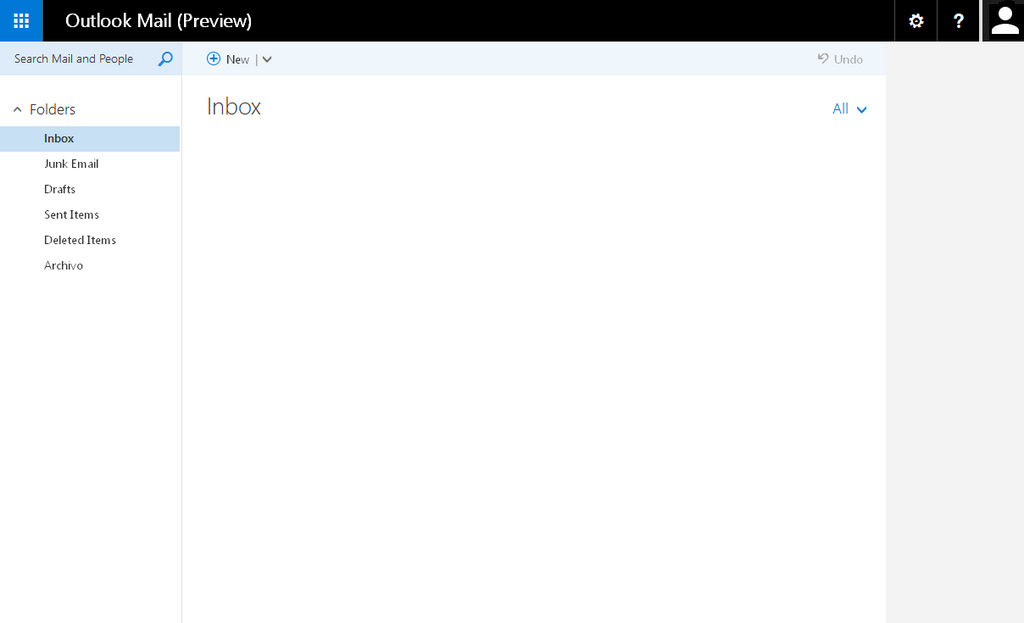
When you click an email in your message list, it appears in the Reading Pane. From the Ribbon, you can reply, forward, or delete the message. To compose a new message, just click the "New Email" button. This opens a separate window where you can write your message, add a subject, and attach any necessary files for a client or colleague.
Keeping your inbox organized is key, but for now, just focus on the basics of reading, replying to, and sending emails.
More Than Just Email
Outlook integrates several tools to help you manage your day without switching between different apps. You can access these from the Navigation Pane.
Integration
noun
The process of combining two or more things to create a more effective or harmonious whole.
Calendar Your calendar is built right in. Click the calendar icon to see your schedule by day, week, or month. You can create appointments, schedule meetings with colleagues, and set reminders for important deadlines. When someone sends you a meeting invitation via email, you can accept it and it will automatically be added to your Outlook calendar.
Contacts This is your digital address book. Instead of hunting for business cards or old email threads, you can save client and colleague information here. Each contact can store names, email addresses, phone numbers, and notes. When you start typing a name in a new email, Outlook will suggest contacts from this list.
Tasks Keep your workload manageable with the Tasks feature. Think of it as your to-do list. You can create tasks for yourself, set due dates, and mark them as complete when you're done. It's a simple but effective way to track what needs to get done each day, ensuring no client deliverable or internal deadline is missed.
Ready to test your knowledge? This quiz will cover the basic components and features we've just discussed.
Which part of the Outlook interface allows you to switch between the main sections like Mail, Calendar, and Contacts?
What is the primary function of the Ribbon in Outlook?
Getting comfortable with these core features is the first step to using Outlook efficiently. By understanding the layout and the purpose of each section, you're building a solid foundation for managing your communications and schedule.