Mastering Outlook Advanced Features
Inbox Organization
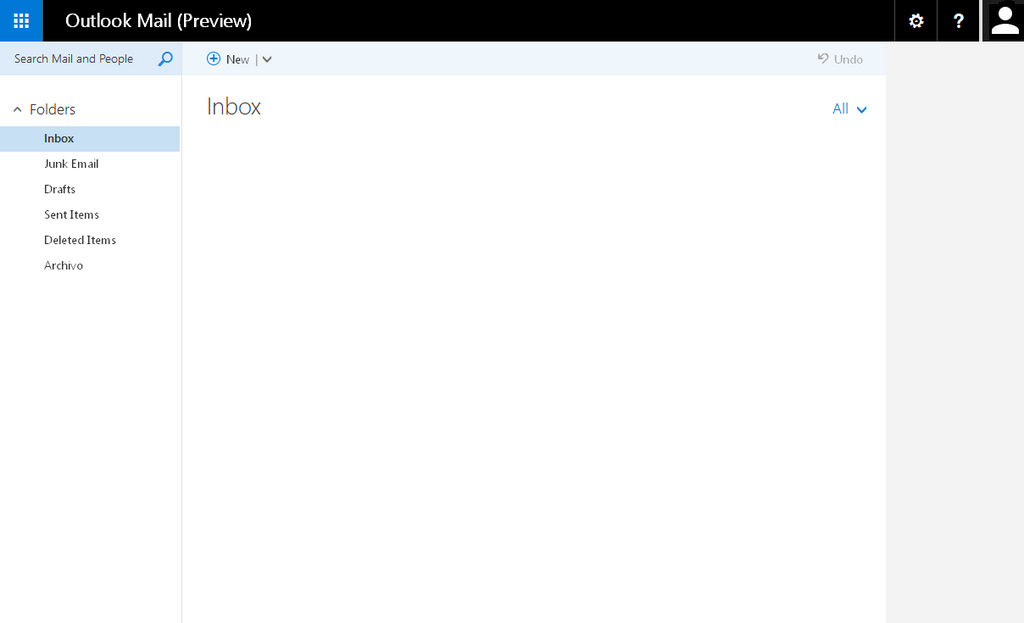
Tame Your Inbox
An overflowing inbox can feel like a never-ending to-do list. The key to managing email overload isn't just about deleting messages; it's about creating a system that works for you. Let's look at a few simple tools in Outlook that can help you regain control and keep your inbox organized.
Folders and Categories
Think of your inbox as a digital workspace. The first step to organizing it is creating places for everything. Outlook gives you two primary tools for this: folders and categories.
Folders are like file cabinets. You move emails out of your main inbox and into a specific folder. This is great for archiving messages you've already dealt with but want to keep, like receipts or project-specific communications.
Categories are like color-coded sticky notes. You apply a category tag to an email, but it stays in your inbox. This helps you visually group related messages, such as tagging all emails related to "Project Alpha" with a blue category or urgent items with a red one.
To create a folder, right-click on your inbox in the left-hand pane and select "Create new folder." To apply a category, right-click an email, go to "Categorize," and choose a color. You can rename categories to match your needs, like "Urgent," "Follow Up," or a specific project name.
Put It on Autopilot
Manually sorting every email is time-consuming. That's where rules come in. A rule is a set of instructions you give Outlook to automatically handle incoming messages. It's a simple way to automate your filing system.
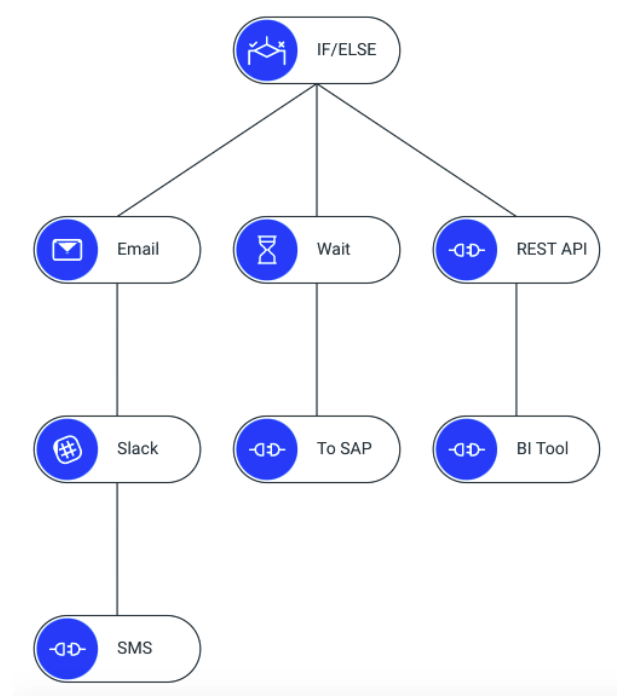
For example, you could create a rule that says:
- IF an email comes from your manager...
- THEN mark it as important and assign it the "Urgent" category.
Or another rule:
- IF an email has the word "Invoice" in the subject...
- THEN move it to your "Finances" folder.
To set one up, right-click an email that you want to create a rule for, select "Rules," and then "Create Rule." Outlook provides a simple dialog box to define the conditions and actions.
Outlook rules provide a powerful framework for taming your inbox and achieving an Inbox Zero workday.
Focus on What Matters
Even with folders and rules, your main inbox can still get cluttered. The Focused Inbox feature helps by using artificial intelligence to sort your emails into two tabs: Focused and Other.
- Focused: Important messages that likely require your attention, like emails from your team or direct replies.
- Other: Less urgent mail like newsletters, promotional emails, and system notifications.
This feature is on by default in most versions of Outlook. The more you use it, the smarter it gets. If you find an important email in the "Other" tab, right-click it and select "Move to Focused." If a newsletter clutters your "Focused" tab, right-click and choose "Move to Other." Each action helps Outlook learn what matters to you.
Clean Up and Unsubscribe
Finally, two powerful tools can help you declutter what's already there and reduce what comes in.
Clean Up Tool Email conversations often contain redundant messages. When you reply to a long thread, the previous messages are usually quoted below your new one. The Clean Up tool intelligently removes all these earlier, redundant messages from a conversation, leaving only the unique parts of each email. To use it, right-click a folder (or a specific conversation) and select "Clean Up Folder."
Unsubscribe To stop unwanted newsletters or promotional emails from coming in, look for the "Unsubscribe" link at the top of the message in Outlook's reading pane. Outlook often identifies these messages for you and provides a convenient button. This is much safer and more effective than marking them as spam, as it removes you from the mailing list permanently.
By using these tools, you can transform your inbox from a source of stress into a streamlined, efficient part of your workday.
You want to visually group all emails related to 'Project Alpha' so you can quickly identify them, but you want to keep them in your main inbox. Which Outlook feature is best suited for this task?
What is the primary function of an Outlook Rule?