Mastering Obsidian for Knowledge Management
Introduction to Obsidian
What Is Obsidian?
Obsidian is a powerful tool for taking notes and managing your personal knowledge. Think of it as a digital notebook that lives on your computer, not in the cloud. This is a key difference from many other note-taking apps. Your data is yours, stored locally in plain text files.
This approach has a few big advantages. First, it's fast. Second, your notes are future-proof. Because they are simple text files, you'll be able to open them with countless other applications for decades to come. Obsidian uses Markdown, a simple syntax for formatting text. You can make text bold, italic, or create lists just by typing a few characters. It's easy to learn and keeps your notes clean and readable.
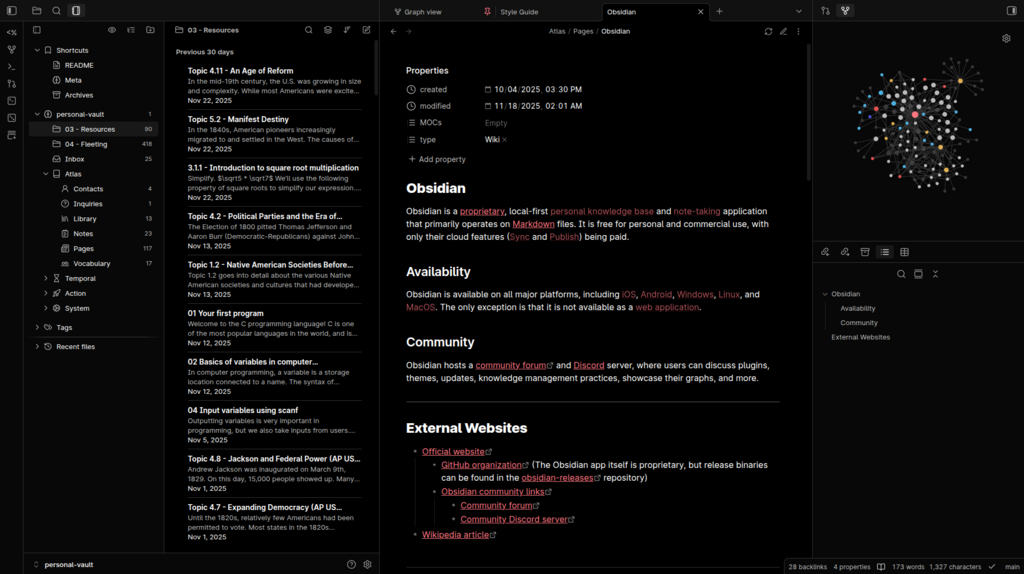
Obsidian organizes your notes in what it calls a 'vault'. Don't let the name intimidate you. A vault is just a regular folder on your computer's hard drive. Inside this folder, you'll store all your notes, folders, and any attachments like images or PDFs.
Installation and Your First Vault
Getting started is straightforward. First, visit the official Obsidian website (obsidian.md) and download the installer for your operating system. Obsidian works on Windows, macOS, and Linux.
Once you've downloaded the file, run the installer just like you would for any other application. The process is quick and simple.
When you open Obsidian for the first time, it will prompt you to create or open a vault. Since this is your first time, you'll want to create a new one.
- Click 'Create new vault'.
- Give your vault a name. Something simple like 'My Notes' is a great start.
- Choose a location on your computer to save it. Your Documents folder is a common choice.
- Click 'Create', and you're in!
A Quick Tour of the Workspace
Obsidian’s interface is clean and can be broken down into three main parts.
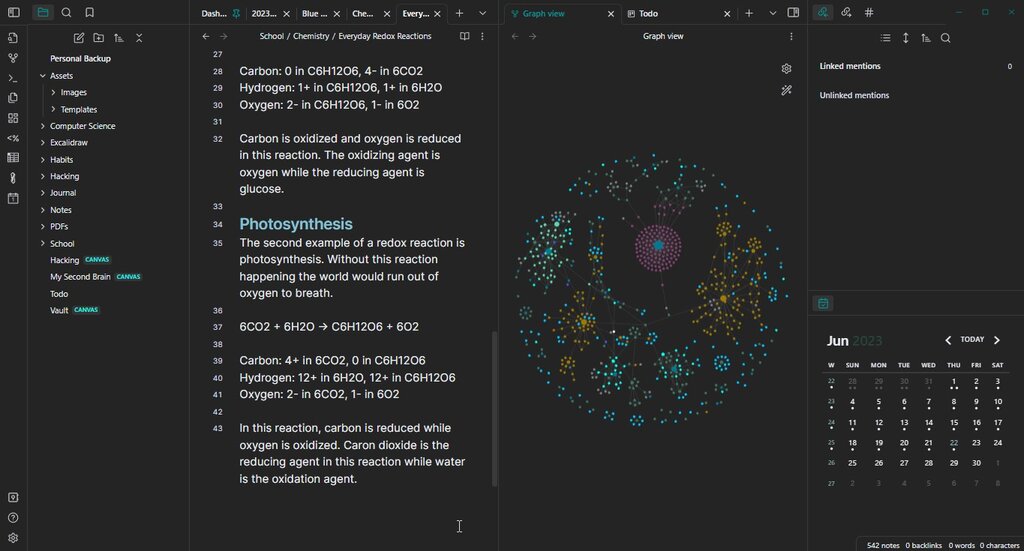
1. The Left Sidebar (File Explorer): This is where you'll see all the files and folders within your vault. You can create new notes, new folders, and organize everything here. It functions just like the file explorer on your computer.
2. The Center Pane (Editor): This is your main workspace. When you click on a note in the File Explorer, it will open here for you to read and edit. You can have multiple notes open at once in different tabs.
3. The Right Sidebar: This area holds useful panels like Backlinks (to see which other notes link to the current one) and Tags. We won't dive deep into these now, but it's good to know they're there.
To create your very first note, click the 'New note' icon (a paper with a plus sign) at the top of the File Explorer, give it a name, and start typing in the editor.
That's all you need to get started. You have a secure, private place for your thoughts that's built to last.
What is the primary way Obsidian stores your notes?
In the Obsidian interface, what is the main purpose of the Center Pane?