Mastering Obsidian for Knowledge Management
Getting Started
What is Obsidian?
Obsidian is a note-taking app, but it’s more than just a digital notebook. Think of it as a personal knowledge base that lives on your computer. It helps you connect ideas and build a web of information that’s unique to you.
Unlike many apps that store your data in the cloud, Obsidian works with plain text files saved locally on your device. This means you have full ownership and control over your notes. It uses a simple formatting language called Markdown, which is easy to learn and read.
The real power of Obsidian comes from its ability to link notes together. You can create connections between different pieces of information, turning a collection of individual notes into your own personal wiki. This helps you discover relationships between ideas you might not have noticed otherwise.
Installation and Setup
Getting started is simple. Head to the official Obsidian website (obsidian.md), download the installer for your operating system (Windows, macOS, or Linux), and run it. The setup is a standard installation process.
Once installed, the first thing you'll do is create a vault.
A vault isn't as complicated as it sounds. It’s simply a folder on your computer where Obsidian will store all your notes and attachments.
When you first open the app, you'll see a launcher window. Here’s how to create your vault:
- Click on Create new vault.
- Give your vault a name. Something like "My Notes" or "Digital Garden" works well.
- Choose where to save this folder on your computer. Your Documents folder is a good, easy-to-find spot.
- Click Create, and your new, empty vault will open.
Finding Your Way Around
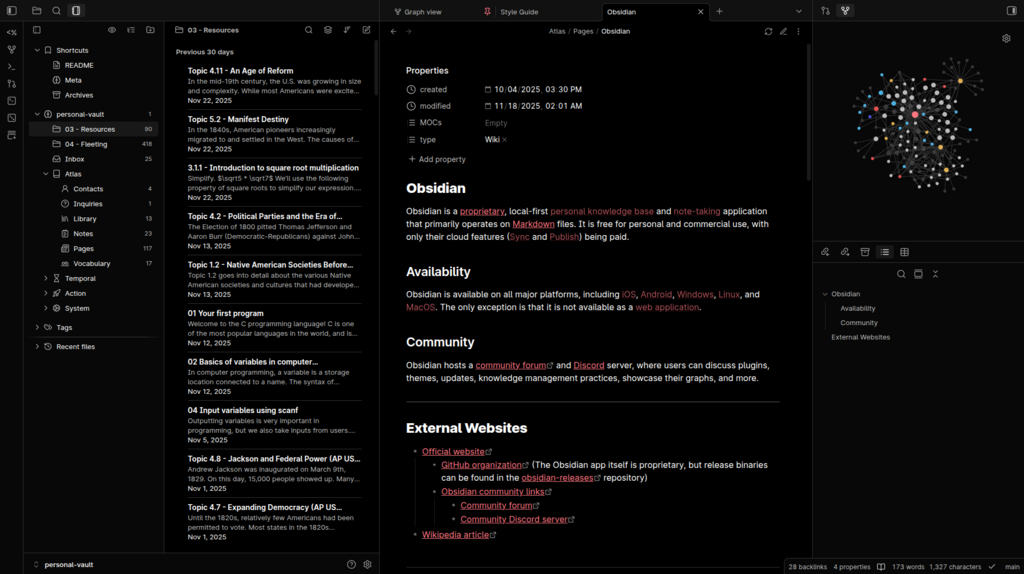
The Obsidian interface is clean and can be broken down into three main sections.
- File Explorer (Left Sidebar): This is where you’ll see all the files and folders inside your vault. You can create, rename, and organize your notes here.
- Editor (Center Pane): This is your main workspace. It's where you'll write and edit your notes. You can have multiple notes open at once in different tabs.
- Side Panes (Right Sidebar): This area holds extra tools. By default, you might see things like backlinks (notes that link to your current note) or a graph view. You can open, close, and stack different tools in these panes as you need them.
Both sidebars can be collapsed by clicking the arrow icons to give you more room to focus on writing.
Creating Your First Note
Let's create a note. You can do this in a few ways:
- Click the New note icon (a piece of paper with a plus sign) at the top of the File Explorer.
- Use the keyboard shortcut
Ctrl+Non Windows/Linux orCmd+Non macOS.
A new, untitled note will appear in the editor. The first line you type will automatically become the note's title and its filename.
Obsidian uses Markdown for formatting. It lets you add structure to your text without taking your hands off the keyboard. Here are a few basics to try in your new note:
| Element | Markdown Syntax |
|---|---|
| Heading | # A Big Heading |
| Sub-heading | ## A Smaller Heading |
| Bold Text | **This is bold** |
| Italic Text | *This is italic* |
| Bulleted List | - First item- Second item |
| Numbered List | 1. First item2. Second item |
As you type the Markdown syntax, Obsidian automatically styles the text for you in Live Preview mode. This makes it easy to see what your formatted note will look like without switching views.
What is the primary concept behind Obsidian?
In Obsidian, what is a "vault"?
That's all you need to get started. You can now create notes, format them, and navigate the interface. The next step is learning how to link your ideas together.