Mastering Obsidian
Getting Started
Meet Obsidian
Obsidian is more than just a note-taking app. Think of it as a personal knowledge base that grows with you. It helps you connect ideas and build a digital garden of your thoughts.
Unlike many apps that store your data on their servers, Obsidian keeps your notes right on your computer. It uses plain text files written in a format called Markdown. This means you have complete ownership of your data, forever. Your notes aren't locked into a proprietary system; they're simple files you can open with any text editor.
Installation and Setup
Getting started is simple. First, head to the official Obsidian website (obsidian.md) and download the app for your operating system. Install it just like you would any other program.
When you first launch Obsidian, it will ask you to open or create something called a "vault."
Vault
noun
In Obsidian, a vault is simply a folder on your computer that holds all your notes, attachments, and configuration files. It's the container for a specific collection of knowledge.
To get started, choose "Create new vault." Give your vault a name, like "My Notes" or "Digital Garden," and pick a location on your computer to save it. A folder on your Desktop or in your Documents is a great place to start. That's it! Your vault is ready.
Because your vault is just a folder, you can easily back it up using services like Dropbox, Google Drive, or by simply copying the folder to an external drive.
Exploring the Interface
When you open your vault, the interface might look a bit busy, but it's organized into a few key areas.
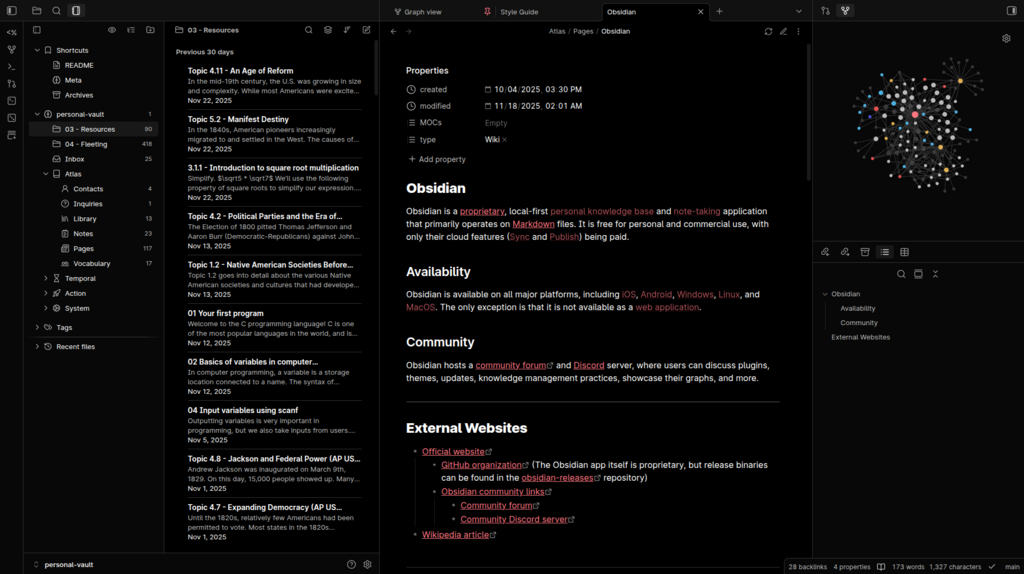
The Left Sidebar is your file explorer. Here, you'll see a list of all the notes and folders inside your vault. You can create new notes or folders by clicking the icons at the top of this pane.
The Center Pane is where the magic happens. This is your editor, where you'll write and read your notes.
The Right Sidebar contains panels for things like tags and outlines. For now, you can keep it collapsed by clicking the arrow icon to give yourself more room to write.
Editing and Reading
Obsidian uses Markdown for formatting text. When you're writing, you'll be in Editing View, where you can see the raw Markdown syntax, like using asterisks for italics or hashtags for headings.
To see how your formatted note will look, you can switch to Reading View. This renders the Markdown into clean, readable text. You can toggle between these two views using the book icon at the top right of the editor or by pressing Ctrl+E (or Cmd+E on a Mac).
Try it out! Create a new note, type
# My First Note, and then switch to Reading View to see it become a large heading.
That's all you need to get started. You've installed the app, created a home for your notes, and learned your way around the basic interface. The next step is to start filling it with your ideas.