Mastering Nmap on Linux
Introduction to Nmap
What is Nmap?
Nmap, short for Network Mapper, is a free and open-source tool for network discovery and security auditing. Think of it as a way to draw a map of a network, identifying what devices are connected and what services they are running.
Network administrators use Nmap to identify what devices are running on their systems, discover available hosts and the services they offer, and find open ports. It's also a valuable tool for security professionals to find and patch vulnerabilities.
It works by sending specially crafted packets to the target host and then analyzing the responses. This simple process reveals a surprising amount of information, from the operating system a device is running to the specific version of an application listening on a port.
Getting Started
Nmap is a command-line tool, so you'll interact with it through a terminal. Most Linux distributions have it available in their standard repositories, making installation straightforward.
# For Debian/Ubuntu-based systems
sudo apt update
sudo apt install nmap

# For Fedora/CentOS-based systems
sudo dnf install nmap
Once installed, you can verify it's ready by checking its version. This command also provides a brief summary of its usage.
nmap --version
Your First Scan
The basic syntax for an Nmap command is nmap [options] <target>. The target can be an IP address (like 192.168.1.1) or a domain name.
For practice, the creators of Nmap provide a host specifically for scanning: scanme.nmap.org. Let's run a simple scan against it.
nmap scanme.nmap.org
After a few moments, Nmap will return a report. It looks something like this:
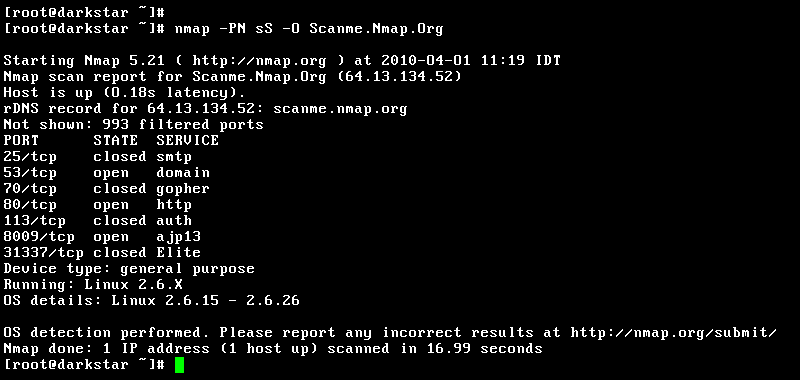
Let's break down the key parts of this output.
The most important section is the list of ports. It has three columns: PORT, STATE, and SERVICE.
- PORT: This is the TCP or UDP port number on the target device.
- STATE: This tells you the status of the port. The most common states are
open(the service is actively accepting connections),closed(the port is accessible, but no service is listening), andfiltered(a firewall or other network device is blocking access, so Nmap can't determine if the port is open or closed). - SERVICE: This is Nmap's best guess for the service running on that port, based on a list of common assignments (e.g., port 80 is usually for HTTP).
Basic Scanning Techniques
While a default scan is useful, you can tailor it with different options. Here are a couple of fundamental techniques.
Ping Scan
noun
A scan that identifies which hosts on a network are online without performing a port scan on them.
A ping scan is one of the fastest ways to discover live hosts. It uses the -sn flag, which tells Nmap not to do a port scan after host discovery. This is great for getting a quick list of all active devices on a local network.
# Scans the entire 192.168.1.0/24 subnet for live hosts
sudo nmap -sn 192.168.1.0/24
Another common task is to scan a specific list of ports instead of all 1,000 common ports that Nmap checks by default. You can specify ports with the -p flag.
# Scan only ports 80 (HTTP) and 443 (HTTPS)
nmap -p 80,443 scanme.nmap.org

# Scan a range of ports (1 through 100)
nmap -p 1-100 scanme.nmap.org
Finally, you can get more information about the services running on open ports using the -sV flag for version detection. This probes open ports to determine service and version information.
# Detect service versions on open ports
nmap -sV scanme.nmap.org
This tells you not just that a web server is running on port 80, but that it's Apache 2.4.7, for example. This is critical for both system management and security auditing.
What is the primary purpose of Nmap?
Which Nmap command is used to perform a 'ping scan', which discovers live hosts without performing a port scan?
These basic commands are the foundation of using Nmap. By combining them, you can start to build a clear picture of any network.