Mastering Nmap for Network Exploration
Introduction to Nmap
Mapping Your Network
Think of a network as a building with many rooms, and each room has doors. Some doors are open, some are locked, and some are hidden. How would you figure out which doors are which? You'd go around and check each one. That's essentially what Nmap does for computer networks.
Nmap, short for Network Mapper, is a free and open-source tool for network discovery and security auditing. It sends specially crafted packets to a target system and analyzes the responses to build a map of the network. It can tell you what devices are running on your network, what services (like a web server or email server) they are offering, and what operating system they are running.
In short, Nmap helps you find the open doors on your network before someone else does.
port
noun
A numbered communication endpoint in a computer's operating system. Specific services listen on standard port numbers, like web traffic on port 80.
Getting Nmap
Nmap is a command-line tool, which means you'll interact with it by typing commands into a terminal or command prompt. Installation is straightforward across different operating systems.
On Linux, you can use your distribution's package manager. For Debian-based systems like Ubuntu, use:
sudo apt-get update
sudo apt-get install nmap
On macOS, the easiest way is with a package manager called Homebrew. If you have Homebrew installed, just run:
brew install nmap
For Windows, the best method is to download the official installer from the Nmap website (nmap.org). The installer, called npcap, will guide you through the setup and add the necessary commands to your system's path, so you can run Nmap from the Command Prompt.
Your First Scan
Once Nmap is installed, you can run your first scan. The basic command structure is nmap [options] <target>. The target can be a domain name (like google.com), an IP address (like 8.8.8.8), or even a range of IP addresses.
Nmap provides a special domain, scanme.nmap.org, specifically for practicing scans. Let's try a simple scan against it.
nmap scanme.nmap.org
After a few moments, Nmap will print a report to your screen. It might look a bit intimidating at first, but it's easy to read once you know what to look for.
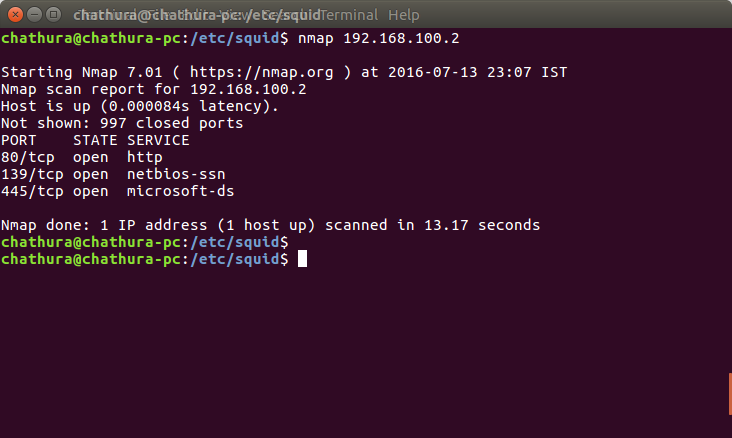
The main part of the report is the list of interesting ports. You'll see columns for PORT, STATE, and SERVICE.
- PORT: The port number being examined.
- SERVICE: The common service associated with that port (e.g.,
httpfor port 80). - STATE: This is the most important part. It tells you the status of the port.
A port can have one of three primary states.
| State | Meaning |
|---|---|
open | An application is actively accepting connections on this port. This is usually what you're looking for. |
closed | The port is accessible, but there is no application listening on it. It's like knocking on a door and being told no one is home. |
filtered | Nmap cannot determine if the port is open or closed because a firewall or network filter is blocking the probes. |
By default, Nmap performs a TCP SYN scan, often called a
half-open
scan. It sends a connection request (a SYN packet) and waits for a response. If it gets a response to establish a connection (SYN/ACK), it knows the port is open and immediately tears down the connection. It's fast and relatively stealthy, as it never completes a full connection.
That's the core of Nmap: sending probes and interpreting the responses. Even with this simple command, you can learn a great deal about a target machine. This is the first step in understanding a network's security posture.
What is the primary purpose of Nmap?
During an Nmap scan, you see a port listed with the state 'filtered'. What does this indicate?