Mastering Microsoft Word
Getting Started
Your First Word Document
Let's start with the basics. To open Microsoft Word, find its icon on your desktop, in your Start Menu (on Windows), or in your Applications folder (on a Mac). A double-click will launch the program.
When Word opens, you'll see a screen that offers several options. You can start with a fresh, blank document or choose from a variety of templates for things like resumes, reports, or flyers. For now, let’s choose 'Blank document'. This is your digital canvas.
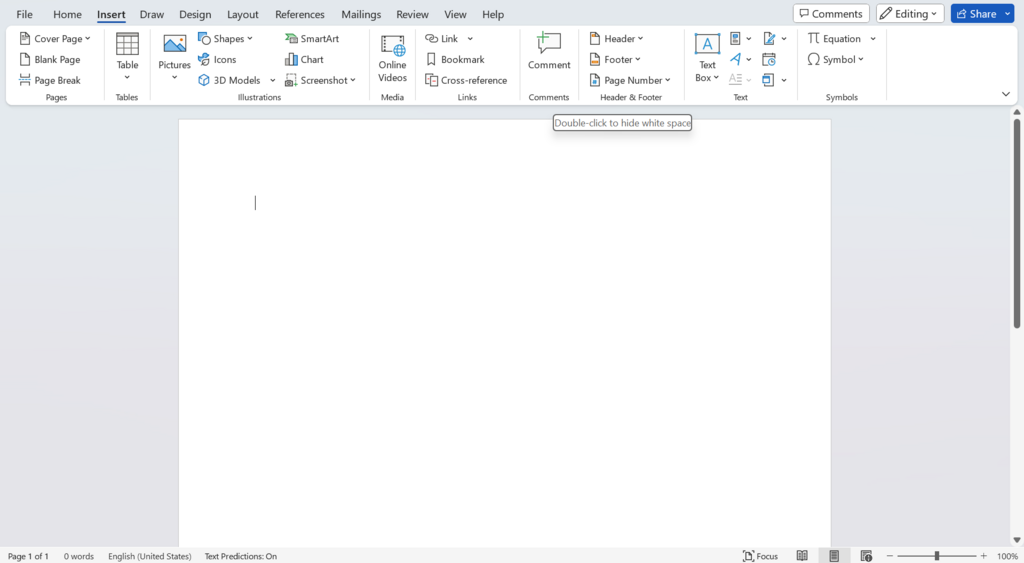
Getting Around the Interface
The Word window might look busy at first, but it's organized logically. The big area at the top is called the Ribbon. It contains nearly all the tools you'll need to write and format your document.
The Ribbon is divided into tabs, like 'Home', 'Insert', and 'View'. Clicking a tab reveals a set of related tools, which are grouped by function. For example, the 'Home' tab has groups for 'Font' and 'Paragraph' settings, which control how your text looks.
Take a moment to click through the different tabs on the Ribbon to see what kinds of tools are available. You don't need to know what they all do yet, just get a feel for where things are located.
Above the Ribbon, usually in the top-left corner, is the Quick Access Toolbar. This is a small, customizable toolbar that holds your most frequently used commands. By default, it usually has buttons for Save, Undo, and Redo. It’s always visible, no matter which tab you’ve selected on the Ribbon.
Create, Save, and Open
Once you have your blank document open, you can start typing. The blinking vertical line is your cursor—it shows where your text will appear.
When you're ready to save your work, go to the 'File' tab and select 'Save As'. This is important the first time you save. You'll need to choose a location on your computer and give your document a name. Word documents are typically saved with a .docx file extension. After you've saved it once, you can just click 'Save' (or the floppy disk icon in the Quick Access Toolbar) to update the file with your changes.
What's the difference? 'Save As' is for naming and placing a file for the first time, or for creating a copy. 'Save' just updates the existing file.
To open a document you've already saved, go to the 'File' tab and click 'Open'. You can then browse your computer to find and select the file you want to work on.
Moving Around Your Document
As your document gets longer, you'll need to move around in it. The most direct way is to use your mouse to scroll up and down and click wherever you want to place your cursor.
Your keyboard also offers powerful shortcuts for navigation:
| Key(s) | Action |
|---|---|
| Arrow Keys | Move the cursor one character or one line at a time. |
Ctrl + Arrow Keys | Jump one word at a time (left/right) or one paragraph at a time (up/down). |
Home / End | Jump to the beginning or end of the current line. |
Ctrl + Home / End | Jump to the very beginning or very end of the document. |
Page Up / Page Down | Move up or down one screen at a time. |
Getting comfortable with these basics is the first step to mastering Word. Let's review what we've covered.
What is the name of the large area at the top of the Word window that contains tabs like 'Home', 'Insert', and 'View'?
When saving a document for the very first time, which command should you choose to name it and select a location?
Now you have a solid foundation for creating and managing your documents.