Mastering Microsoft Teams Loop Components
Introduction to Microsoft Teams
Your Hub for Teamwork
Microsoft Teams is a collaboration platform designed to bring everything a team needs into one shared workspace. Think of it as a digital office where you can chat, hold meetings, share files, and use other apps without constantly switching between different programs. It's part of the larger Microsoft 365 suite, which means it works seamlessly with tools like Word, Excel, and OneDrive.
Microsoft Teams is the central hub for communication and teamwork within Microsoft 365.
The main goal of Teams is to streamline communication and keep projects organized. Instead of relying on long email chains where information gets lost, conversations happen in real-time and are saved in one place, making it easy for everyone to stay in the loop.
Core Features
Teams is built around a few key functions that support different aspects of teamwork.
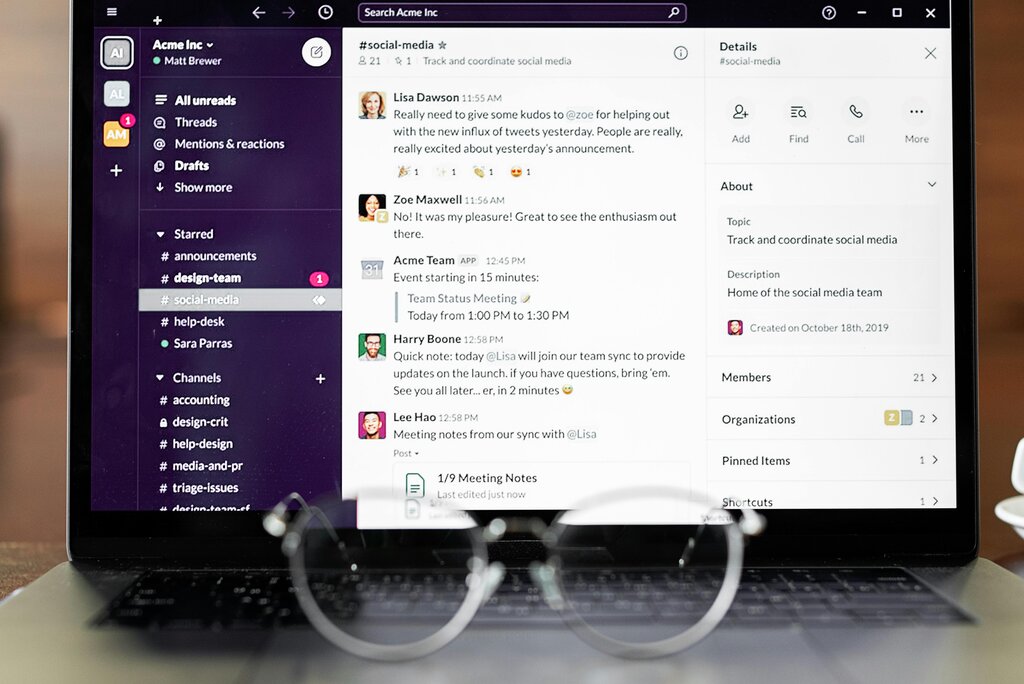
Chat and Channels: You can have private one-on-one chats or group conversations. The real power, however, lies in channels. Each team can be organized into different channels dedicated to specific topics, projects, or departments. This keeps conversations focused and relevant files easy to find.
For example, a marketing team might have channels for 'Social Media Strategy,' 'Q3 Campaign,' and 'General Announcements.' All discussions and files related to the Q3 campaign would live right inside that channel.
Meetings: Teams offers robust video and audio conferencing. You can schedule meetings, host webinars, or start an impromptu call with a single click. During meetings, you can share your screen, record the session, and use features like live captions and virtual backgrounds.
File Sharing and Collaboration: Because Teams is connected to OneDrive and SharePoint, sharing files is simple and secure. You can upload documents directly into a chat or channel. Best of all, you can co-author documents in real-time. Multiple people can open the same Word, Excel, or PowerPoint file and make edits together, right within the Teams app.
App Integration: Teams acts as a central hub by allowing you to integrate hundreds of other applications. You can add tools like Trello for project management, Polly for quick polls, or even specialized apps for your industry. This brings your team's entire workflow into one window.
Finding Your Way Around
The Teams interface is designed to be straightforward. When you first open it, you'll see a few main areas that help you navigate.
The layout is consistent, making it easy to build muscle memory and move quickly between different tasks. Here’s a quick breakdown:
| UI Element | Purpose |
|---|---|
| Navigation Bar | This vertical bar on the left is your primary way to move around. It has icons for Activity, Chat, Teams, Calendar, Calls, and Files. |
| Search Bar | Located at the top, this powerful bar lets you find messages, people, files, or apps across all of Teams. You can also use it to type commands. |
| Main Content Area | This is the largest part of the screen. It displays whatever you've selected from the Navigation Bar, whether it's a specific chat conversation, a team channel, or your calendar. |
Understanding these core functions and the basic layout is the first step to using Teams effectively. It provides the foundation for the collaborative work that happens within the platform.