Mastering Microsoft Outlook Essentials
Getting Started
Getting Around Outlook
Microsoft Outlook is more than just an email program. It's a personal information manager designed to help you organize your messages, schedule, contacts, and tasks all in one place. It’s part of the larger Microsoft 365 suite, so it works seamlessly with other tools like Word, Excel, and PowerPoint.
Microsoft 365 provides a suite of industry-standard applications like Word, Excel, PowerPoint, Outlook, and Teams, essential for creating documents, analysing data, delivering presentations, and managing communication.
Before you can manage your digital life, you need to get the application set up.
Setting Up Your Account
If you have a Microsoft 365 subscription, Outlook may already be installed on your computer. If not, you can download it as part of the Office package.
The first time you open Outlook, it will prompt you to add an email account. The process is straightforward.
- Enter your full name and email address.
- Type in your password for that email account.
- Click 'Connect' or 'Next'.
For most major email providers like Gmail, Yahoo, and iCloud, Outlook can automatically detect the server settings and configure the account for you. You might be asked to sign in through your email provider's web page for security verification.
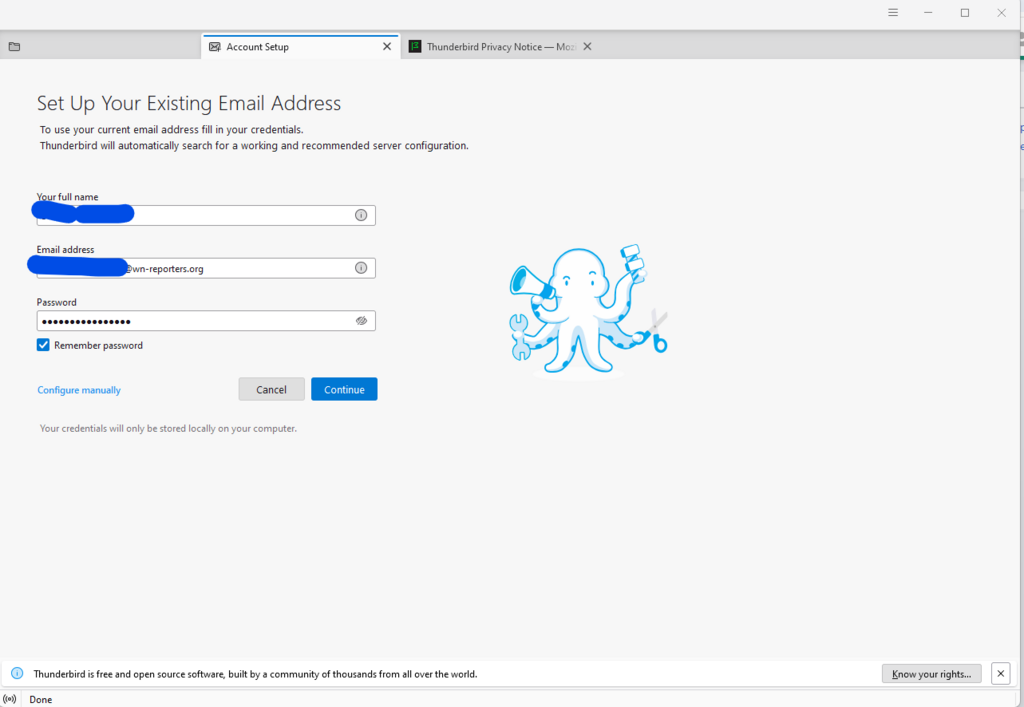
Once your account is connected, your emails will begin downloading into Outlook. This might take a few minutes depending on how many messages you have. You can add more email accounts by going to 'File' > 'Add Account'.
The Main Workspace
After setting up, you'll land in the main Outlook window. It might look busy at first, but it's organized into a few key areas that are easy to navigate once you know what they are.
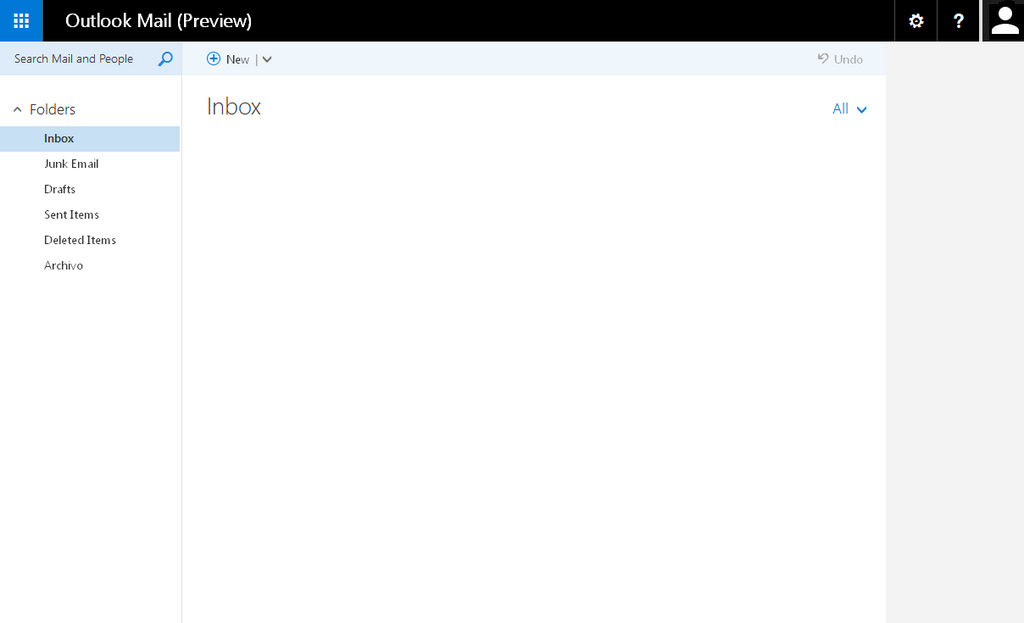
Let's break down the three main components of the interface.
The Ribbon
Stretching across the top of the window is the Ribbon. This is your command center. It contains tabs like 'Home,' 'Send / Receive,' and 'View.' Each tab organizes related commands. For example, the 'Home' tab has buttons for creating a 'New Email,' 'Reply,' 'Forward,' and 'Delete.' The options on the Ribbon change depending on what you're doing. If you're writing an email, you'll see formatting and attachment tools.
The Navigation Pane
On the far left is the Navigation Pane. This is how you move between the different parts of Outlook and your email folders. You’ll see icons for Mail, Calendar, People (Contacts), and Tasks. Above these icons is your folder list, which includes your Inbox, Sent Items, Drafts, and any other folders you’ve created to organize your mail.
The Reading Pane
This is where the action happens. The Reading Pane displays the content of the email you've selected from your message list. You can read, reply to, and interact with your emails here without having to open them in a separate window. By default, it usually appears on the right side of the screen, but you can customize its location under the 'View' tab. You can set it to appear at the bottom or turn it off completely if you prefer.
With these basics, you're ready to start exploring what Outlook has to offer. The key is to get comfortable with these main areas, as you'll be using them for everything you do.
Ready to test your knowledge of the Outlook interface?
What is the primary purpose of the Ribbon in the Outlook interface?
If you want to change where the Reading Pane appears on your screen, under which tab would you find the options to do so?
Now that you're familiar with the basic layout, you can begin to manage your emails effectively.