Mastering Microsoft Office Productivity
Advanced Word Techniques
Beyond the Basics with Styles
You've likely changed fonts and colours manually. Styles take this a step further. A style is a pre-set collection of formatting rules for text, like font, size, colour, and spacing. Instead of formatting each heading one by one, you apply a 'Heading 1' style. Need to change all your headings? Just update the style, and every instance updates automatically.
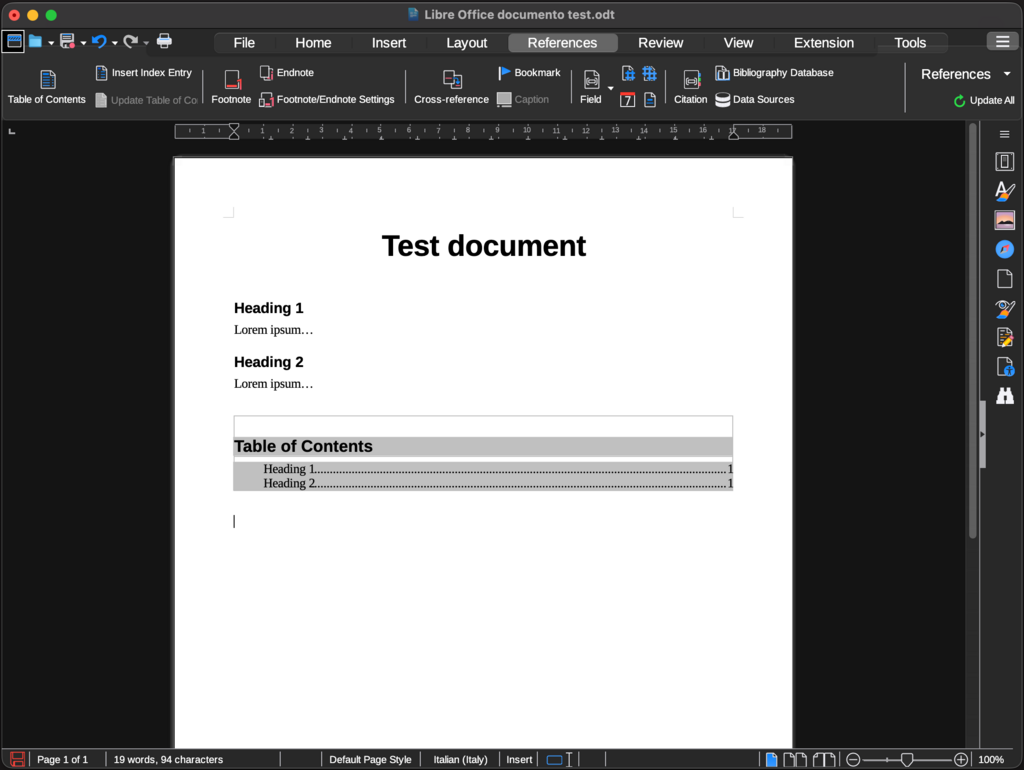
This isn't just about saving time. Using styles gives your document a logical structure. Word understands that 'Heading 1' is more important than 'Heading 2'. This structure is crucial for creating an automatic table of contents, navigating long documents with the Navigation Pane, and ensuring accessibility for screen readers.
Templates build on this idea. A template is a blueprint for a document, containing pre-defined styles, layouts, headers, and footers. Starting a new report? Use your company's report template. All the formatting is already in place, ensuring every document looks consistent and professional.
Instead of manually formatting each section of your document, use Word’s built-in styles (found in the “Home” tab).
Creating a new style is straightforward. Simply format a piece of text the way you want, right-click it, go to 'Styles', and select 'Create a Style'. Give it a name, and it's ready to be applied throughout your document.
Control Layout with Breaks and Columns
To truly control your document's layout, you need to understand breaks. You're familiar with page breaks, but section breaks are more powerful. They divide your document into distinct sections, and each one can have its own unique formatting.
Imagine a report where you need one page in landscape orientation for a wide table, while the rest is in portrait. A 'Next Page' section break before and after the table's page makes this possible. Other section breaks let you change formatting on the same page, such as starting a multi-column layout midway down.
| Break Type | Purpose |
|---|---|
| Next Page | Starts the new section on the following page. Ideal for chapter breaks. |
| Continuous | Starts the new section on the same page. Useful for changing column layouts. |
| Even/Odd Page | Starts the new section on the next even- or odd-numbered page. |
Columns are perfect for documents like newsletters or brochures. After inserting a 'Continuous' section break, you can format the subsequent text into two or more columns from the 'Layout' tab. This gives you precise control over how text flows, creating a more engaging and readable design.
Collaborate and Integrate
Word shines when working with others. The 'Track Changes' feature is essential for collaborative editing. When enabled, any edits you make—deletions, additions, or formatting changes—are marked up for others to see. Deletions appear struck through, and additions are underlined in a different colour.
Team members can then review these changes and choose to 'Accept' or 'Reject' each one. The 'Comments' feature works alongside this, allowing you to leave notes or ask questions in the margin without altering the text itself. This creates a clear record of the editing process.
Word also integrates smoothly with other Office applications. You can embed an Excel chart directly into your report. By choosing to 'Link Data', any updates you make to the source spreadsheet will automatically reflect in your Word document's chart. This ensures your data is always current without having to copy and paste repeatedly.
Ready to test your knowledge?
What is the primary advantage of using styles over manually formatting each heading and paragraph?
A Word Template is best described as a...
Mastering these features will help you create structured, professional, and consistent documents more efficiently.