Mastering Microsoft Office Essentials
Microsoft Office Basics
Meet Your Workspace
Opening Microsoft Word, Excel, or PowerPoint for the first time can feel a little intimidating. You're faced with a screen full of buttons and menus. The good news is that these programs share a common design. Once you learn your way around one, you'll feel right at home in the others.
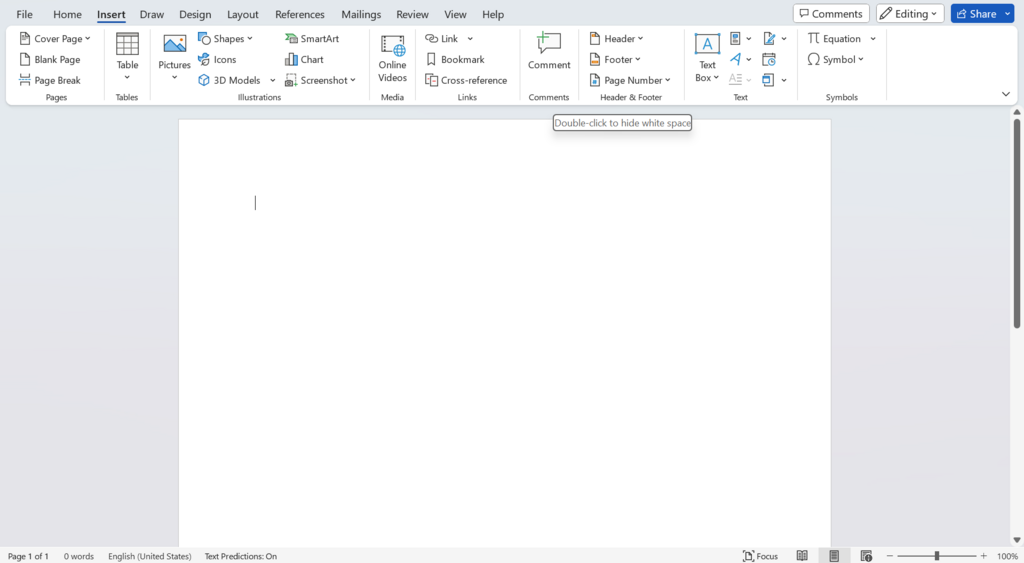
Think of the main interface as your digital workshop. At the top of the screen is a wide band packed with tools called the Ribbon . It's like a tool belt, with all your tools organized into logical groups. You wouldn't keep your hammer in the same pouch as your measuring tape, and Microsoft doesn't mix its text formatting tools with its chart-making tools.
The Ribbon organizes commands into tabs. Common tabs you'll see in most Office apps are File, Home, Insert, and View.
Navigating the Main Tools
Let's break down the key parts of the screen you'll use most often.
At the very top, you'll see a series of words called tabs. Clicking on a tab, like "Insert," changes the tools you see on the Ribbon below it. The "Home" tab contains the most frequently used commands, like changing font size, copying, and pasting. The "Insert" tab is for adding things to your file, like pictures, tables, or shapes.
Way above the Ribbon, in the top-left corner, is the Quick Access Toolbar. This is a small, customizable area that holds your most-used buttons, regardless of which tab is active. By default, it usually has Save, Undo, and Redo. You can add any command to it, which is great for actions you perform constantly.
To the right of the tabs, you'll find a search box. It might be labeled "Tell Me" or just show a magnifying glass. This is the fastest way to find a command. Just type what you want to do, like "add a border" or "check spelling," and it will show you the tool directly.
Handling Your Files
The first tab on the far left is always the File tab. It looks different from the others. Clicking it doesn't change the Ribbon; instead, it takes you to a new screen called the . This is your command center for file-level actions.
Here, you'll find everything you need to manage your document. This is where you open existing files, save your work, print, share, and create new documents from scratch or based on a template.
To save a file for the first time, go to the Backstage view and click 'Save As.' Choose a location, give your file a name, and click 'Save.' After that, you can just click the floppy disk icon in the Quick Access Toolbar or press Ctrl+S to save your changes.
Finally, at the very bottom of the window, is the Status Bar. This thin strip provides useful information at a glance. In Word, it might show the page count and word count. In Excel, it can display the sum or average of selected cells. It's a quiet but helpful part of your workspace.