Mastering Microsoft Excel Data Management
Logical Functions
Automating Decisions with IF
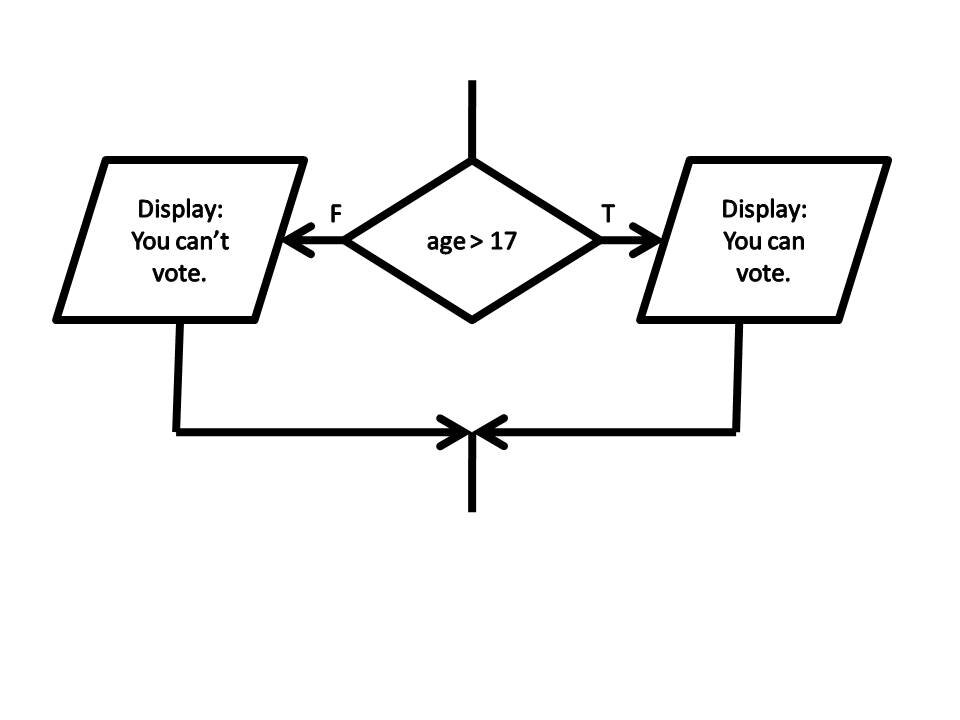
You already know how to perform calculations in Excel. Now, let's make your spreadsheets smarter. The IF function is your first step into conditional logic. It lets Excel perform a check and then do one of two things based on the result.
Think of it as a simple question with a yes/no answer. Is a sales target met? If yes, calculate a bonus. If no, show zero. The function has three parts: the logical test, the value if the test is true, and the value if it's false.
=IF(logical_test, [value_if_true], [value_if_false])
Let's use an example. A company pays a £50 bonus if a salesperson makes over £1,000 in sales. Here’s the data:
| Salesperson | Sales | Bonus |
|---|---|---|
| Anna | £1,200 | =IF(B2>1000, 50, 0) |
| Ben | £950 | =IF(B3>1000, 50, 0) |
In Anna's case, B2>1000 is true, so the formula returns 50. For Ben, the condition is false, so it returns 0. The spreadsheet makes the decision for you.
Handling Complex Scenarios
What if you have more than two possible outcomes? You can nest IF functions inside each other. This means the value_if_false part of your first IF statement becomes a whole new IF statement.
Let's expand our bonus example. Sales over £1,000 get a £100 bonus. Sales between £500 and £1,000 get £50. Anything less gets £0.
=IF(B2>1000, 100, IF(B2>500, 50, 0))
Excel first checks if sales are over £1,000. If true, it stops and returns 100. If false, it moves to the second IF statement. It then checks if sales are over £500. If true, it returns 50; otherwise, it returns 0.
While powerful, nesting too many IFs can make your formula difficult to read and debug. It's often better to use other functions like IFS or VLOOKUP for many conditions, but for a few outcomes, nesting works well.
Checking Multiple Criteria
Sometimes you need to test more than one condition at once. This is where the AND and OR functions come in. You use them inside the logical test of an IF statement.
AND requires all conditions to be true. For example, a bonus is only paid if sales are over £1,000 and the employee has been with the company for more than one year.
OR requires just one of the conditions to be true. For example, a delivery is marked as urgent if it's over 25kg or it's marked for next-day delivery.
Use
ANDfor "all of these" situations. UseORfor "any of these" situations.
Let's apply this. A special £200 bonus is given to salespeople who sell over £1,500 and have a customer satisfaction score of 8 or higher.
=IF(AND(B2>1500, C2>=8), 200, 0)
Here, Excel checks two things before deciding. If a salesperson sold £2,000 but had a satisfaction score of 7, they wouldn't get the bonus. Both conditions must be met.
Now, imagine a shipping discount is applied if an order is over £500 or the customer is a premium member.
=IF(OR(B2>500, C2="Premium"), "Discount", "No Discount")
In this case, a customer spending £600 gets the discount. A premium member spending only £50 also gets the discount. Only one condition needs to be true.
Managing Errors Gracefully
Formulas can sometimes result in errors like #DIV/0! (dividing by zero) or #N/A (value not available). These errors can break other calculations and look unprofessional. The IFERROR function provides a clean way to handle them.
It checks if a formula results in an error. If it does, it returns a value you specify. If not, it returns the formula's normal result.
=IFERROR(formula, value_if_error)
Imagine you're calculating a sales commission percentage by dividing the commission amount (A2) by the total sales (B2). If a salesperson made no sales, B2 would be zero, resulting in a #DIV/0! error.
Instead of =A2/B2, you can wrap it in IFERROR.
=IFERROR(A2/B2, 0)
Now, if B2 is zero, the formula will simply return 0 instead of an ugly error. You could also have it return a text message, like "No sales made".
Ready to test your knowledge on these logical functions?
What are the three arguments of the Excel IF function, in the correct order?
A student's score is in cell A2. If the score is 50 or more, they pass. Otherwise, they fail. Which formula correctly determines the result?
By mastering these functions, you can build spreadsheets that are not just for storing data, but for making automated, intelligent decisions based on it.