Mastering Meeting Minutes with MS Teams and Copilot
Microsoft Teams Basics
Your Hub for Teamwork
Microsoft Teams is a collaboration app that helps your team stay organized and have conversations, all in one place. Think of it as a digital office where you can chat, meet, share files, and work with business apps.
Microsoft Teams is the central hub for communication and teamwork within Microsoft 365.
Instead of juggling endless email chains, separate chat apps, and video conferencing tools, Teams brings everything together. This keeps communication clear and makes it easy to find what you need.
Navigating the Interface
When you first open Teams, the layout is straightforward. The main navigation happens on the left-hand side, in an area called the App bar. This is your command center for moving between different parts of the app.
Here's a quick rundown of the key sections:
- Activity: A feed of all your notifications, like @mentions, replies, and other updates.
- Chat: This is where you have one-on-one or group conversations that aren't tied to a specific team or project.
- Teams: The core of the app. Here, you'll see a list of all the teams you're a part of and the channels within them.
- Calendar: Syncs with your Outlook calendar to manage your schedule and join meetings.
- Files: A central place to see and access your recent files across all your teams.
Organizing with Teams and Channels
The main way to organize work in Teams is with, well, teams. A Team is a collection of people, content, and tools surrounding a specific project or group. For example, you might have a team for the Marketing Department or a team for the 'New Website Launch' project.
Within each team, conversations are organized into Channels. By default, every team gets a 'General' channel. You can create more channels to keep topics focused. Think of a team as a filing cabinet and each channel as a labeled folder inside it.
For the Marketing Department team, you could have channels like 'Social Media Campaigns', 'Budgeting', and 'Event Planning'. This keeps conversations about different topics separate and easy to follow.
Creating a new team or channel is simple. You just look for the 'Join or create a team' button at the bottom of your teams list, or click the three dots next to an existing team name to add a new channel.
Chat and Conversations
There are two main ways to chat in Teams: in a channel or in a private chat.
Channel conversations are visible to everyone in the team. They're great for discussions about a specific topic or project that the whole team needs to be aware of. You can reply directly to messages to create threaded conversations, which keeps discussions neat.
To get someone's attention in a channel, you can use an @mention. Just type @ followed by their name (e.g., @Jane Doe). They'll get a notification. You can also mention an entire channel (@channelname) or the whole team (@teamname) to notify everyone.
For conversations that don't belong to a specific team or channel, you use the Chat section. These are private one-on-one or small group messages, perfect for quick questions or informal discussions.
Meetings and Calls
Teams makes it easy to hold virtual meetings, complete with video, audio, and screen sharing. You can schedule a meeting for later using the Calendar tab. This sends an invitation to everyone you include, just like a standard calendar invite.
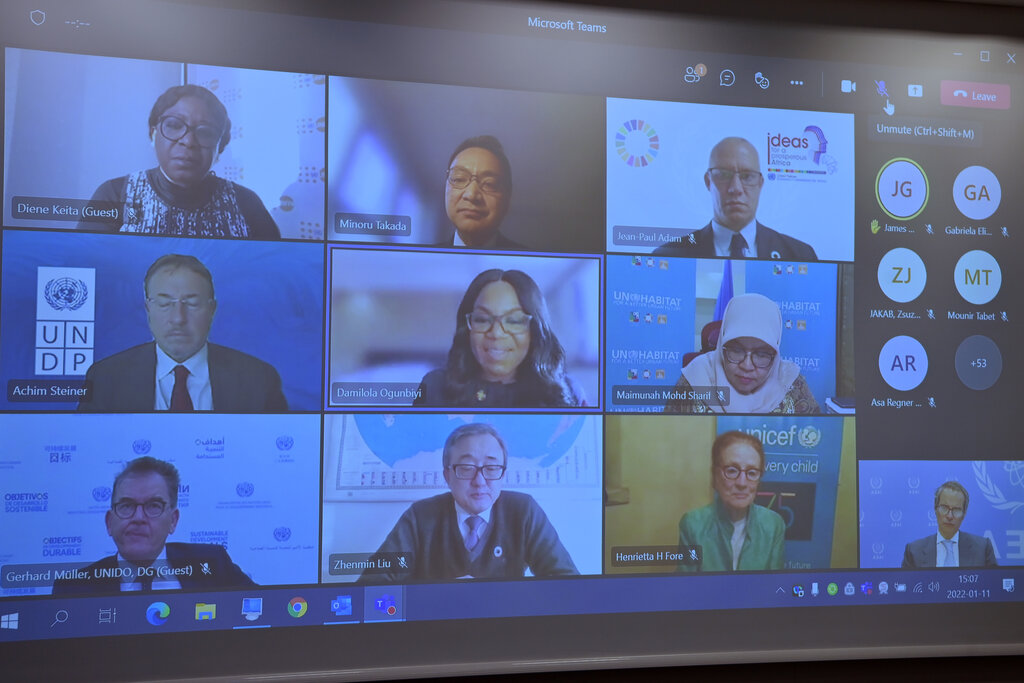
Need to meet right away? You can start an instant meeting. In any channel, you can click the 'Meet' button to start a meeting on the spot. Everyone in that channel will see the meeting has started and can join in.
When it's time to join a scheduled meeting, you can do it directly from the Calendar tab or through the notification that pops up.
Sharing and Collaborating on Files
One of the most powerful features of Teams is file collaboration. Every channel has a 'Files' tab at the top. Any file you share in a channel is automatically uploaded and stored here, making it accessible to every team member.
You can upload existing files or create new Word, Excel, or PowerPoint documents right from within Teams. Because the files are stored in the cloud, multiple people can open and edit the same document at the same time. You can see each other's changes in real-time, which eliminates the need to email different versions of a file back and forth.
Now you've got the basics down. Let's review the key terms.
Time to check your understanding.
What is the primary purpose of Microsoft Teams?
Within a Team, conversations about specific topics or projects are organized into what?
With these fundamentals, you're ready to start collaborating more effectively with your team.