Mastering Material Schedules in MS Project
Introduction to Microsoft Project
What Is Microsoft Project?
Think of Microsoft Project as a GPS for your project. It's a powerful software tool designed to help you map out every step of a journey, from start to finish. Instead of streets and highways, you're navigating tasks, deadlines, and resources.
Its main job is to help project managers plan, schedule, track, and manage all the moving parts of a project. It takes complex information and organizes it into a clear, visual format. This helps ensure that everything gets done on time and within budget.
Finding Your Way Around
When you first open Microsoft Project, the interface might look busy, but it's organized logically. Let's break down the main areas you'll be using.
Here’s what each section does:
- The Ribbon: Just like in other Microsoft Office applications, the ribbon at the top contains tabs like "Task," "Resource," and "View." Each tab holds a set of related commands and features. This is your primary command center.
- Quick Access Toolbar: Located at the very top left, this small toolbar holds common commands like "Save," "Undo," and "Redo." You can customize it to add your most frequently used buttons.
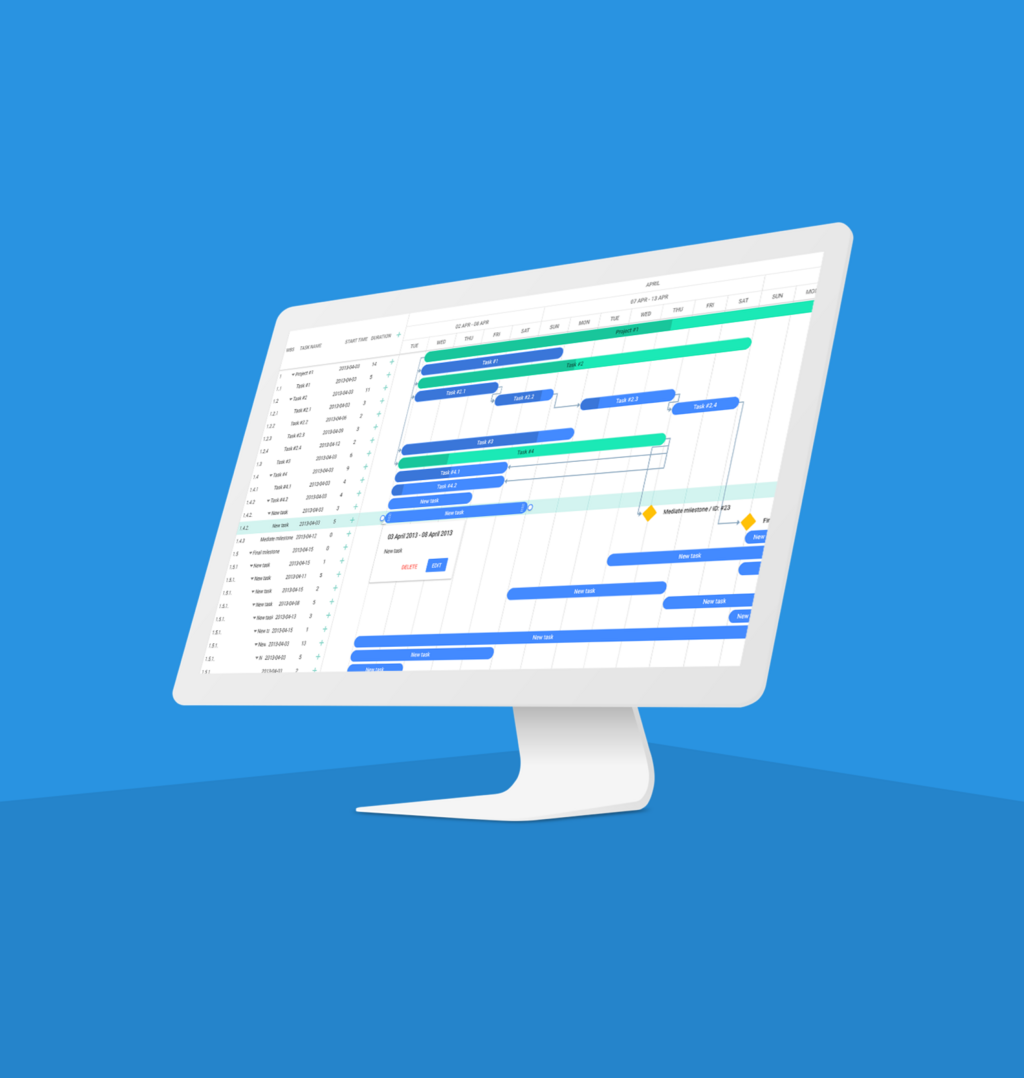
- Main View Pane: This is the largest area where your project data is displayed. The default view is usually the Gantt Chart, which shows a list of tasks on the left and a timeline with bars on the right.
Key Features and Benefits
So why use this tool? The benefits boil down to organization and clarity. Microsoft Project helps you centralize all your project information in one place, creating a single source of truth for everyone on the team.
Its core strength lies in scheduling. You can define tasks, set durations, and link them together to show dependencies. For example, you can specify that Task B cannot start until Task A is finished. The software automatically builds a timeline, which adjusts as you make changes.
Using MS Project turns a complex plan into a clear, actionable roadmap that the whole team can follow.
This visual timeline makes it easy to track progress. As work gets done, you can update the status of each task. This helps you see if you're on schedule, spot potential delays before they become major problems, and communicate the project's status to stakeholders with confidence.
Ready to check your understanding? Let's review the basics.
What is the primary purpose of Microsoft Project, using the 'GPS' analogy?
In the Microsoft Project interface, where would you find tabs like 'Task,' 'Resource,' and 'View' that contain sets of related commands?
Now that you're familiar with what Microsoft Project is and its basic layout, you're ready to start exploring how to build a project plan from the ground up.