Mastering Linux Troubleshooting
Essential Linux Commands
Getting Around the File System
The first step in using the command line is learning how to navigate. Think of the Linux file system as a large tree, with the root directory / at the very top. Every other file and directory is a branch off this root. When you open a terminal, you start in your home directory, which is your personal space within this tree.
To find out exactly where you are, use the pwd command, which stands for "print working directory".
pwd
/home/username
This tells you your current location. To see what's inside this directory, use the ls command, which lists the files and directories.
ls
Documents  Downloads  Music  Pictures  Videos
You can add options, or "flags", to change a command's behaviour. For example, ls -l shows a detailed list, and ls -a shows all files, including hidden ones (those that start with a dot).
To move to a different directory, use cd, for "change directory". You can specify a path relative to where you are, or an absolute path starting from the root /.
# Move into the Documents directory
cd Documents

# Go back one level
cd ..

# Go to the root directory
cd /

# Go back to your home directory
cd ~
Managing Files and Folders
Now that you can move around, let's create, copy, move, and delete things. First, to make a new directory, use mkdir.
mkdir projects
To copy a file, use the cp command. You need to specify the source file and the destination.
# copies report.txt into the projects directory
cp report.txt projects/
To move a file, or to rename it, use the mv command. The syntax is similar to cp.
# Moves report.txt into the projects directory
mv report.txt projects/

# Renames old_name.txt to new_name.txt
mv old_name.txt new_name.txt
Finally, to remove files, use rm. To remove an empty directory, use rmdir. To remove a directory and everything inside it, use rm with the -r (recursive) flag.
Be very careful with
rm -r. Once you delete something with this command, it's gone for good. There is no recycle bin.
Viewing and Editing Files
There are several ways to look at the contents of a file. The simplest is cat, which prints the entire file to the terminal. This is great for short files.
cat my_file.txt
For longer files, cat isn't practical. Instead, use less. It displays the file one page at a time. You can scroll with the arrow keys and quit by pressing q.
When you need to change a file, you'll need a text editor. Two of the most common command-line editors are nano and vi.
nano is straightforward and beginner-friendly. It lists the main commands at the bottom of the screen. You open a file by typing nano file_name.txt.
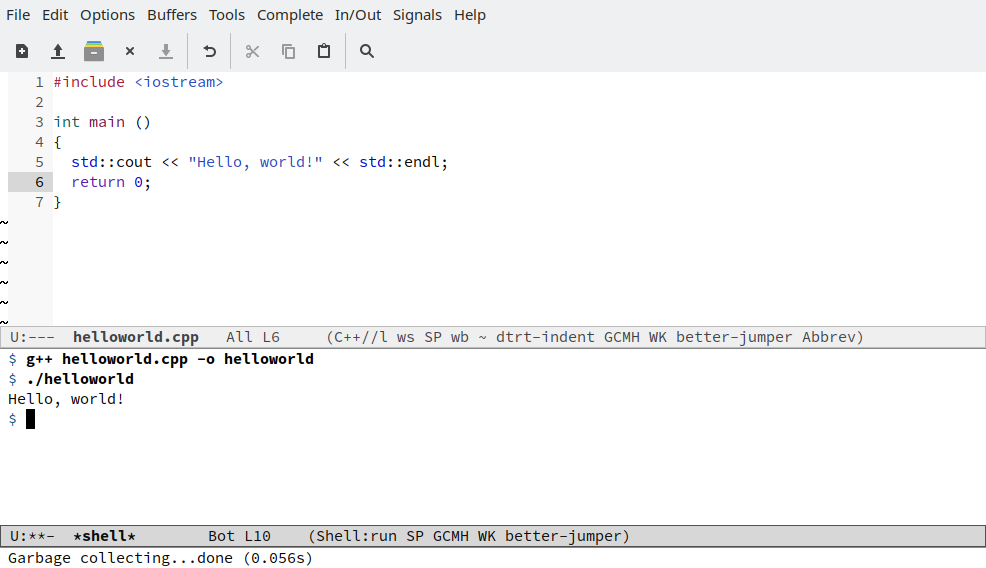
vi (or its modern version, vim) is much more powerful but has a steep learning curve. It has different modes, like 'insert' mode for typing and 'normal' mode for commands. It's extremely efficient once you get the hang of it, but it can be confusing at first.
Permissions and Ownership
In Linux, everything is a file, and every file has permissions. These permissions control who can read, write to, or execute the file. There are three sets of permissions for three types of users: the file's owner (user), the owner's group, and everyone else (others).
When you run ls -l, the first column shows these permissions.
ls -l my_script.sh
-rwxr-x--x 1 username users 1024 Jan 1 12:00 my_script.sh
The -rwxr-x--x part breaks down like this:
- The first character (
-) indicates the file type (a-for a file, adfor a directory). - The next three (
rwx) are for the owner: read, write, and execute permissions. - The next three (
r-x) are for the group: read and execute, but no write permission. - The final three (
--x) are for others: only execute permission.
You can change permissions with the chmod command. You can add (+) or remove (-) permissions for the user (u), group (g), or others (o).
# Add write permission for the group
chmod g+w my_script.sh

# Remove execute permission for others
chmod o-x my_script.sh
To change who owns a file, use chown. To change the group a file belongs to, use chgrp.
# Change owner to 'newuser'
chown newuser my_file.txt

# Change group to 'staff'
chgrp staff my_file.txt
Finding What You Need
Sometimes you need to find a specific piece of text inside one or more files. For this, grep is the perfect tool. It searches for patterns in text.
# Search for the word 'error' in a log file
grep 'error' application.log

# Recursively search for 'config' in all files in the current directory
grep -r 'config' .
What if you need to find a file itself, not the text inside it? The find command searches the directory tree for files that match certain criteria, such as name, size, or modification time.
# Find a file named 'report.pdf' starting from the home directory
find ~ -name 'report.pdf'
A faster alternative for finding files by name is locate. It uses a pre-built database of all files on the system, which makes it incredibly quick. The downside is that the database might not have the most recent files if it hasn't been updated recently.
locate report.pdf
Let's test your knowledge on these essential commands.
What is the primary function of the pwd command in a Linux terminal?
Which command would you use to remove a directory named old_project that is full of files?
Mastering these commands is the foundation of working effectively in a Linux environment. Practice them until they become second nature.