Mastering Linux Systems and Architecture
Process Lifecycle Mastery
Communicating with Processes
You already know how to start and stop processes. But stopping a process isn't a single action. It's a conversation. The operating system uses signals to communicate with processes, telling them to terminate, pause, or reload their configuration. Think of signals as a simple language for process management.
The most common signals you'll use are SIGTERM (terminate) and SIGKILL (kill). SIGTERM is the polite way to ask a program to shut down. It gives the process a chance to save its work, close files, and exit gracefully. This is the default signal sent by the kill command.
# Politely ask process 1234 to terminate
kill 1234

# This is equivalent to:
kill -TERM 1234
SIGKILL, on the other hand, is non-negotiable. It tells the kernel to immediately stop the process, without giving it any chance to clean up. This is a last resort for frozen or unresponsive applications, as it can lead to corrupted files or other inconsistent states. A process cannot ignore SIGKILL.
# Forcibly stop process 1234
kill -KILL 1234

# Or using the signal number (9)
kill -9 1234
Another important signal is SIGHUP (hang up). Originally, this signal would be sent to a process when its controlling terminal, like an old-school modem connection, was disconnected. Today, many daemons and server processes are programmed to reinterpret SIGHUP as a request to reload their configuration files without restarting the entire service. This allows for live updates with zero downtime.
Juggling Tasks and Priorities
Not all processes are created equal. Some, like a web server responding to user requests, are critical. Others, like a script that generates a weekly report, can afford to run a bit slower. Operating systems provide ways to manage these priorities for both CPU time and disk access.
daemon
noun
A computer program that runs as a background process, rather than being under the direct control of an interactive user.
For CPU priority, we use the nice value. This is a number from -20 (highest priority) to 19 (lowest priority). A process with a lower nice value gets a larger share of the CPU's attention when multiple processes are competing. You can start a process with a specific niceness using the nice command, or change a running process's priority with renice.
# Start a backup script with low priority
nice -n 15 ./backup.sh

# Change the priority of running process 5678 to be higher
sudo renice -n -5 -p 5678
Disk I/O (input/output) can also be a bottleneck. The ionice utility controls the I/O scheduling class and priority for a process. This is incredibly useful for preventing a disk-heavy background task, like a large file copy or database indexing, from slowing down the entire system.
| Class Name | Description |
|---|---|
Idle | A process will only get disk time when no other process needs it. |
Best-effort | This is the default. Processes get priority based on their CPU nice value. |
Realtime | The process gets first access to the disk, always. Use with extreme caution. |
To set a process to the idle I/O class, ensuring it doesn't interfere with more important tasks, you would use the following command.
# Run a disk-intensive command in the idle I/O class
ionice -c 3 find / -name "*.log"
Detaching and Diagnosing Processes
When you run a command in your terminal, it's attached to that session. If you close the terminal, the process gets a SIGHUP and usually terminates. To run a long-running task on a server, you need to detach it from your session. The simplest way is to run the command in the background with an ampersand (&).
# Start the script in the background
./long_running_task.sh &
However, this still leaves the process tied to your terminal's lifecycle. To truly detach it, use the nohup command (no hang up). This command intercepts the SIGHUP signal, allowing the process to continue running even after you log out. By default, it redirects any output to a file named nohup.out.
# Run the script, ignore the SIGHUP signal, and run in the background
nohup ./long_running_task.sh &
Sometimes, processes end up in unusual states. You might see a zombie process in your process list. This isn't a running process, but rather the ghost of a terminated child process whose parent hasn't yet acknowledged its death. Zombies consume almost no resources but can indicate a bug in the parent program. An orphan process occurs when a parent process dies before its child. The operating system's init process (PID 1) adopts the orphan, ensuring it gets cleaned up properly when it eventually exits.
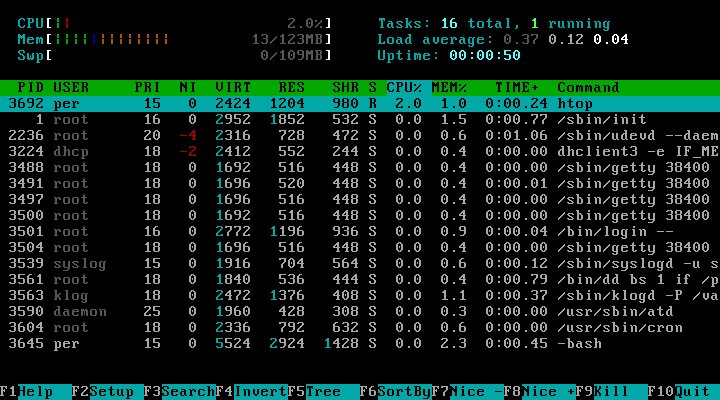
To diagnose what's happening on your system, tools like top, htop, and atop are essential. They provide a live dashboard of resource usage.
When diagnosing a slow system, the key is to identify the bottleneck. Is a process consuming 100% of a CPU core? That's a CPU-bound process. Is the CPU idle but the disk wait time (wa in top) is high? That points to an I/O-bound process. htop offers a more user-friendly, color-coded interface, while atop is excellent for historical analysis, allowing you to see what was happening on the system in the past.
Which signal is a non-negotiable command for the operating system to immediately stop a process without allowing it to clean up?
A system administrator notices that a long-running data import task is slowing down the entire server. Which command would be most appropriate to lower the disk I/O priority of this task so it interferes less with other processes?
Mastering these commands and concepts moves you from simply running programs to orchestrating them, ensuring your system remains stable and responsive.