Mastering LaTeX with Overleaf
Overleaf Interface
The Overleaf Dashboard
When you log in to Overleaf, you'll land on your project dashboard. Think of this as the main hub for all your documents. It’s where you'll see a list of every project you've created or been invited to.
You can organize your work by creating folders, which is helpful once you have more than a few documents. To start a new document, look for the green “New Project” button. This is your gateway to creating everything from academic papers to résumés.
Starting with a template can save you a lot of setup time. Overleaf offers templates for research papers, lab reports, presentations, and more.
Inside a Project
Once you create or open a project, the interface splits into a few key areas. It's designed to keep your workflow smooth, letting you write code and see the results instantly.
On the far left is the file list. This shows all the files in your project, like your main .tex file, any images you've uploaded, or a bibliography file. You can create new files, folders, and upload assets from here.
The middle panel is the Code Editor. This is where you'll spend most of your time, writing and editing the LaTeX code for your document. It includes helpful features like syntax highlighting to make the code easier to read and error checking to help you find mistakes.
On the right, you'll see the Visual Editor, which is a live PDF preview of your document. As you write in the Code Editor, you can hit the “Recompile” button (or use the keyboard shortcut) to update this preview and see your changes.
Rich Text and Source Modes
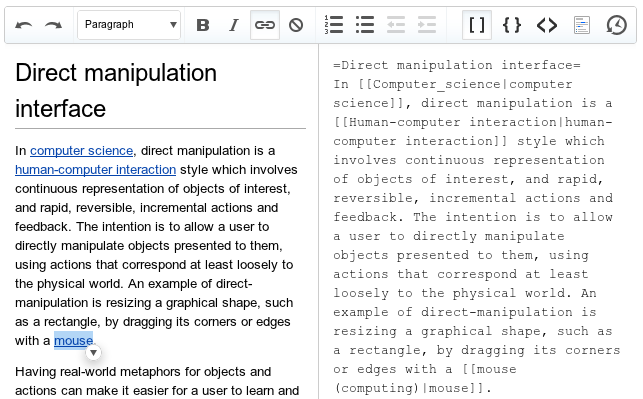
Overleaf also offers a “Rich Text” mode, which feels a bit more like a traditional word processor. It shows formatting like bold text and section headings directly in the editor, while still writing the proper LaTeX code behind the scenes. You can switch between the standard “Source” mode and “Rich Text” mode using a toggle at the top of the editor.
The Rich Text mode is great for beginners who are still getting used to LaTeX syntax, or for moments when you want to focus more on the writing than the code.
Familiarizing yourself with this layout is the first step to working efficiently in Overleaf. You have your files on the left, your code in the middle, and your formatted output on the right. This simple, powerful setup is what makes LaTeX accessible.
When you open an Overleaf project, the interface is typically split into three main panels. What are they, from left to right?
Where would you click to begin a new document, such as an academic paper or a résumé, from your project dashboard?