Mastering Keyboard Shortcuts for Enhanced Productivity
Advanced System Shortcuts
Beyond the Basics
You've mastered the fundamentals like copying, pasting, and saving. Now it's time to unlock a new level of speed and control. Advanced keyboard shortcuts are the difference between using your computer and commanding it. They let you navigate, manage files, and switch between tasks with an efficiency a mouse can't match.
Mastering all the keyboard shortcuts that Windows has to offer isn't just about working more efficiently—it's about making your entire computer experience more effortless and streamlined.
Advanced Navigation
Moving around your screen and text doesn't have to be a slow drag-and-click process. These shortcuts let you jump exactly where you want to go in an instant. For example, instead of holding down an arrow key to move through a long document, you can leap from word to word or jump straight to the beginning or end of a line.
| Action | Windows | macOS |
|---|---|---|
| Jump to next/previous word | Ctrl + → / ← | Option + → / ← |
| Jump to start/end of line | Home / End | Command + → / ← or Fn + → / ← |
| Jump to start/end of document | Ctrl + Home / End | Command + ↑ / ↓ |
| Open Task View | Win + Tab | Control + ↑ |
| Create new virtual desktop | Ctrl + Win + D | Control + ↑, then click '+' |
| Switch virtual desktops | Ctrl + Win + → / ← | Control + → / ← |
File Management Power Moves
Organizing your files and folders can be tedious. These shortcuts streamline the process, letting you create folders, rename items, and even permanently delete files without ever touching your mouse or trackpad. Think of it as direct control over your file system.
| Action | Windows | macOS |
|---|---|---|
| Rename selected file/folder | F2 | Enter |
| Create a new folder | Ctrl + Shift + N | Command + Shift + N |
| Go to parent folder | Alt + ↑ | Command + ↑ |
| Show item properties/info | Alt + Enter | Command + I |
| Permanently delete item | Shift + Delete | Command + Option + Delete |
| Create a shortcut/alias | (Right-click menu) | Command + L |
Mastering Multitasking
Juggling multiple windows and applications is a daily reality. Instead of clicking around to find the right window, you can use shortcuts to cycle through apps, snap windows to the side for easy comparison, and get a bird's-eye view of everything you have open.
| Action | Windows | macOS |
|---|---|---|
| Cycle through open apps | Alt + Tab | Command + Tab |
| Cycle through windows of current app | Ctrl + Tab | Command + ` |
| Snap window to left/right | Win + → / ← | (Drag to edge) or use apps like Magnet |
| Minimize all windows | Win + M | Command + Option + H + M |
| Open Action/Notification Center | Win + A | (Click menu bar icon) |
| Lock your screen | Win + L | Command + Control + Q |
Make Them Your Own
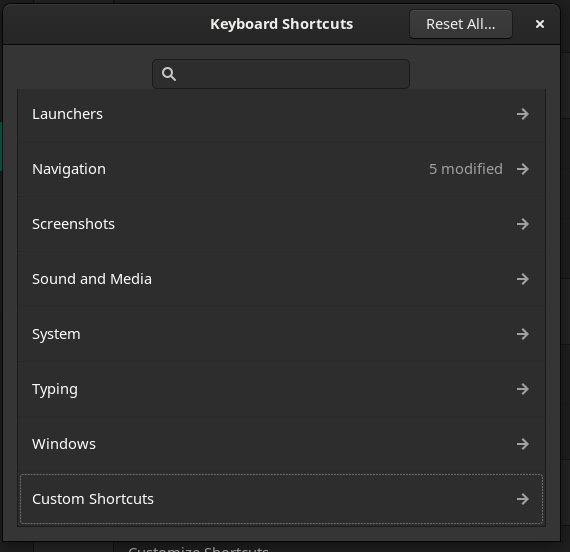
You're not stuck with the defaults. Both operating systems allow for customization, letting you create shortcuts that fit your specific workflow. On macOS, you can create custom shortcuts for almost any menu command directly in the System Settings under 'Keyboard'.
Windows doesn't have as robust a built-in system, but powerful free tools like Microsoft PowerToys let you remap keys and create complex new shortcuts. Taking the time to set up custom commands for your most frequent actions is a one-time investment that pays off every single day.
Ready to test your new knowledge?
What is the primary purpose of the Alt+Tab (or Cmd+Tab on Mac) keyboard shortcut?
To instantly jump your cursor to the very beginning of the current line of text, which key would you typically press?
By incorporating these advanced shortcuts into your daily routine, you'll find yourself working faster and more fluidly than ever before.