Mastering Keyboard Shortcuts
Introduction to Keyboard Shortcuts
What Are Keyboard Shortcuts?
Think about how you navigate your computer. You probably move a mouse or trackpad to point, click, and drag. This works well, but it's not always the fastest way. A keyboard shortcut is a combination of keys that performs a specific task, bypassing the need for a mouse. It’s like a secret handshake with your computer that tells it what to do instantly.
Instead of navigating through menus to find the 'Copy' button, you can press a simple key combination. These shortcuts are built into operating systems and most applications to help you work more efficiently. Once you start using them, you'll notice how much quicker and smoother your workflow becomes.
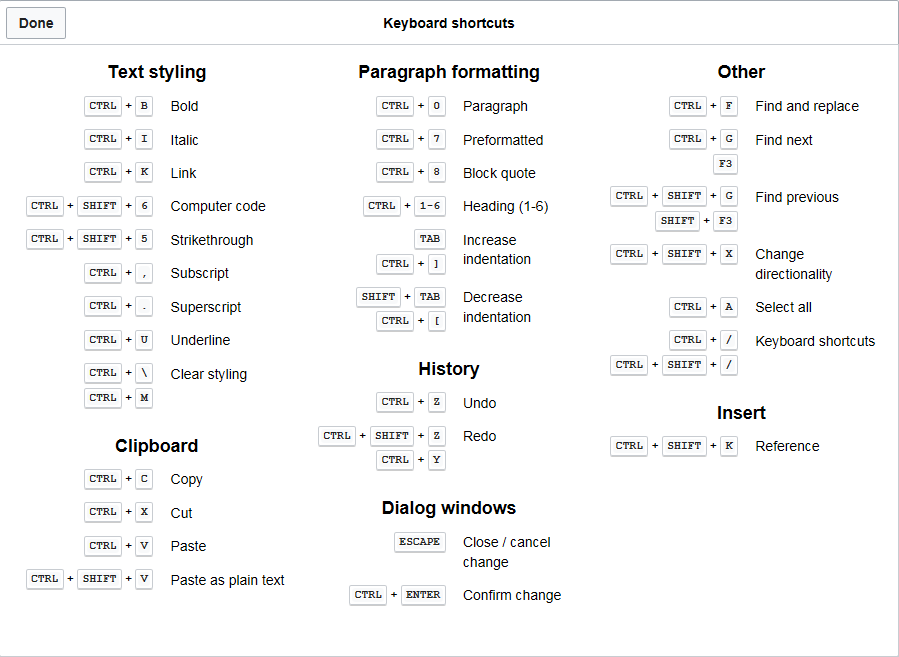
The Modifier Keys
The power of shortcuts comes from special keys called modifier keys. On their own, they don't do much. But when you hold one down while pressing another key, they change that key's function entirely. Pressing the 'S' key just types the letter 's', but holding 'Control' while pressing 's' often saves your document.
The main modifier keys are universal, though they might have different names depending on your operating system.
| Key Name | Windows/Linux | macOS |
|---|---|---|
| Control | Ctrl | Control (^) |
| Alternate | Alt | Option (⌥) |
| Shift | Shift | Shift (⇧) |
| Command | (Windows Key) | Command (⌘) |
On Windows and Linux, Ctrl and Alt are your primary workhorses. On macOS, the Command key is used most frequently for common shortcuts, often in place of Ctrl.
Why Bother with Shortcuts?
Learning shortcuts might seem like extra work, but the payoff in productivity is huge. Every time you switch from your keyboard to your mouse, you lose a little bit of time and focus. It might only be a second or two, but these moments add up significantly over a day.
The use of keyboard shortcuts is one of the most effective ways of speeding up your workflow.
Using shortcuts keeps your hands on the keyboard, allowing you to stay in the flow of your work, whether you're writing, coding, or designing. It reduces physical strain from constantly moving the mouse and helps you execute commands with muscle memory rather than conscious searching.
A few common shortcuts can transform repetitive, multi-click tasks into a single, instant action.
You probably already use some of the most basic shortcuts without even thinking about it. These commands are nearly universal across all applications.
| Action | Windows/Linux | macOS |
|---|---|---|
| Copy selection | Ctrl + C | Cmd + C |
| Paste selection | Ctrl + V | Cmd + V |
| Cut selection | Ctrl + X | Cmd + X |
| Undo last action | Ctrl + Z | Cmd + Z |
| Save current file | Ctrl + S | Cmd + S |
By mastering just these five, you can navigate text editing and file management far more quickly. As you get comfortable, you can start incorporating more advanced, application-specific shortcuts into your routine.
Let's check your understanding of these fundamental ideas.
What is the primary function of a keyboard shortcut?
Which of these are the special keys, mentioned in the text, that change the function of other keys when pressed together?
Starting with these basics is the first step toward a faster and more fluid way of interacting with your computer.