Mastering Jira Project Management
Advanced Board Configuration
Boards Built for Your Workflow
The fundamental difference between Scrum and Kanban boards in Jira lies in their philosophy. Scrum boards are built around time-boxed iterations called sprints. They're designed for teams who plan work in chunks, commit to a batch of tasks, and aim to deliver an increment at the end of the cycle. This means their configuration is centered on managing an active sprint, with a separate backlog view for planning future ones.
Kanban boards, on the other hand, are designed for continuous flow. They suit teams that prioritize a steady stream of work rather than fixed iterations, like IT support or operations teams. The focus is on visualizing the workflow, limiting work in progress, and maximizing efficiency from start to finish. Configuration options reflect this, emphasizing flow metrics and column constraints over sprint management.
Choosing a board type isn't just about preference; it's about aligning the tool with your team's specific process and delivery cadence.
The Brains Behind the Board
Every board in Jira is powered by a saved filter written in JQL, or Jira Query Language. This filter acts as the board's constitution, defining exactly which issues are eligible to appear. While a simple filter might just pull all issues from a single project (project = PHOENIX), its real power lies in creating focused views without needing separate projects for every team or initiative.
Imagine a single large project, "Phoenix," shared by Mobile, Web, and API teams. Instead of giving them one cluttered board, you can create three distinct boards, each with a JQL filter that isolates their specific work. This keeps everyone focused on their own tasks while allowing for easy cross-team visibility at the project level.
/* JQL for the Mobile Team's Board */
project = "Phoenix" AND component = "Mobile App" ORDER BY Rank ASC

/* JQL for high-priority bugs across all components */
project = "Phoenix" AND type = "Bug" AND priority = "Highest" ORDER BY created DESC
The first query creates a board for the Mobile team by pulling issues from the Phoenix project that are assigned to the "Mobile App" component. The second creates a specialized board just for tracking the most critical bugs, regardless of which team is responsible. JQL is the key to this surgical precision.
From Status to Column
A common point of confusion is the relationship between an issue's status and its column on a board. A Jira workflow is made up of statuses, like 'Open', 'In Progress', 'Code Review', 'QA Testing', and 'Done'. A board column is a visual grouping of one or more of these statuses.
You map workflow statuses to columns in the board's configuration. This allows you to create a simplified board view that hides the granular complexity of the underlying workflow. For example, the statuses 'In Progress', 'Code Review', and 'QA Testing' might all live under a single board column called 'In Progress'.
This setup provides the best of both worlds: a clean, high-level view for daily stand-ups and detailed, accurate status tracking for reporting and metrics.
Optimizing Your Board View
Beyond columns, Jira offers several tools to refine how work is displayed. These configurations help teams quickly find the information that matters most to them.
First, WIP limits are a crucial feature, especially for Kanban boards. By setting a minimum and maximum number of issues allowed in a column, you can prevent bottlenecks and encourage the team to focus on completing tasks before starting new ones. When a column exceeds its limit, it changes color, making the bottleneck immediately obvious.
Swimlanes are horizontal lanes that group issues on your board based on specific criteria. For example, you can create a swimlane for each team member to see their assigned tasks, or create a swimlane for 'Expedite' items based on a high priority. They segment the board to bring a second dimension of organization.
Finally, you can customize the card layout to display key information directly on the board. You can add up to three extra fields to the cards, such as the assignee, due date, or component. This reduces the need to click into each issue for basic details.
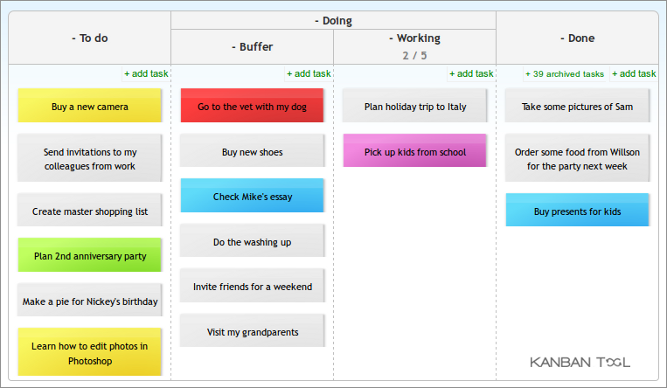
To further refine the view, Quick Filters allow you to add buttons to the top of your board that apply an additional layer of JQL. For instance, you could add a filter for assignee = currentUser() so team members can see only their own issues with a single click. Another might be labels = mobile-release to isolate issues related to an upcoming mobile release.
What is the fundamental philosophical difference between how Scrum and Kanban boards are designed in Jira?
A large project in Jira contains work for three different teams: Mobile, Web, and API. What is the best way to give each team a focused view of only their tasks?
Properly configuring your board is not a one-time setup. It's an ongoing process of refining your visual workflow to match how your team actually works, ensuring clarity and maximizing efficiency.