Mastering iPhone DFU Mode Techniques
Hardware Readiness
The Right Port Matters
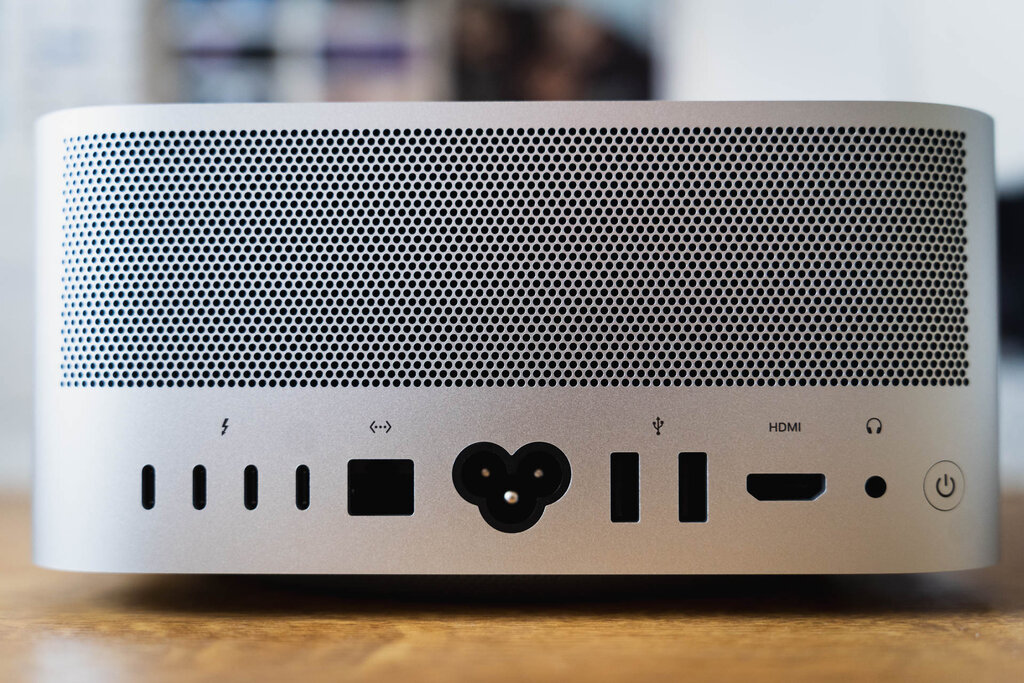
When trying to enter DFU mode, not all ports on your Mac mini are created equal. The goal is to establish the most direct and stable connection to the logic board. On most Mac mini models, this is typically the USB-C/Thunderbolt port located closest to the HDMI port or power connection. These ports often have a more direct pathway to the system controller, which is critical for the low-level communication required by DFU mode.
While USB-A ports can work, they sometimes introduce an extra layer of internal hub management that can cause the connection to drop during the sensitive DFU handshake. If you're using a Mac mini, always start with a Thunderbolt port. If you must use USB-A, try different ports if the first one fails; sometimes one is more reliable than others.
Cables and Hubs
The quality of your USB cable is non-negotiable. A successful DFU connection relies on a clean data signal, and cheap, uncertified cables are a common point of failure. Always use an original Apple cable or one that is MFi-certified. These cables are built to strict specifications for data integrity and power delivery, ensuring the Mac mini can properly communicate with the device.
Many third-party cables are designed for charging only and lack the necessary internal wiring for high-speed data transfer. Using one of these will prevent the DFU connection from ever being established.
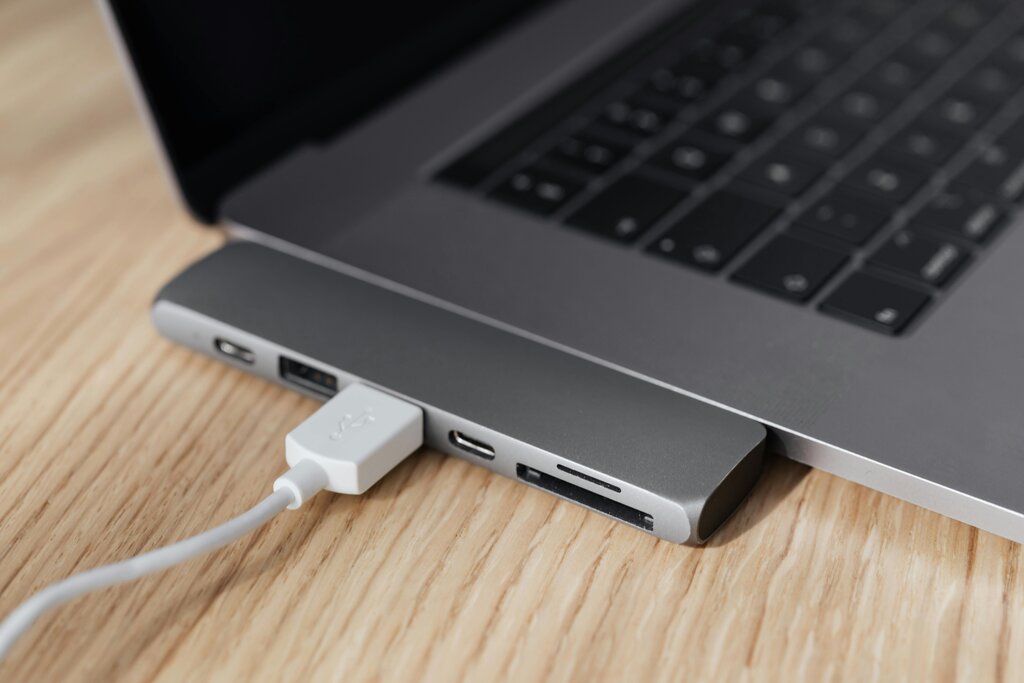
Equally important is avoiding USB hubs. While convenient, hubs act as an intermediary, splitting the data connection and power. This can introduce latency or signal degradation that interrupts the precise timing of the DFU handshake. Always connect your device directly to a port on the Mac mini itself.
Clear the Software Decks
Before you even plug in the cable, ensure your macOS environment is prepared. Certain applications automatically try to communicate with a connected iPhone or iPad, which can hijack the connection before your DFU tool can access it.
On modern macOS versions, this means completely quitting the Music, TV, and Finder applications. If you have any open Finder windows showing device information, close them. On older versions of macOS (Mojave and earlier), you'll need to quit iTunes.
To be certain an app is closed, right-click its icon in the Dock and select "Quit." Don't just click the red 'X' on the window.
By ensuring your hardware connection is optimal and your software environment is clean, you eliminate the most common variables that lead to DFU mode failures. This preparation sets you up for a successful connection on the first try.
When attempting to enter DFU mode on a Mac mini, which port is generally the most reliable?
True or False: Any USB-C cable that can charge a device is suitable for a DFU connection.