Mastering Instagram
Instagram Basics
Setting Up Your Account
First, you'll need to download the Instagram app from your phone's app store and create an account. You can sign up with an email address, phone number, or your Facebook account. During this process, Instagram will ask you to choose a username and password.
You'll also be prompted to choose between a Personal Account and a Professional Account (which includes Creator and Business options). If you plan to use Instagram for a brand, business, or to showcase your work, a Professional Account is the way to go. It offers tools that a personal account doesn't, like access to performance metrics and the ability to promote posts. You can always switch between account types later in your settings.
Crafting Your Profile
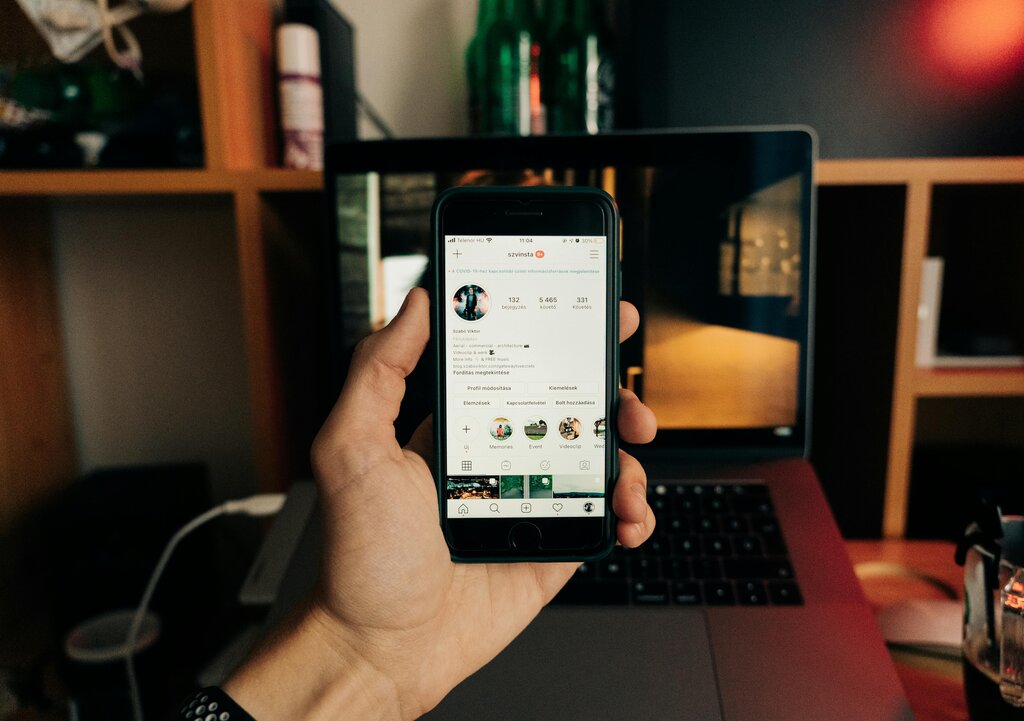
Your profile is your digital storefront. It’s often the first impression you'll make on potential followers. A well-crafted profile clearly communicates who you are and what you're about.
Think of your profile as a quick, visual introduction. Every element should work together to tell your story.
Here are the key components to focus on:
-
Profile Picture: Use a clear, high-quality image. For a personal brand, a well-lit headshot works best. For a business, use your logo. This image appears small throughout the app, so it needs to be recognizable.
-
Username (@handle): This is your unique identifier on Instagram. Aim for something simple, memorable, and consistent with your other social media accounts.
-
Name: This is different from your username and appears more prominently on your profile. You can include keywords here related to your industry or niche to make your profile more discoverable in searches.
-
Bio: You have 150 characters to explain what you do. Be direct and clear. You can use emojis to add personality and line breaks to make it easier to read.
-
Website Link: This is the only place on your profile where you can add a clickable link. Use it to direct people to your website, portfolio, shop, or latest project.
Navigating the App
Once your profile is set up, it's time to get familiar with the layout. The main navigation bar is at the bottom of the screen and gives you access to all of Instagram's core features.
| Icon | Name | Purpose |
|---|---|---|
| 🏠 | Home Feed | See posts, Stories, and Reels from accounts you follow. |
| 🔍 | Explore | Discover new accounts and content based on your interests. |
| ▶️ | Reels | Watch short-form, entertaining videos. |
| 🛍️ | Shop | Browse and buy products from brands on Instagram. |
| 👤 | Profile | View your own profile, posts, and saved content. |
At the top of your Home Feed, you'll see Stories from accounts you follow. These are temporary photo or video updates that disappear after 24 hours. They are perfect for sharing behind-the-scenes moments and more casual content.
Use Instagram Stories to share daily updates, behind-the-scenes content, and announcements. The ephemeral nature of Stories creates a sense of urgency and engagement.
Creating content is straightforward. Tap the '+' icon at the top right of the screen to make a new Post, Story, or Reel. Each format serves a different purpose, allowing you to share everything from polished photos to quick, engaging video clips.
What is a key benefit of choosing a Professional Account over a Personal Account on Instagram?
Where is the only place on your main Instagram profile page that you can add a clickable link?
Now you have the basics down. The best way to learn is by exploring the app, seeing what others are creating, and starting to share your own content.