Mastering Hyper-Realistic AI Portraits and Diverse Character Design
Technical Camera Settings
Technical Prompts for Photorealism
You already know how to describe a scene, a subject, and a style. To push your AI-generated images from looking good to looking real, you need to speak the language of photography. By adding technical camera and lens specifications to your prompts, you instruct the AI to simulate the physics of light, not just the appearance of a photo.
Advanced models like Midjourney and DALL-E 3 are trained on vast datasets of photographs, complete with metadata. When you specify a camera model, lens, and settings, the AI taps into that data to replicate the unique characteristics of that equipment.
Camera and Lens Simulation
Let's start with the camera body. Different cameras have different sensor sizes and color science, which subtly affect the final image. The Sony a7III is a popular choice among photographers for its excellent low-light performance and color reproduction. Including it in your prompt provides a strong baseline for realism.
Next is the lens, which has an even greater impact. An 85mm prime lens is a classic choice for portraits because it creates a pleasing compression, making facial features appear natural and proportionate. The f/1.4 aperture creates a very shallow depth of field, which results in a soft, blurry background known as 'bokeh'. This effect isolates your subject, making them pop.
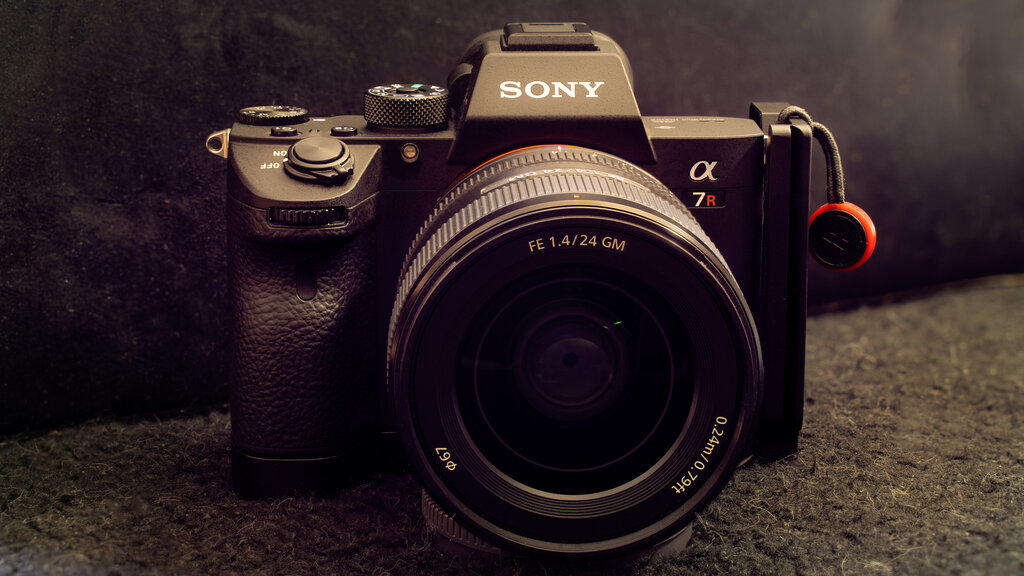
Combining these gives us a powerful starting point for a portrait prompt.
prompt: close-up portrait of a woman with freckles, soft morning light, photographed with a Sony A7III, 85mm f/1.4 lens
Controlling Exposure
Just like a real photographer, you can control the exposure of your AI-generated image using aperture, shutter speed, and ISO. These settings don't just affect brightness; they introduce distinct visual characteristics.
Aperture (f-stop)
A low f-stop number like f/1.4 or f/1.8 creates a shallow depth of field, blurring the background. A high f-stop like f/11 or f/16 keeps more of the scene in sharp focus, which is ideal for landscapes. This is one of the most effective ways to achieve a professional, cinematic look.
Shutter Speed
Shutter speed controls motion. A fast shutter speed, like 1/1000s, freezes action perfectly. A slow shutter speed, like 1/15s, will create motion blur. This is great for conveying speed, like in a shot of a moving car, or for smoothing out water in a landscape.
ISO
ISO determines the sensor's sensitivity to light. In real photography, high ISO settings introduce noise or grain. You can use this to your advantage. Adding ISO 3200 to your prompt can create a gritty, film-like texture, making the image feel less sterile and more authentic.
By combining these settings, you give the AI a complete recipe. For example,
1/200s shutter speed, f/2.8, ISO 400tells the model to generate a crisp, well-lit shot with a moderately blurred background and clean image quality.
Adding the Final Touches
To complete the illusion of a real photograph, you can specify the format. Adding terms like 4K RAW photo or uncompressed tells the AI to prioritize maximum detail and avoid the overly smooth look common in AI images. Think of it as asking for the original digital negative rather than a compressed JPEG.
You can even include prompts that mention EXIF metadata, which reinforces the idea that the image should look like it came directly from a specific camera with specific settings.
prompt:
Candid street style portrait of a man laughing, golden hour lighting, sharp focus on eyes, detailed skin texture --ar 2:3 --style raw

## Camera & Lens Specification
Shot on Sony A7III, 85mm f/1.4 GM lens

## Exposure Settings
Aperture f/1.8, Shutter speed 1/500s, ISO 100

## Output Format
4K RAW photo, uncompressed, realistic film grain
Notice how the prompt is broken down. This clear structure helps the AI process each technical command distinctly. The --ar 2:3 parameter sets the aspect ratio to a standard portrait orientation, and --style raw (a parameter in some models like Midjourney) further pushes for a less processed, more natural look.
Ready to test your knowledge? Let's see how well you can apply these technical settings.
To create a portrait with a soft, blurry background, which aperture setting would be most effective?
What is the primary effect of using a slow shutter speed, such as 1/15s, in a prompt for a photo of a waterfall?
By mastering these technical prompts, you move from being a user of an AI tool to an artist directing it. You gain precise control over the final image, allowing you to create visuals that are not just imaginative, but also technically believable.