Mastering HTML5 and Semantics
Semantic Document Structure
Beyond Boxes
For years, web developers built layouts using a sea of <div> tags. A header was a <div>, a sidebar was a <div>, and the main content was yet another <div>. This approach, often called "div-itis," works visually, but it tells the browser nothing about what the content is. It's like building a house where every room is just labeled "Room."
Semantic HTML solves this by providing tags that describe the meaning and purpose of the content they contain. Instead of a generic <div>, you can use <header>, <nav>, <main>, <article>, and <footer>. These elements don't just create boxes on a page; they create a meaningful structure that both browsers and developers can understand.
Think of it as the difference between a blob of text and a well-structured report with a title page, table of contents, chapters, and an index. The semantic version is immediately more understandable and navigable.
Unlike generic tags like
and , which don’t indicate anything about their content, semantic tags such as, , and provide more meaningful context, indicating to both human developers and devices (like search engine crawlers, browsers, and assistive technologies) exactly what kind of content is contained within them.
The Anatomy of a Page
Let's break down the core structural elements. A typical webpage isn't just one block of content. It has distinct zones, each with a specific job.
-
<header>: This isn't just for the top of the page. It's for introductory content. A page's main<header>often contains the site logo, navigation, and maybe a search bar. But an<article>can also have its own<header>with the article's title and author information. -
<nav>: This is specifically for major navigation blocks. Think of the main menu that appears on every page, or a table of contents within a long article. Don't use it for every single link on your page; it's for primary navigational links. -
<footer>: Like the<header>, the<footer>can be used for the whole page (with copyright info, contact links, etc.) or for a specific section like an<article>(with tags, related posts, etc.). -
<main>: This is the most important one. It wraps the primary, unique content of the page. There should only be one<main>element per page, and it shouldn't contain content that's repeated across pages, like site headers or footers.
Two of the most powerful—and sometimes confusing—elements are <article> and <section>. The key difference is portability.
An <article> is for self-contained content that could be distributed on its own and still make sense. Think of a blog post, a news story, a forum comment, or a product card on an e-commerce site. Each one is a complete, standalone unit.
A <section> is for grouping thematically related content. It's a chapter in your story. A <section> might contain several <article> elements (like a list of blog posts on a homepage), or it might just group related parts of a single piece of content (like the "Introduction," "Methodology," and "Results" sections of a research paper).
The rule of thumb is: if you can imagine the content in an , it's probably an <article>. If it's just a thematic grouping on the page, it's a <section>.
<body>
  <header><!-- Site logo, main navigation --></header>

  <main>
    <h1>Latest Tech News</h1>
    <article>
      <h2>Quantum Computing Breakthrough</h2>
      <p>Scientists have made a new discovery...</p>
    </article>

    <article>
      <h2>AI Learns to Bake</h2>
      <p>An advanced AI has mastered the croissant...</p>
    </article>
  </main>

  <footer><!-- Copyright, contact info --></footer>
</body>
Creating a Clear Outline
Why does all this matter? Because these tags help create the . This is an implicit structure that browsers and assistive technologies use to understand the hierarchy of your content. A logical outline is built from two things: your semantic sectioning elements (<article>, <section>, <nav>, <aside>) and your heading elements (<h1> through <h6>).
A well-structured document has one single <h1> that describes the overall page content. Subsections then use <h2>, subsections within those use <h3>, and so on. You should never skip heading levels, for example, jumping from an <h2> to an <h4>. This breaks the logical flow and confuses screen readers that users rely on to navigate.
This structure creates what are known as document landmarks. Elements like <main>, <nav>, and <header> act as signposts. A screen reader user can instantly jump to the main content or the navigation, bypassing repetitive banners. This is a massive accessibility win. These landmarks are so important that there's a corresponding set of that can be used to add semantic meaning where native HTML elements fall short, though it's always best to use the native HTML element when one exists.
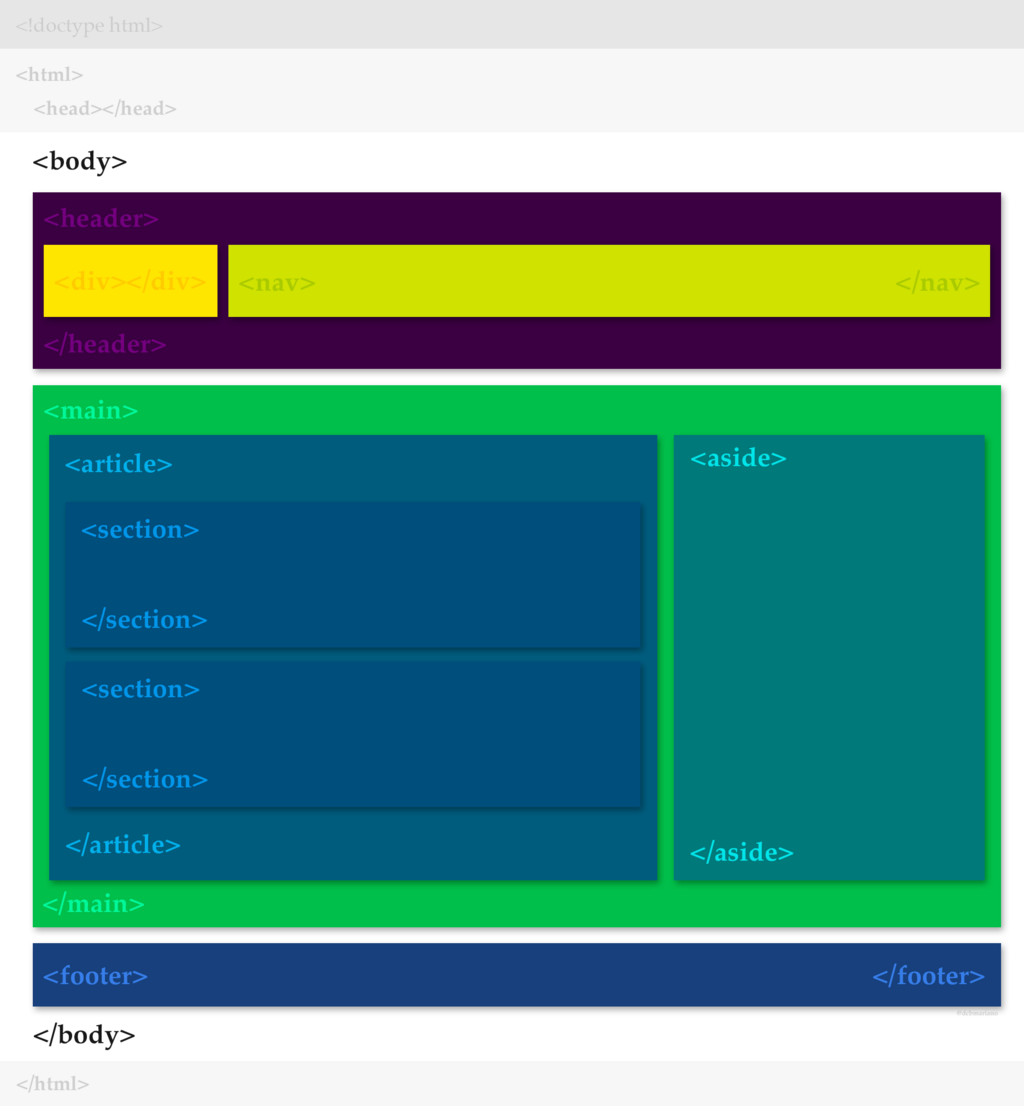
Using semantic tags isn't just a best practice; it's the foundation of an accessible, SEO-friendly, and maintainable website. It makes your code cleaner for other developers and your site clearer for every user and machine that visits.
Ready to check your understanding of how to structure a modern webpage?
Quiz Questions 1/6
What is the primary problem with relying solely on <div> elements for a page's structure (a practice sometimes called "div-itis")?
Quiz Questions 2/6
Which semantic HTML element is intended to contain the dominant, unique content of a document, and should be used only once per page?
By moving beyond generic containers and embracing a semantic approach, you create web pages that are not only visually appealing but also structurally sound and universally understandable.