Mastering HTML Structure and Semantics
Document Structure and Metadata
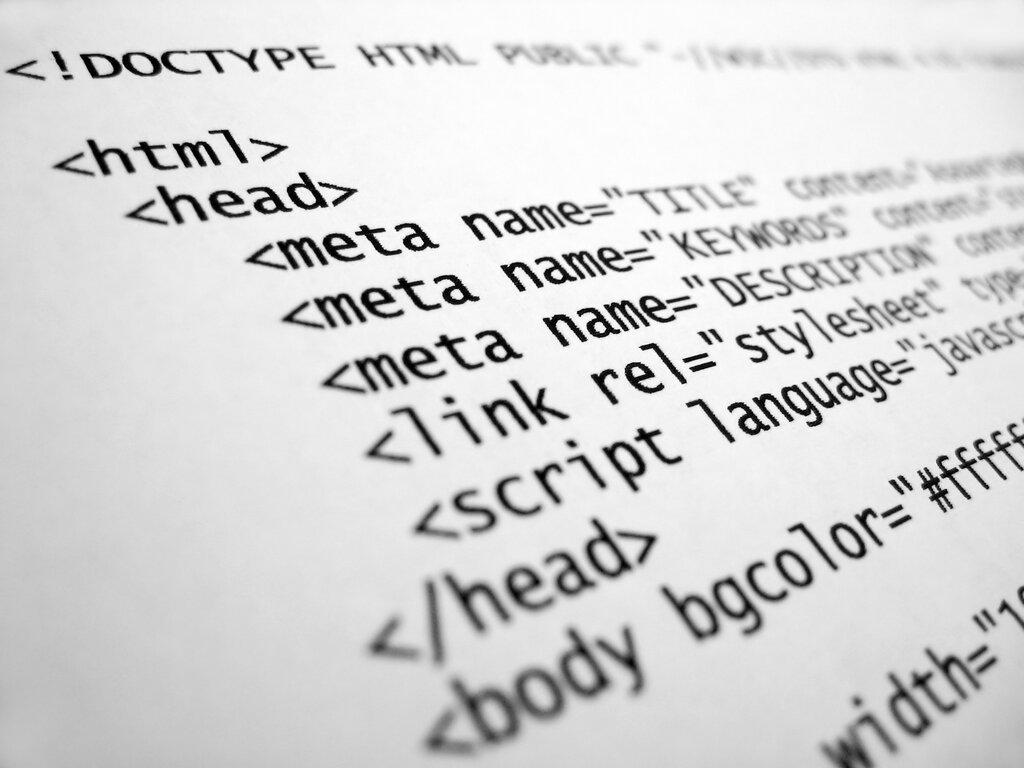
Anatomy of an HTML Document
Every professional webpage starts with the same foundational structure, a skeleton that tells the browser how to interpret and display the content. You already know about basic tags, but the way they're organized—especially the invisible parts—is what separates a hobby page from a professional one.
It all begins with a special declaration at the very top of the file.
<!DOCTYPE html>
<html lang="en">
<head>
    <!-- Metadata goes here -->
</head>
<body>
    <!-- Visible content goes here -->
</body>
</html>
This
<!DOCTYPE html>isn't an HTML tag. It's an instruction to the web browser, ensuring it renders the page in "standards mode," which follows the latest web standards. Without it, browsers might slip into an older, unpredictable rendering mode.
The Invisible Brain
The <head> section is the brain of your document. Nothing inside it is directly visible on the page, but it contains crucial information for browsers, search engines, and assistive technologies. The first tag, <html lang="en">, signals that the page's primary language is English. This helps screen readers pronounce words correctly and allows search engines to target the right audience.
Inside the <head>, we define the document's metadata. First up is the character set. The line <meta charset="UTF-8"> tells the browser how to interpret the text characters in your file. Using is the universal standard, ensuring that everything from simple text to complex emojis renders correctly across all devices and languages.
Next is the viewport meta tag, which is essential for responsive design. It controls how your webpage is displayed on mobile devices.
<meta name="viewport" content="width=device-width, initial-scale=1.0">
Let's break that down:
width=device-width: This sets the width of the page to follow the screen-width of the device. The browser will render the page at its natural size without any scaling.initial-scale=1.0: This establishes a 1-to-1 relationship between CSS pixels and device-independent pixels. It prevents the browser from zooming out on your content when the page first loads.
Identity and Connections
Your document also needs an identity. The <title> tag defines the text that appears in the browser tab or as the title in search engine results. It's a small but powerful piece of metadata for user experience and SEO.
Alongside the title, you can link to a —the small icon that appears next to your page title in the browser tab. It's a branding element that makes your site easily recognizable among many open tabs.
<title>My Awesome Webpage</title>
<link rel="icon" type="image/png" href="favicon.png">
Finally, the <head> is where you connect your HTML to external resources. The most common example is linking to an external stylesheet, which keeps your content (HTML) and your presentation (CSS) separate. This is a fundamental practice for creating maintainable and scalable websites.
<link rel="stylesheet" href="styles.css">
Let's test your understanding of these core concepts.
What is the primary purpose of the <head> section in an HTML document?
Which meta tag is essential for ensuring a webpage displays correctly on mobile devices by setting the page width to the device's width and establishing the initial zoom level?
With this structure in place, your document is properly configured to communicate with browsers, search engines, and assistive technologies, setting a professional foundation for any content you build.