Mastering High-Converting Facebook Ads
Setting Up Facebook Ads Manager
Your Ad Campaign HQ
Before you can launch your first ad, you need a central place to manage everything. This is where Meta Business Suite comes in. It's a free tool that houses your Business Manager and Ads Manager, keeping all your business activities separate from your personal Facebook profile. Think of it as the command center for your advertising on Facebook, Instagram, and other Meta platforms.
Meta Ads, formerly known as Facebook Ads Manager, is an all-encompassing platform that allows businesses to create, manage, and analyze their advertising efforts across Facebook and Instagram.
Creating this account is the first official step. To get started, navigate to business.facebook.com. You'll need to be logged into your personal Facebook account to verify your identity, but rest assured, your colleagues and customers won't see your personal information.
Click the “Create an account” button. You’ll be prompted to enter your business name, your name, and your work email address. Use an email you have access to, as Meta will send a verification link you need to click to finalize the setup.
Make sure your business name matches your official company name. This helps avoid any confusion or potential account issues down the line.
Connecting Your Assets
Once your Business Manager is created, it's like an empty folder. You need to add your business assets to it. The most important asset is your Facebook Page. This page represents your business and is what users will see when they interact with your ads.
Inside your Business Suite, find the “Settings” gear icon, then go to “Business Settings.” This is where you’ll manage all your assets and permissions.
- In the left-hand menu, go to Accounts > Pages.
- Click the blue “Add” button.
- You'll see a few options. Since you likely already have a Page for your business, you'll choose “Add a Page.”
From there, just type in the name of your Facebook Page. As long as you're already an admin of that page, it will connect instantly.
| Option | When to Use It |
|---|---|
| Add a Page | You own the Facebook Page and want to add it to your Business Manager. |
| Request Access to a Page | You are an agency or contractor who needs to run ads for a client's Page. |
| Create a New Page | Your business is brand new and doesn't have a Facebook Page yet. |
After linking your page, you’ll also have an ad account. Business Manager automatically creates one for you, usually named after your business. This ad account is where your campaigns will live and where your billing information is stored.
Setting Up Payments
You can’t run ads without a way to pay for them. Adding a payment method is a critical step. It’s best to do this early so it’s ready when you want to launch a campaign.
Still in “Business Settings,” navigate to the “Payment Methods” section. Click “Add Payment Method” and enter your information. You can typically use a credit or debit card, PayPal, or online banking, depending on your country. This payment method will be associated with your ad account.
Navigating Ads Manager
With the setup complete, it's time to get familiar with the Ads Manager dashboard. This is where you will build, manage, and analyze your campaigns. You can access it from the main menu (often a grid of dots or a “hamburger” icon) in your Business Suite.
The layout is structured in three hierarchical levels. Understanding this structure is key to organizing your advertising efforts effectively.
-
Campaigns: This is the highest level. Here, you choose your advertising objective. Are you trying to drive traffic to your website, generate leads, or make sales? Your choice at the campaign level sets the goal for everything inside it.
-
Ad Sets: Within each campaign, you have one or more ad sets. At this level, you define your audience, set your budget and schedule, and choose where your ads will appear (e.g., Facebook Feed, Instagram Stories).
-
Ads: Inside each ad set are the actual ads your audience sees. This is where you put your creative content: the images, videos, headlines, and text.
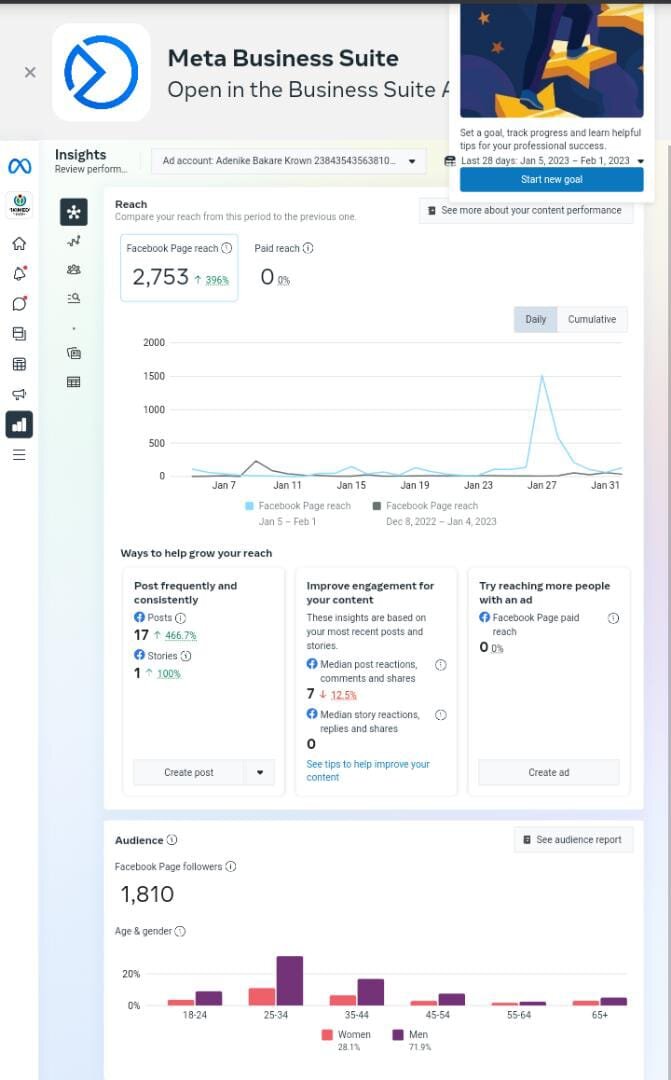
The main dashboard has columns that show key metrics for your campaigns, like results, reach, and amount spent. You can customize these columns to see the data that matters most to you. Take some time to click around the main tabs and familiarize yourself with the layout. In the upcoming sections, we'll dive into how to use these tools to build your first campaign.
What is the primary purpose of Meta Business Suite?
When setting up your Meta Business account for the first time, you must be logged into your personal Facebook account.