Mastering GitHub
Introduction to Git and GitHub
What Are Git and GitHub?
Think of Git as a powerful “undo” button for your code, but much more sophisticated. It’s a version control system, which is a tool that tracks changes to files over time. Instead of saving multiple versions of a file like project_final.docx, project_final_v2.docx, and project_really_final.docx, Git saves “snapshots” of your entire project every time you tell it to. This lets you rewind to any previous state, see who changed what, and manage different features without them interfering with each other.
Git is a program that runs on your computer. It works locally, right in your project folder.
Git is a free and open-source version control system (VCS) designed to handle projects of all sizes with speed and efficiency.
GitHub, on the other hand, is a website. It’s a place to store your Git projects online. Think of it as a social network for developers. GitHub hosts your code repositories (a repository, or “repo,” is just a project folder that Git is tracking) and provides tools for collaboration. You can share your code, work with others on the same project, review changes, and manage tasks.
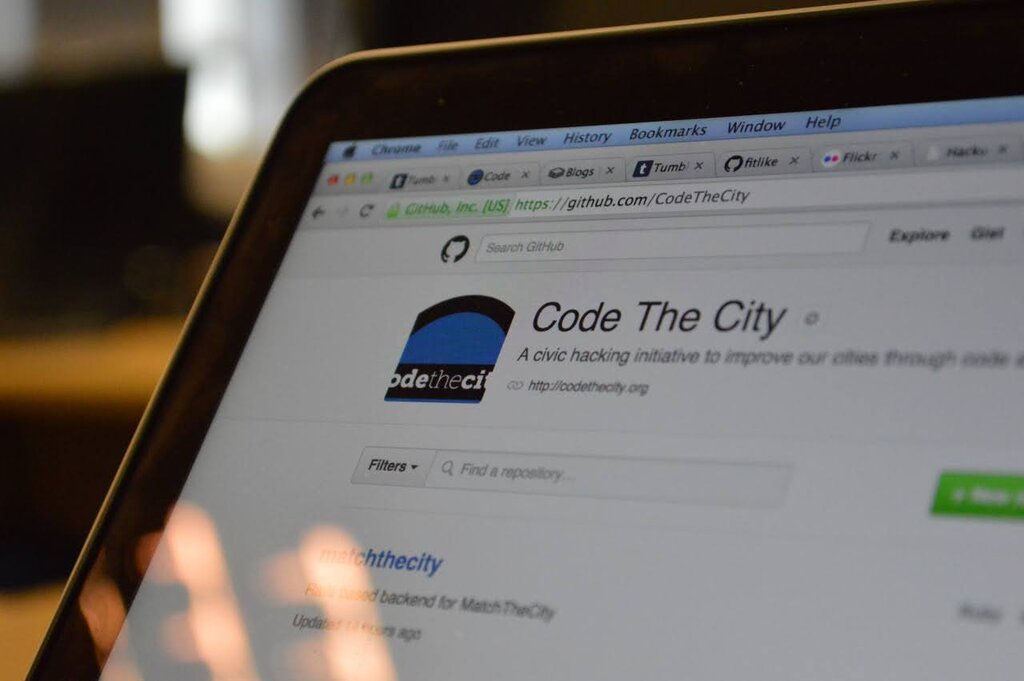
The key difference is simple: Git is the tool you use to track changes. GitHub is the place you store the projects you're tracking.
Set Up Your GitHub Account
Before you can do anything else, you need a GitHub account. This is your identity in the world of collaborative coding. It’s where you’ll store your projects and how you’ll contribute to others.
Setting one up is straightforward:
- Go to
github.com. - Click the “Sign up” button.
- Follow the prompts to enter your email, create a password, and choose a username. Your username will be part of the URL for all your public projects, so pick one you like!
- Verify your email address to activate your account.
Install Git on Your Computer
With your GitHub account ready, the next step is to install Git on your computer. Git is primarily a command-line tool, meaning you'll interact with it by typing commands into a terminal or command prompt.
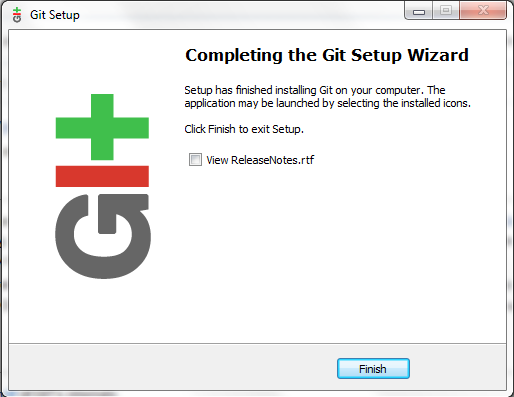
The installation process varies by operating system.
For macOS:
Git may already be installed. Open the Terminal app and type git --version. If you see a version number, you’re all set. If not, it will prompt you to install the Xcode Command Line Tools, which includes Git. Alternatively, you can install it with a package manager like Homebrew using brew install git.
For Windows:
The easiest way is to download and install Git for Windows from the official website (git-scm.com). This package includes both the Git command-line tool and Git Bash, a terminal emulator that provides a Unix-like shell experience on Windows.
For Linux: You can typically install Git through your distribution's package manager. For Debian-based systems like Ubuntu, use this command:
sudo apt install git
On Fedora or other Red Hat-based systems, you would use:
sudo dnf install git
Once installed, run git --version in your terminal to confirm it's working properly.
Now you have the essential tools ready. With a GitHub account for collaboration and Git installed on your machine for version control, you're prepared to start managing your own projects and contributing to others.