Mastering Git Rebase in VS Code
VS Code Git Integration
Visualizing Git in VS Code
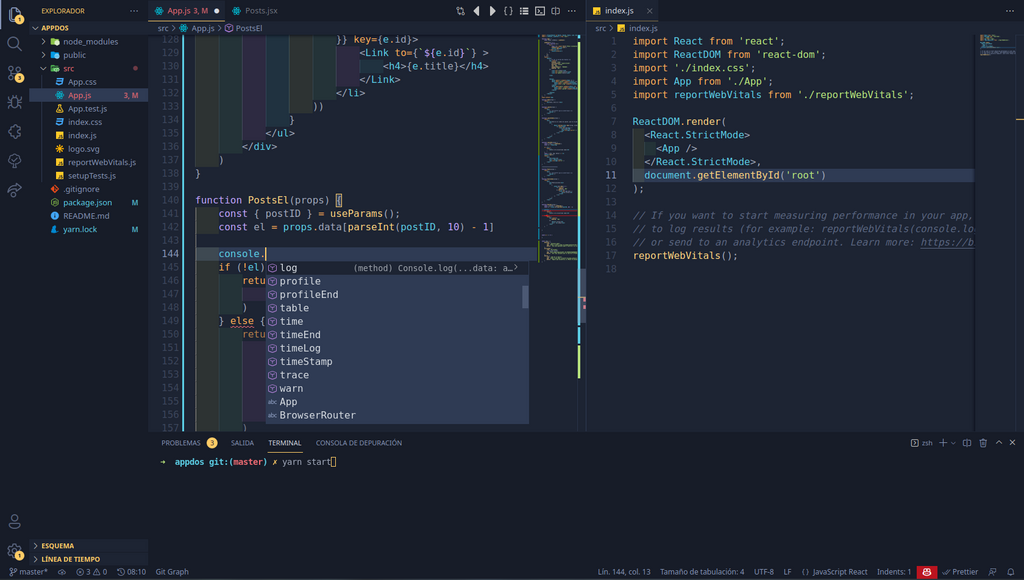
While the command line is powerful, managing Git history can be much clearer with a visual interface. Visual Studio Code has excellent built-in Git support that brings your repository's history to life directly within your editor.
The main hub for Git operations is the Source Control view. You can open it by clicking the branch icon in the Activity Bar on the left side of the window. This view is your command center for staging changes, writing commit messages, and viewing your project's state.
Reading the History
The Source Control view lists all modified files, separating them into 'Changes' (unstaged) and 'Staged Changes'. But to see the commit history, you'll look at the status bar at the bottom-left. It shows your current branch and often includes arrows indicating how many commits you are 'ahead' of or 'behind' the remote branch. This is a quick way to check if you need to pull changes from your team or push your own.
For example,
↑1 ↓2means you have one commit ready to push and are two commits behind the remote branch.
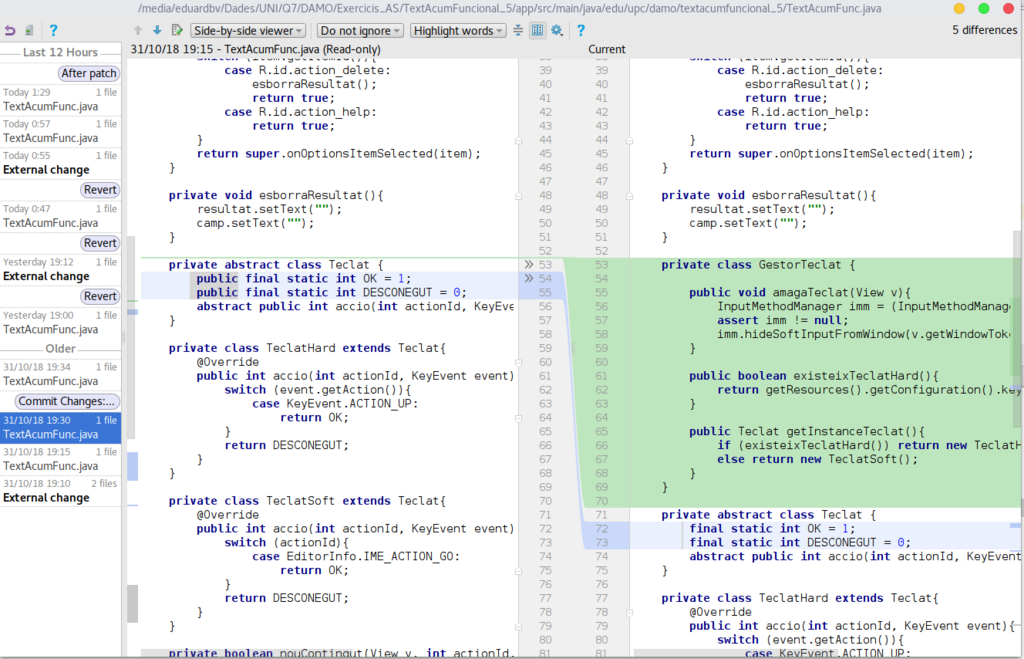
For a more detailed, file-specific history, VS Code offers the Timeline view. To see it, open a file, right-click its tab, and select 'Open Timeline'. You can also find it in the bottom of the Explorer panel. This view shows you a chronological list of commits that affected that specific file, making it easy to see how it has evolved over time.
Initiating a Rebase
VS Code simplifies complex Git operations like rebasing. Instead of memorizing command-line flags, you can use the Command Palette. Since VS Code uses your machine's local Git configuration, any setup you've already done will be respected.
To start a rebase, first ensure your working directory is clean by committing or stashing your changes. Then, open the Command Palette:
Press
Ctrl+Shift+Pon Windows/Linux orCmd+Shift+Pon macOS.
Once the palette is open, type Git: Rebase Branch... and press Enter. VS Code will then present you with a list of your local and remote branches. Simply select the branch you want to rebase your current work onto, like main or develop.
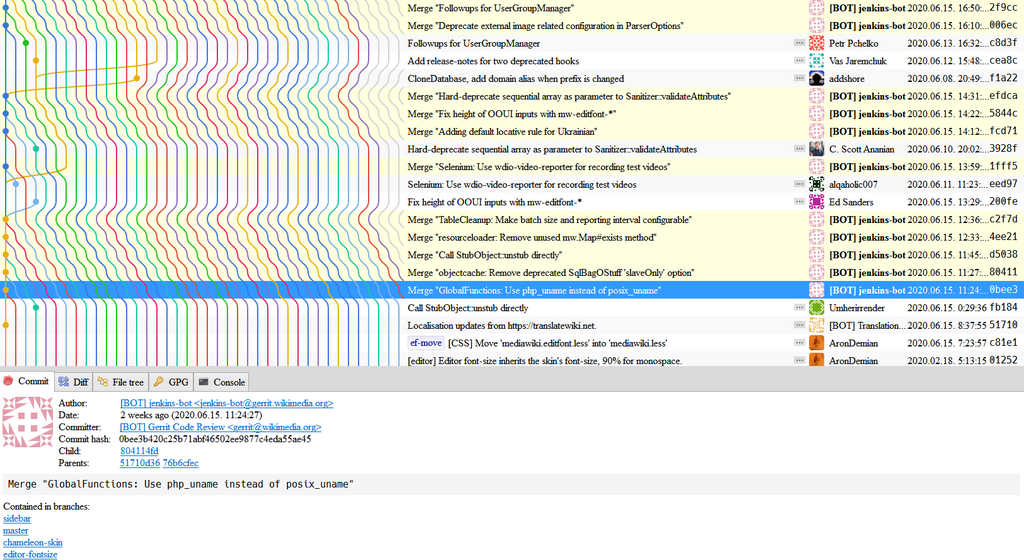
VS Code will then begin the rebase process. If any conflicts arise, it will pause and highlight the conflicting files directly in the Source Control view, providing a user-friendly interface to resolve them. This integrated approach keeps you in the editor and streamlines the entire workflow.
What is the primary location for managing Git operations like staging changes and writing commit messages in Visual Studio Code?
How can you see a chronological list of commits that have specifically affected a single open file?
Using VS Code's built-in tools gives you a clear, visual way to manage your repository without leaving your editor.