Mastering FlutterFlow Development
Introduction to FlutterFlow
What is FlutterFlow?
FlutterFlow is a tool that lets you build mobile and web applications without writing much, or any, code. It’s known as a “low-code” or “no-code” platform. Instead of typing lines of code, you use a visual, drag-and-drop interface to design your app's screens, connect to data, and define its logic.
Under the hood, FlutterFlow is built on Google's Flutter framework. This means that while you're arranging buttons and text fields visually, FlutterFlow is automatically writing high-quality, clean Flutter code for you. You get the speed of visual development without sacrificing the power of a real, production-ready codebase.
FlutterFlow provides a visual app builder while generating clean and production-ready Flutter code in the background.
The No-Code Advantage
Why choose a tool like FlutterFlow? The no-code approach has a few key benefits, especially for quickly turning an idea into a reality.
- Speed: You can build a prototype or a minimum viable product (MVP) in a fraction of the time it would take with traditional coding. This is great for testing ideas and getting user feedback early.
- Accessibility: You don't need to be an expert programmer to build an app. If you have an idea, you can start building it, making app development accessible to entrepreneurs, designers, and students.
- Cost-Effectiveness: Faster development means lower costs. It reduces the resources needed to launch and iterate on a new product.
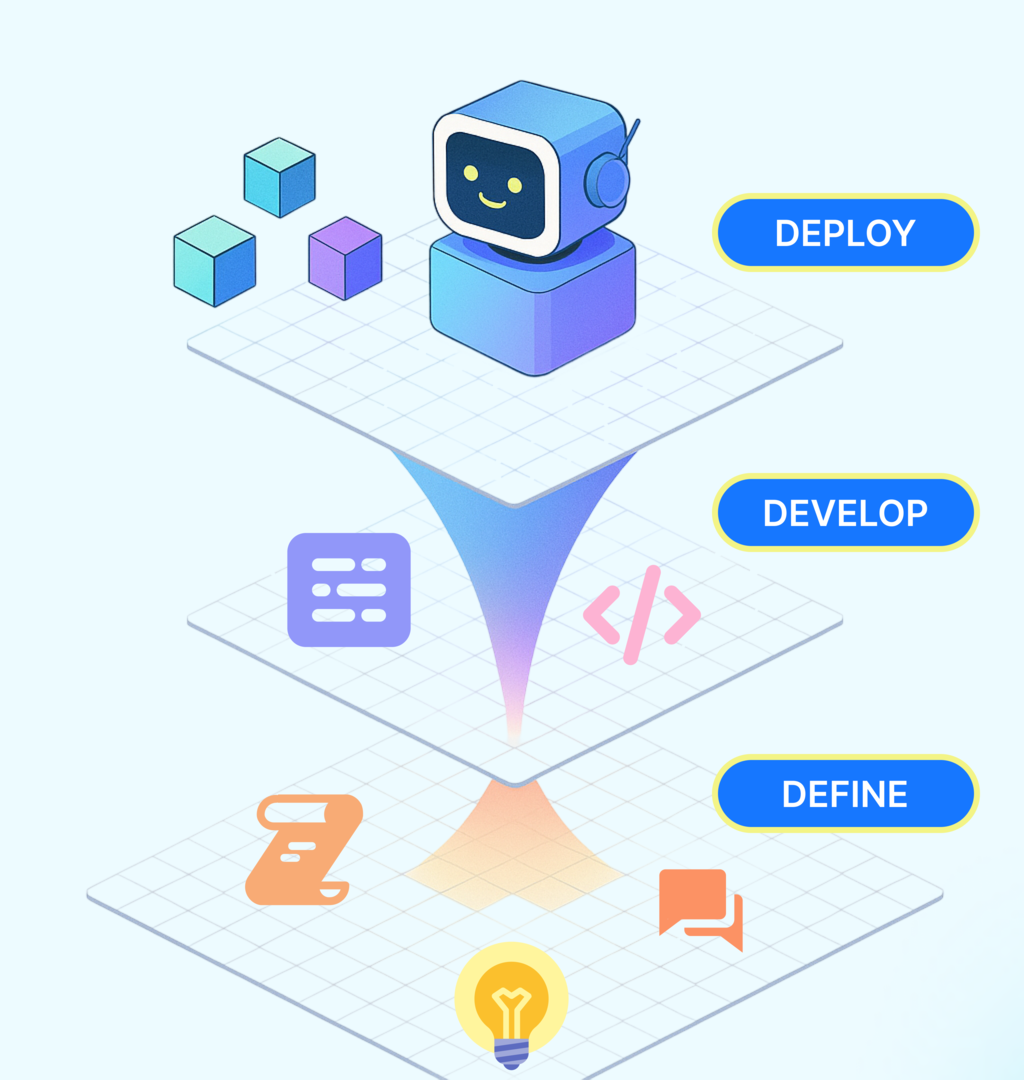
This approach has fundamentally changed how people create applications, allowing for rapid creation without deep coding expertise.
Setting Up Your Workspace
Getting started with FlutterFlow is straightforward. Since it’s a web-based platform, there's no software to install. You just need a modern web browser and an internet connection. For the best experience, it's recommended to use a Chromium-based browser like Google Chrome.
First, you'll need to create an account. Head over to the FlutterFlow website and sign up using your Google, Apple, or email account. The process is quick and will drop you right into your new dashboard, ready to create your first project.
Once you create a new project, you'll be greeted by the main interface. It can look a bit busy at first, but it's logically organized into three main sections.
Let's quickly break down what each section does.
-
UI Builder / Widget Tree (Left): This is your toolbox. It contains all the pre-built components (called widgets) you can use, like buttons, text, images, and layout elements. The Widget Tree shows you the hierarchical structure of all the components on your current screen.
-
Canvas / App Preview (Center): This is your visual workspace. You drag widgets from the left panel onto the canvas to build your app's interface. It gives you a live, interactive preview of what your screen will look like.
-
Properties Panel (Right): When you select a widget on the canvas, this panel comes to life. It shows you all the customizable properties for that specific widget, such as its color, size, font, alignment, and actions it can perform.
The basic workflow is: find a widget on the left, drag it to the center, and customize it on the right.
What is the primary purpose of FlutterFlow?
FlutterFlow is built on top of which Google framework, enabling it to generate high-quality, production-ready code?
Now you have a solid grasp of what FlutterFlow is, why no-code is a powerful approach, and how to navigate the basic layout of the platform. You're ready to start building.