Mastering Figma Design
Introduction to Figma
What is Figma?
Figma is a tool for designing digital products, like websites and mobile apps. Think of it as a digital whiteboard where you can create, share, and collaborate on designs in real-time. It runs right in your web browser, so you don't need to install any heavy software, and your work is always saved to the cloud.
Figma is a collaborative, cloud-based design tool primarily used for creating user interfaces and prototypes for websites and applications.
Because it's cloud-based, you can work on the same design file with your team at the same time. You can see your colleagues' cursors moving around the screen, making changes, and leaving comments. This seamless collaboration is one of the main reasons it's so popular with design teams.
Getting Around the Interface
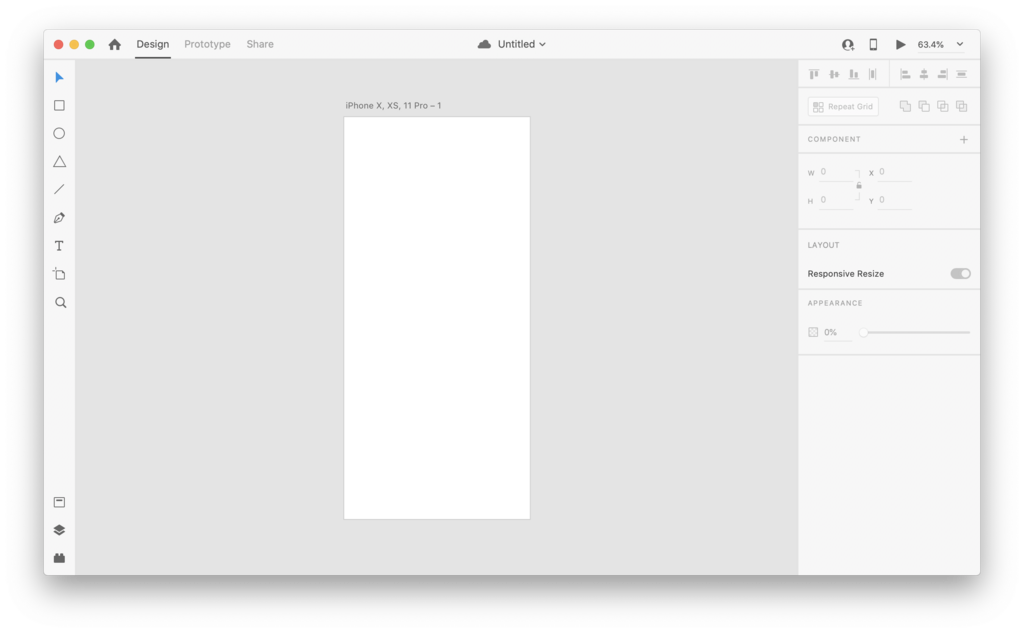
When you first open a Figma file, the interface might seem a bit busy, but it's organized logically. It's broken down into four main areas.
1. Toolbar (Top): This is where you'll find your primary tools. You can select objects, create frames, draw shapes like rectangles and circles, and add text.
2. Layers Panel (Left): Every object you add to your design—a piece of text, a shape, an image—appears here as a layer. This panel helps you keep your design organized by letting you select, rename, and group different elements.
3. Canvas (Center): This is your main workspace. You'll do all of your designing here. You can pan and zoom around the canvas to focus on different parts of your project.
4. Properties Panel (Right): When you select an object on the canvas, this panel comes to life. It shows you all the properties of that object—like its color, size, font, and alignment—and lets you change them.
Your First Design File
Creating a design starts with a frame. A frame is a container for your design elements. You might create a frame for a mobile app screen, a website homepage, or even just a single icon. All your design work lives inside frames.
To create your first simple design:
- Select the Frame Tool (or press F).
- Choose a preset size from the Properties Panel, like 'iPhone 14'.
- Use the Rectangle Tool (R) to draw a button.
- Use the Text Tool (T) to add a label like 'Sign Up' on top of the button.
That's it! You've just created a basic wireframe.
Working Together in Real Time
Collaboration is where Figma really shines. You can share a link to your design file, and anyone with the link can open it in their browser. Depending on the permissions you set, they can either view or edit the file alongside you.
| Feature | How it works |
|---|---|
| Multiplayer | See teammates' cursors moving on the canvas in real time. |
| Commenting | Drop comments anywhere on the design to ask questions or give feedback. |
| Version History | Figma automatically saves versions of your work, so you can always go back. |
| Sharing | Share a link to your live design file or a specific prototype. |
These features eliminate the need to save and send files back and forth. Everyone is always looking at the most up-to-date version of the design, which makes the entire process faster and more transparent.
What is the primary function of Figma?
If you want to change the color of a shape you've drawn, which part of the Figma interface would you use?
Now you know the basics of what Figma is, how its interface is laid out, and how to start your first design. The best way to learn is by jumping in and experimenting with the tools.