Mastering Excel for Data Analysis
Excel Basics
The Excel Workspace
Opening Excel for the first time reveals a grid of boxes. This is a worksheet, and it's where all the action happens. The entire file you're working in is called a workbook, which can hold multiple worksheets, like pages in a notebook.
Each box in the grid is a cell. Every cell has a unique address, named after its column letter and row number. The cell in the top-left corner, for instance, is A1. The one to its right is B1, and the one below it is A2.
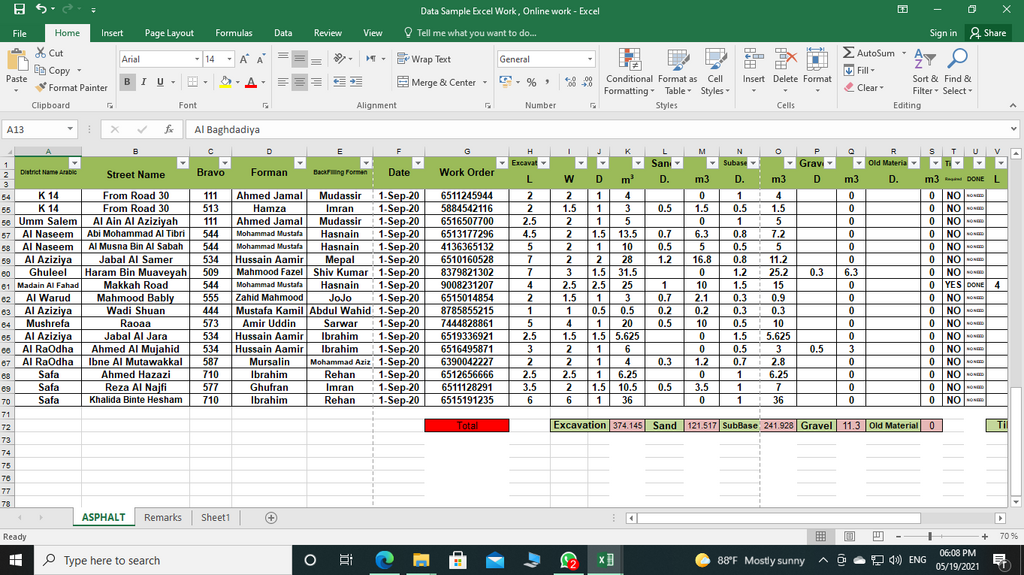
Look at the top of the window. You'll see a large area with tabs like Home, Insert, and Page Layout. This is called the Ribbon. It holds all the tools and commands you'll use to work with your data.
Just below the Ribbon is the Formula Bar. This bar shows the actual content of the selected cell, which is especially useful when a cell contains a formula but displays a calculated result.
Entering and Formatting Data
Getting data into your worksheet is simple. Just click on a cell and start typing. You can enter text, numbers, dates, or formulas. When you're done, press Enter to move to the cell below, or Tab to move to the cell on the right.
Raw data can be hard to read. That's where formatting comes in. You can make your data clearer by changing its appearance. The Home tab on the Ribbon has everything you need for basic formatting.
Select a cell or a group of cells, then use the buttons in the 'Font' section of the Home tab to make text bold, italicized, or change its color. You can also use the paint bucket icon to change a cell's background color.
Adjusting column width is another common task. If your text is too long for a cell, it might get cut off. To fix this, move your mouse to the line between the column letters at the top of the grid. Your cursor will change to a double-sided arrow. Click and drag to resize the column, or simply double-click to automatically fit it to the widest content in that column.
Navigating Your Sheets
A single Excel workbook can contain many worksheets. You can see them as tabs at the bottom-left of the window, often named Sheet1, Sheet2, and so on. Clicking on a tab will switch to that worksheet.
To keep things organized, it's a good practice to give your sheets descriptive names. Right-click on any sheet tab and select 'Rename'. You can also change the order of the sheets by clicking and dragging the tabs into a new position. To add a new worksheet, just click the plus (+) icon next to the sheet tabs.
What is the entire Excel file you are working in called?
What is the unique address of the cell located in the first column and the first row?
With these fundamentals, you're ready to start organizing and formatting your own data in Excel.