Mastering Elementor for WordPress
Introduction to Elementor
Meet Elementor
Elementor is a powerful tool for WordPress that lets you build and design your website visually. Think of it as a live page editor. Instead of writing code or fumbling with complex theme options, you drag and drop elements exactly where you want them. What you see on your screen is exactly what your visitors will see.
This approach is often called a "drag-and-drop" or "visual" page builder. It gives you creative control without needing to be a developer.
With Elementor, you can create custom layouts for pages, design headers and footers, and style every part of your site. It works on top of your existing WordPress installation, replacing the standard content editor with a much more flexible and intuitive interface.
Installation and Activation
Getting Elementor up and running is just like adding any other WordPress plugin. The free version is available directly from the official WordPress plugin directory.
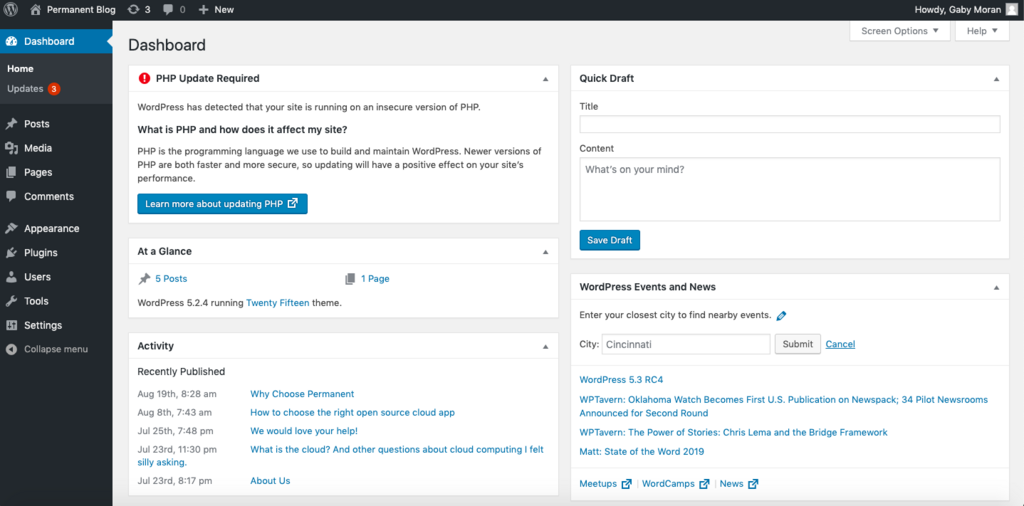
- Log in to your WordPress dashboard.
- Navigate to Plugins > Add New.
- In the search bar, type "Elementor".
- Find "Elementor Website Builder" in the results and click Install Now.
- Once installed, click the Activate button.
After activation, you're ready to start building. To use Elementor, you can either create a new page (Pages > Add New) or edit an existing one. On the page edit screen, you'll see a prominent button that says "Edit with Elementor". Clicking this will launch the Elementor interface.
Navigating the Interface
The Elementor editor has two main parts. On the right is the live preview area. This is your canvas, where you see a real-time view of your page as you build it. You can click directly on any element here to edit it.
On the left is the Elementor panel. This is your control center. It contains all the building blocks, called widgets, that you can drag onto your page. This panel is also where you'll find global settings for fonts and colors, as well as specific settings for any element you select.
The building blocks in the panel include basics like headings, text blocks, images, and buttons. You simply find the widget you want, click and hold, and drag it over to the live preview. A blue line will show you where the widget will be placed.
Themes and Templates
Elementor works alongside your WordPress theme, not in place of it. Your theme still controls the general framework of your site, like the header, footer, and basic styling. However, Elementor takes over the content area of any page you build with it.
For the best results, it's recommended to use a theme built to be compatible with Elementor. A popular choice is the "Hello Elementor" theme, which is a lightweight, blank-slate theme designed to give you maximum design freedom.
Think of your theme as the foundation and frame of a house, and Elementor as the interior designer who arranges all the furniture and decor inside the rooms.
To speed up your workflow, Elementor also includes templates. These are professionally designed, pre-built pages and blocks that you can insert into your site with a single click. You can use a full page template as a starting point or insert smaller blocks, like a contact form or a testimonial section, into a page you're already building. Once inserted, every part of a template is fully customizable.
Ready to check your understanding? Let's review what we've covered.
What is the primary function of the Elementor plugin for WordPress?
After installing and activating Elementor, how do you launch its editor for a specific page?
Now you have a solid grasp of what Elementor is and how to get started. In the next section, we'll begin building our first page.