Mastering Electronic Music Production with FL Studio
FL Studio Interface
The Five Windows of FL Studio
Opening FL Studio for the first time can feel like stepping into the cockpit of a spaceship. There are buttons, knobs, and windows everywhere. But don't worry, you only need to understand five main areas to get started. Think of them as the five key rooms in your new digital studio.
These are the Browser, the Channel Rack, the Playlist, the Mixer, and the Piano Roll. Each one has a specific job. Once you know what each one does, you'll see how they all fit together to create a smooth workflow for making music.
Your Sound Library and Pattern Maker
First up is the Browser. This is your library of sounds, located on the left side of the screen. It holds all your audio files, from drum hits and sound effects to instrument presets and entire samples. Think of it as your digital file cabinet. When you need a kick drum, a piano sound, or a vocal snippet, you'll find it here and drag it into your project.
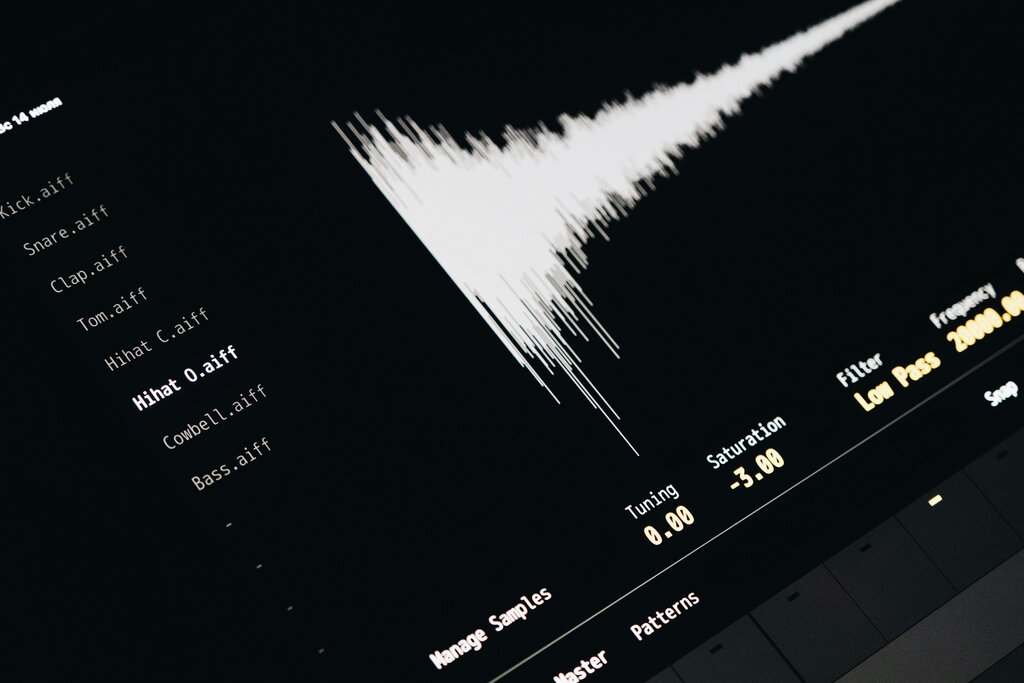
Once you've picked a sound from the Browser, you'll likely use it in the Channel Rack. This window is the heart of creating beats and simple melodies. It functions like a classic step sequencer or drum machine. You load your sounds—like a kick, snare, and hi-hat—and then click on little squares to tell FL Studio when you want each sound to play. This is how you build your first patterns, which are the building blocks of your song.
Building Your Song
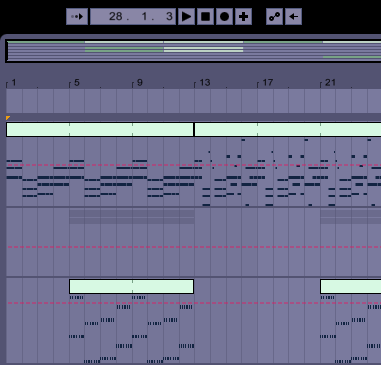
After creating a few patterns in the Channel Rack, you need a place to arrange them. That's the job of the Playlist. The Playlist is a timeline that runs from left to right. You can drag and drop your patterns onto this timeline to structure your song. For example, you might place your drum pattern first, then bring in a bass pattern, and arrange them to create an intro, verse, and chorus.
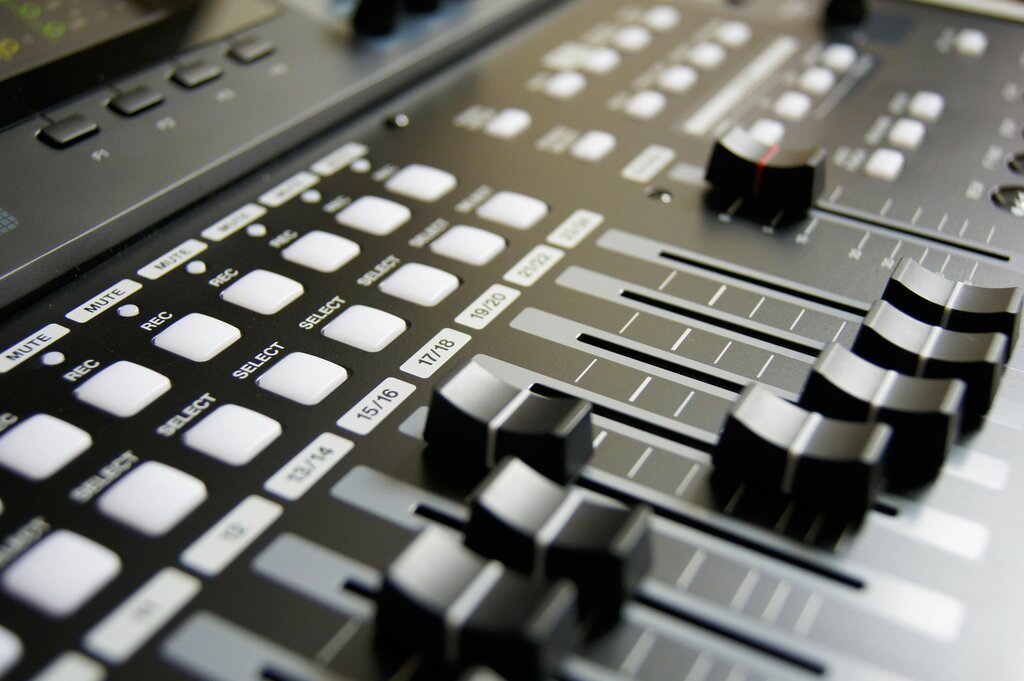
While the Playlist arranges the song, the Mixer controls how it sounds. Every sound in your Channel Rack can be sent to its own channel in the Mixer. Here, you can adjust the volume of each instrument, pan them left or right, and add effects like reverb or delay. It's the digital version of a massive mixing console you'd see in a professional recording studio.
Finally, there's the Piano Roll. This is where you'll compose your melodies and harmonies. When you want to write a chord progression or a catchy lead line for an instrument, you'll open its Piano Roll. It looks like a grid with piano keys running up the left side and a timeline across the top. You simply click on the grid to place notes, giving you precise control over their pitch, length, and timing.
To recap, here is how they all work together:
You find sounds in the Browser, create patterns with them in the Channel Rack, arrange those patterns in the Playlist, adjust their levels in the Mixer, and write melodies for them in the Piano Roll.
Ready to test your knowledge?
What is the primary function of the Browser in FL Studio?
Which window functions as a timeline where you arrange patterns to structure your entire song?
Getting comfortable with these five windows is the first major step to producing music in FL Studio. In the next section, we'll start putting them to use.