Mastering Dynamic Spreadsheets and Data Analysis
Conditional Logic Formulas
Making Decisions with IF
Beyond simple arithmetic, the real power of a spreadsheet lies in its ability to make decisions. The cornerstone of this capability is the IF function. It allows Excel to perform one action if a condition is true, and a different action if it's false. This is the foundation of automating tasks and creating dynamic, responsive models.
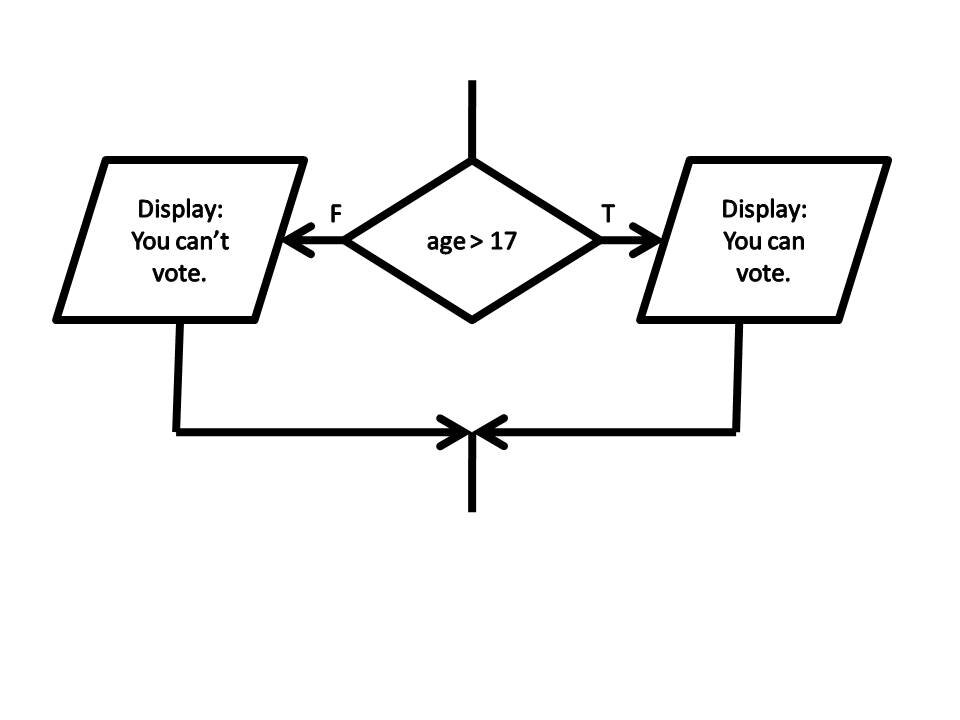
The structure, or syntax, of an IF function is straightforward. It takes three arguments: a logical test, a value to return if the test is true, and a value to return if the test is false.
=IF(logical_test, [value_if_true], [value_if_false])
Let’s break that down with a business scenario. Imagine you have a list of sales figures and you want to quickly determine if a salesperson met their quarterly target of $10,000. If their sales are in cell B2, the formula would be:
=IF(B2>=10000, "Met Target", "Missed Target")
Here, B2>=10000 is the logical test. If the value in B2 is 10,000 or more, Excel will display "Met Target". If it's less than 10,000, it will display "Missed Target". This simple test is a form of Boolean logic, which is fundamental to all computing.
The IF function is used to perform conditional logic in Excel.
Handling Multiple Conditions
But what if your logic is more complex? What if you have more than two possible outcomes? For years, the standard way to handle this in Excel was with nested IF statements. This means placing an IF function inside another IF function, usually in the value_if_false argument.
Let's expand our sales example. Suppose you want to categorize performance into three tiers: "Excellent" for sales over $15,000, "Good" for sales between $10,000 and $15,000, and "Needs Improvement" for anything less. A nested IF formula would look like this:
=IF(B2>15000, "Excellent", IF(B2>=10000, "Good", "Needs Improvement"))
Excel first checks if B2 is greater than 15,000. If it is, the formula returns "Excellent" and stops. If not, it moves to the second IF statement, which checks if B2 is greater than or equal to 10,000. If that's true, it returns "Good". If both tests are false, it defaults to the final value, "Needs Improvement".
While functional, nested IFs can quickly become confusing and difficult to debug as you add more conditions. This is often called the "Christmas tree" effect due to the increasing number of closing parentheses.
A cleaner, more modern solution is the IFS function. It allows you to list pairs of conditions and values, which is much easier to read.
=IFS(B2>15000, "Excellent", B2>=10000, "Good", TRUE, "Needs Improvement")
In the
IFSfunction,TRUEis used as the final logical test to create a default value if none of the preceding conditions are met.
Combining Logic and Handling Errors
Sometimes you need to test multiple conditions at once. This is where the AND and OR functions come in. They both return a single TRUE or FALSE value, making them perfect to use as the logical test inside an IF function.
AND: ReturnsTRUEonly if all of its arguments are true.OR: ReturnsTRUEif any of its arguments are true.
Suppose a bonus is only given if a salesperson meets their $10,000 sales target (cell B2) and has a customer satisfaction score of at least 90% (cell C2).
=IF(AND(B2>=10000, C2>=0.9), "Bonus", "No Bonus")
Finally, even the best formulas can produce errors. A common one is #DIV/0! when you try to divide by zero, or #N/A when a lookup value isn't found. Instead of letting these errors clutter your sheet, you can catch them with the IFERROR function.
The IFERROR function checks if a formula results in an error. If it does, IFERROR returns a value you specify; otherwise, it returns the result of the formula. Let's say you're calculating a sales commission by dividing total sales (B2) by the number of deals (D2). If D2 is zero, you'll get an error.
=IFERROR(B2/D2, 0)
This formula attempts to calculate B2/D2. If the calculation is successful, the result is displayed. If it produces an error (like dividing by zero), the formula returns 0 instead of an ugly error message.
Ready to test your knowledge on conditional logic?
What are the three arguments required by the IF function, in the correct order?
You want to display 'Pass' if a student's score in cell A2 is 60 or more, and 'Fail' otherwise. Which formula correctly accomplishes this?
Mastering these functions allows you to build sophisticated and automated logic directly into your spreadsheets.