Mastering DaVinci Resolve Workflow
Media Management Workflows
Your Project's Foundation: The Database
Every project in DaVinci Resolve lives inside a database. Think of it as a master container for all your edits, grades, and metadata. You have two main options for setting up your database, and the choice depends entirely on your workflow.
Local Database: This is the default. It stores everything on your local machine. It’s simple, fast, and perfect for solo editors or individual projects. All your project files, timelines, and settings are self-contained on your computer.
PostgreSQL Database: This is the choice for collaborative teams. It uses a server-based system (PostgreSQL) that allows multiple editors, colorists, and sound designers to access and work on the same projects simultaneously from different workstations over a network. Setting it up is more involved, but it's the backbone of professional multi-user workflows.
Choosing the right database from the start is crucial. Migrating a large number of projects from a local database to a network one later on can be a complex task.
Secure Ingest with the Clone Tool
Before you even import media into your project, you need to get it from the camera card to your hard drive safely. Dragging and dropping files is risky; a hidden error during the copy process could corrupt a file without you knowing until it's too late. The professional solution is DaVinci Resolve's Clone Tool.
Located in the Media page, the Clone Tool doesn't just copy your files, it verifies them. It creates a checksum for the source file and compares it to a new checksum generated for the copied file. If they match, the data is identical. This process guarantees that your footage has been backed up from the camera card without any data loss or corruption.
You can set up cloning jobs to back up your footage to multiple drives simultaneously. It’s a simple, automated way to create redundant copies, which is a fundamental practice in professional post-production.
Smarter Organization with Metadata
Using metadata will keep your media library in line and vastly improve the speed at which you search for your assets.
A project with hundreds or thousands of clips is impossible to manage without good organization. This is where metadata comes in. Metadata is simply data about your data. In Resolve, you can add keywords, descriptions, scene numbers, ratings, or custom tags to any clip in the Media Pool.
While this might seem tedious at first, it pays off enormously. Instead of scrubbing through hours of footage to find
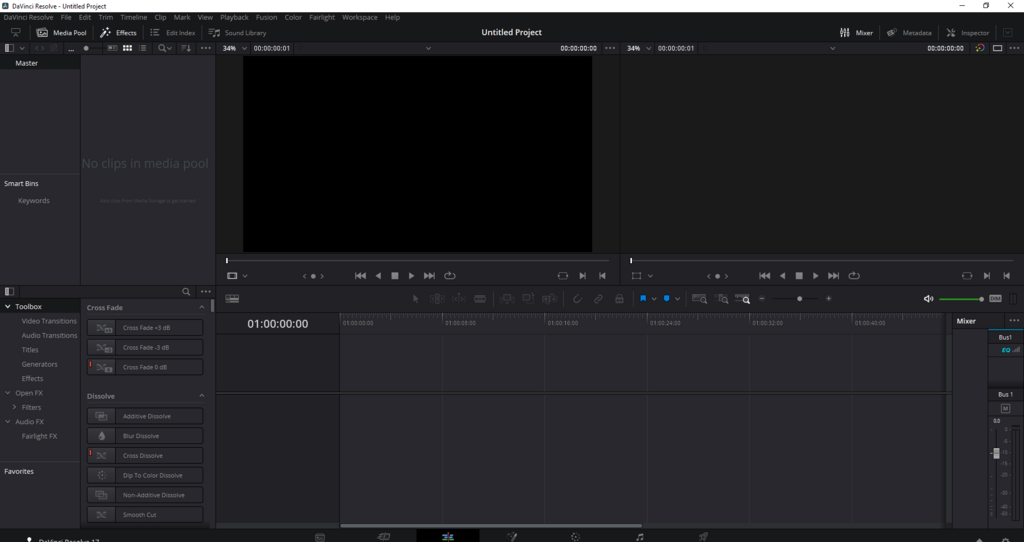
The real power of metadata is unlocked with Smart Bins. A Smart Bin isn’t a regular folder that you manually drag clips into. Instead, it’s a saved search that automatically populates itself based on rules you define.
For example, you could create a Smart Bin that automatically gathers every clip that meets the following criteria:
- Resolution is 4K
- Keyword is "Drone"
- Date Added is "Today"
As you import and tag new drone footage, it will instantly appear in this bin without any extra effort. Smart Bins transform your media library from a static collection of files into a dynamic, searchable database.
Optimizing Playback Performance
High-resolution footage, especially 4K, 6K, or RAW files, can bring even powerful computers to a standstill during editing. To ensure smooth playback, Resolve offers several ways to create lower-resolution, editor-friendly versions of your media. The three main tools for this are Proxy Media, Optimized Media, and the Render Cache.
Proxy Media and Optimized Media serve a similar purpose: they create new, easier-to-handle media files from your high-resolution source footage. The key difference lies in the codec and intended use case.
| Feature | Proxy Media | Optimized Media |
|---|---|---|
| Purpose | Creates the smallest possible files for maximum speed, even on lower-end systems or for remote workflows. | Creates high-quality files that are less compressed than the source but easier for the CPU to decode. |
| Quality | Lower quality, highly compressed (e.g., H.264). | Visually lossless, intra-frame codecs (e.g., ProRes, DNxHR). |
| File Size | Very small. | Large, sometimes larger than the original RAW files. |
| Best For | Offline editing, collaborating over the internet, or editing on laptops. | Smooth playback on a local workstation when source files are highly compressed or computationally intensive. |
The Render Cache, on the other hand, works differently. It doesn't create new versions of your source clips. Instead, it pre-renders demanding sections of your timeline, like clips with heavy color grades, Fusion effects, or titles. When you see a red bar above your timeline, it means that section is not cached and may not play back in real-time. After caching, the bar turns blue, and playback becomes smooth.
You can switch between your original full-quality files and your proxies or optimized media with a single click, ensuring your final export always uses the highest quality source.
Finally, a common task is syncing audio that was recorded on a separate device from the video. DaVinci Resolve makes this easy. In the Media Pool, you can select a video clip and its corresponding audio clip and ask Resolve to sync them automatically. It can do this in two ways:
- Waveform: Resolve analyzes the audio waveforms from both the camera's scratch audio and the separate recorder and lines them up perfectly. This is great for interviews or scenes where a slate clap is used.
- Timecode: In more professional shoots, all cameras and audio recorders are synced to a master clock that embeds identical timecode into every file. Resolve can read this embedded data to achieve a sample-accurate sync instantly. This is the most reliable method for complex shoots with multiple cameras.
What type of DaVinci Resolve database is specifically designed for collaborative workflows, allowing multiple users to access the same project simultaneously over a network?
When using DaVinci Resolve's Clone Tool, what does it use to verify that a copied file is an exact, uncorrupted match of the original?