Mastering Data Management in Excel
Logical Formulas and Conditions
Making Decisions in Excel
Spreadsheets are great for adding up numbers, but their real power comes from making decisions. Instead of just calculating a total, you can tell Excel to perform different actions based on different conditions. The cornerstone of this logic is the IF function.
The IF function checks if a condition is true or false. If it’s true, it does one thing. If it’s false, it does another. It's like a fork in the road for your data.
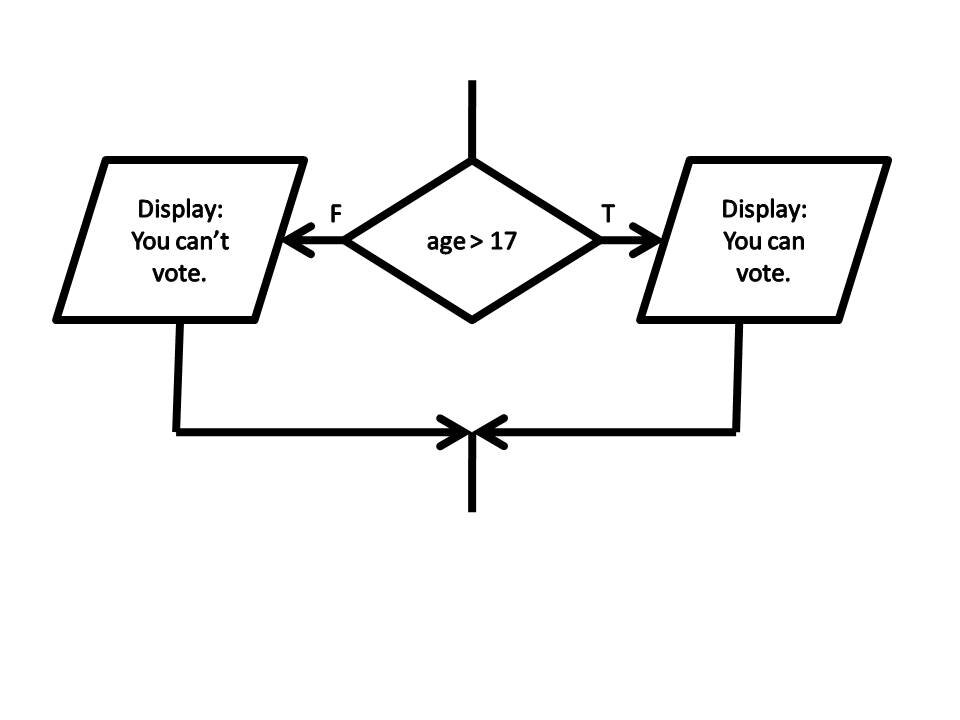
The structure is simple: IF(logical_test, value_if_true, value_if_false).
Imagine you're tracking project tasks. You have a column for the task status ('Done' or 'Pending') and want a new column to show the payment status. If a task is 'Done', the payment is 'Due'. Otherwise, it's 'Not yet'.
=IF(B2="Done", "Due", "Not yet")
Here, Excel checks cell B2.
- If B2 contains the text "Done", the formula returns "Due".
- If it contains anything else, it returns "Not yet".
Combining Conditions
Sometimes, one condition isn't enough. What if you're managing inventory and need to reorder an item only if the stock is low and it's a high-demand product? For this, you need to combine checks using the AND and OR functions.
ANDrequires all conditions to be true.ORrequires just one of the conditions to be true.
These functions are typically placed inside the logical_test part of an IF function. They follow a simple principle called , which deals with true and false values.
Let's say you offer a bonus to salespeople who either exceed $50,000 in sales (in cell B2) or achieve a customer satisfaction score above 90% (in cell C2). You could use OR.
=IF(OR(B2>50000, C2>0.9), "Bonus", "No Bonus")
Now, what if the bonus is only for those who achieve both high sales and high satisfaction? You'd simply swap OR for AND.
=IF(AND(B2>50000, C2>0.9), "Bonus", "No Bonus")
Stacking Your Logic
What happens when you have more than two possible outcomes? For example, assigning student grades based on scores: A, B, C, D, or F. You can handle this by nesting IF functions inside each other. An IF statement's value_if_false can be another complete IF statement.
Let's say a score (in A1) above 90 is an 'A', above 80 is a 'B', and anything else is a 'C'. You could write:
=IF(A1>=90, "A", IF(A1>=80, "B", "C"))
This works, but as you add more conditions, nested IFs can become long and difficult to read. The parentheses start to pile up, making it easy to make a mistake. It's a far cry from the simple tables of early spreadsheet programs like .
For this reason, modern Excel introduced the IFS function. It lets you list pairs of conditions and outcomes in a much cleaner way.
=IFS(A1>=90, "A", A1>=80, "B", A1<80, "C")
The IFS function checks each condition in order. As soon as it finds one that is true, it returns the corresponding value and stops. It's much easier to write and debug.
Visualising Conditions
Logical formulas aren't just for putting values in cells. They can also control formatting. This is called Conditional Formatting, and it lets you change a cell's appearance—like its background colour or font style—based on its value or the value of another cell.
For instance, you could have a list of inventory levels and want to automatically highlight any item with fewer than 10 units in stock. But you can also use a formula for more complex rules.
Imagine a project plan where column A has due dates and column B has completion dates. You want to highlight the entire row in red if the completion date is later than the due date. You can select your data range and create a new conditional formatting rule using a formula.
=$B2>$A2
The dollar sign \$ before the column letters is important. It locks the column reference, so as Excel checks each cell in your selected range, it always compares the date in column B of that row to the date in column A of the same row.
When the formula evaluates to TRUE for a given row, the formatting is applied. This creates a dynamic visual system that instantly flags overdue tasks.
Ready to test your understanding of logical functions?
What is the correct structure of the IF function in a spreadsheet?
You have a student's score in cell A2. You want cell B2 to display "Pass" if the score in A2 is 50 or more, and "Fail" otherwise. Which formula should you use in B2?
By mastering these logical tools, you can build spreadsheets that not only store data but also analyse it and react to it automatically.