Mastering Cursor IDE for Web Development
Cursor IDE Setup
Getting Started with Cursor
Cursor is a code editor designed to work with AI. It’s built on top of Visual Studio Code, so if you’ve used VS Code before, you'll feel right at home. The main difference is that Cursor has powerful AI features woven directly into the experience, making it easier to write, debug, and understand code.
Cursor is a full AI-first IDE built as a fork of VS Code, embedding intelligence directly into the editor.
To get started, you'll need to download and install it. Head over to the official Cursor website and grab the installer for your operating system—whether it's macOS, Windows, or Linux. The installation process is just like any other application: download the file, open it, and follow the on-screen instructions.
Your First Project
Once Cursor is installed, let's create a new project. We'll set up a simple web application using a modern toolchain: Vite, React, and TypeScript. You don't need to be an expert in these tools; we're just using them to get a project up and running.
First, open the integrated terminal in Cursor. You can do this by going to the top menu and selecting Terminal > New Terminal. In the terminal, run the following command to create a new project:
npm create vite@latest my-react-app -- --template react-ts
This command tells npm (the Node Package Manager) to create a new project using the vite tool. We're naming our project my-react-app and specifying a template that comes pre-configured for React and TypeScript.
After the command finishes, a new folder called my-react-app will be created. Now, open this folder in Cursor by going to File > Open Folder... and selecting it.
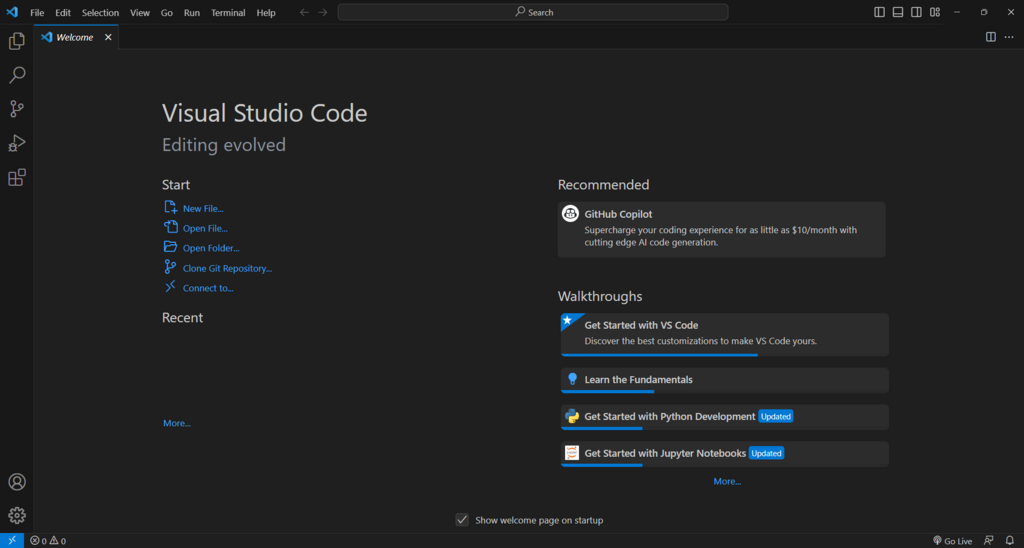
With the folder open, go back to the terminal inside Cursor. You'll need to install the project's dependencies. Run this command:
cd my-react-app
npm install
This installs all the necessary packages for your React application. Once it's done, you have a fully set up project.
Navigating the Interface
The Cursor interface is organized into a few main areas to keep your workflow clean and efficient.
Here’s a quick breakdown:
- Activity Bar: The thin vertical bar on the far left. It lets you switch between different views, like the File Explorer, search, source control, and extensions.
- File Explorer: This shows all the files and folders in your project. You'll use this to open and manage your code files.
- Editor Pane: The main area where you'll write and edit your code.
- Terminal: Located at the bottom, this is where you run commands, like starting your development server or installing packages.
Connecting to Other Tools
To make Cursor even more powerful, you can connect it to external tools like GitHub and Jira. This is done using something called the Model Context Protocol (MCP), which lets the AI assistant understand the context of your broader project, not just the code in front of you.
MCP allows Cursor to access information from your issue trackers and code repositories, providing more relevant and accurate AI assistance.
To set this up, you'll need to configure an MCP server. This sounds technical, but it’s a straightforward process. In Cursor's settings, you can add connections to services like GitHub and Jira.
- For GitHub: You'll authorize Cursor to access your repositories. This allows the AI to understand your entire codebase, including other branches and pull requests.
- For Jira: You'll connect your Jira instance. This gives the AI context on your current tasks, bugs, and project requirements.
Setting up these integrations helps Cursor provide more intelligent suggestions and actions, because it knows what you're trying to build and how your code fits into the larger project.
What is the primary difference between Cursor and a standard Visual Studio Code installation?
In the Cursor interface, which component allows you to switch between different views like the File Explorer, search, and source control?
With your environment now set up, you're ready to start building. In the next section, we'll dive into how to use Cursor's AI features to accelerate your development.