Mastering Cursor IDE for Beginners
Introduction to Cursor IDE
What is Cursor?
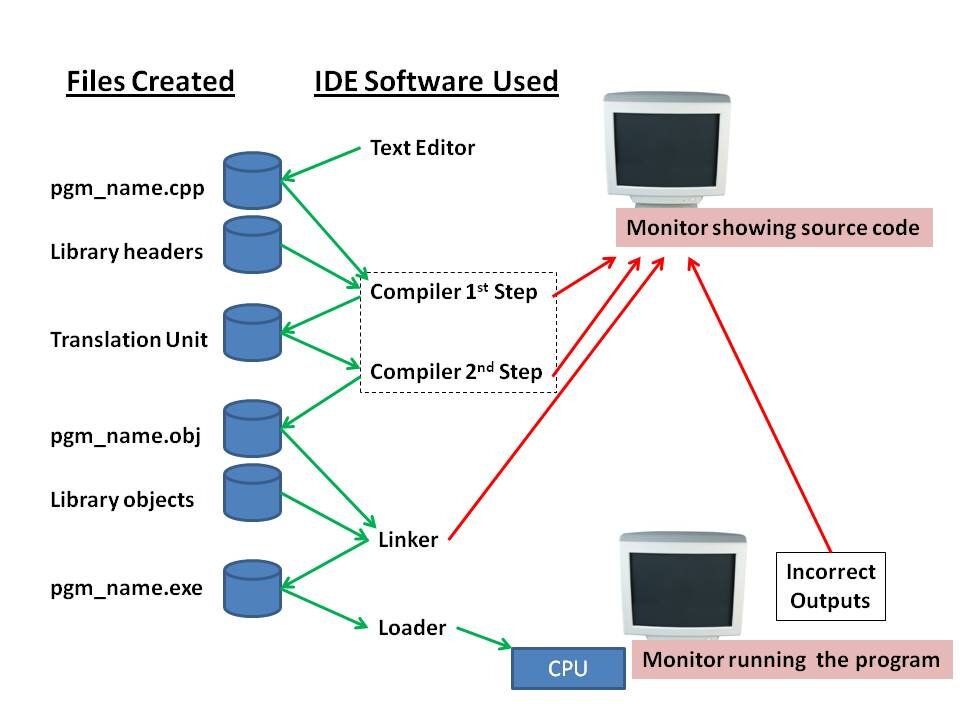
At its core, Cursor is an integrated development environment, or IDE. Think of an IDE as a workbench for programmers. It’s a single application that combines common developer tools into one place, like a text editor for writing code, tools for building your application, and a debugger for finding and fixing mistakes.
What makes Cursor special is that it’s an "AI-first" code editor. This means it was built from the ground up to integrate artificial intelligence directly into the coding process. While many IDEs have AI plugins you can add, Cursor builds these features right into the core experience. This helps you write, understand, and fix code faster.
Cursor is an AI-first code editor designed to make developers extraordinarily productive through advanced artificial intelligence features.
It's built on top of Visual Studio Code (VS Code), one of the most popular code editors in the world. This is great news for both new and experienced developers. If you've used VS Code before, you'll feel right at home. If you're new, you're starting with an interface that is trusted by millions.
Installation and Setup
Getting Cursor running on your computer is straightforward. You'll start by visiting the official Cursor website and downloading the installer for your operating system, whether it’s macOS, Windows, or Linux.
Run the installer and follow the on-screen instructions. Once it’s finished, you can open the application just like any other program. The first time you launch Cursor, it might ask you a few questions to configure the editor to your liking, such as choosing a color theme. It may also offer to import your settings if you have VS Code installed, which can save you a lot of setup time.
Navigating the Interface
When you open Cursor, the layout will look familiar if you've ever seen a modern code editor. The interface is divided into a few key areas.
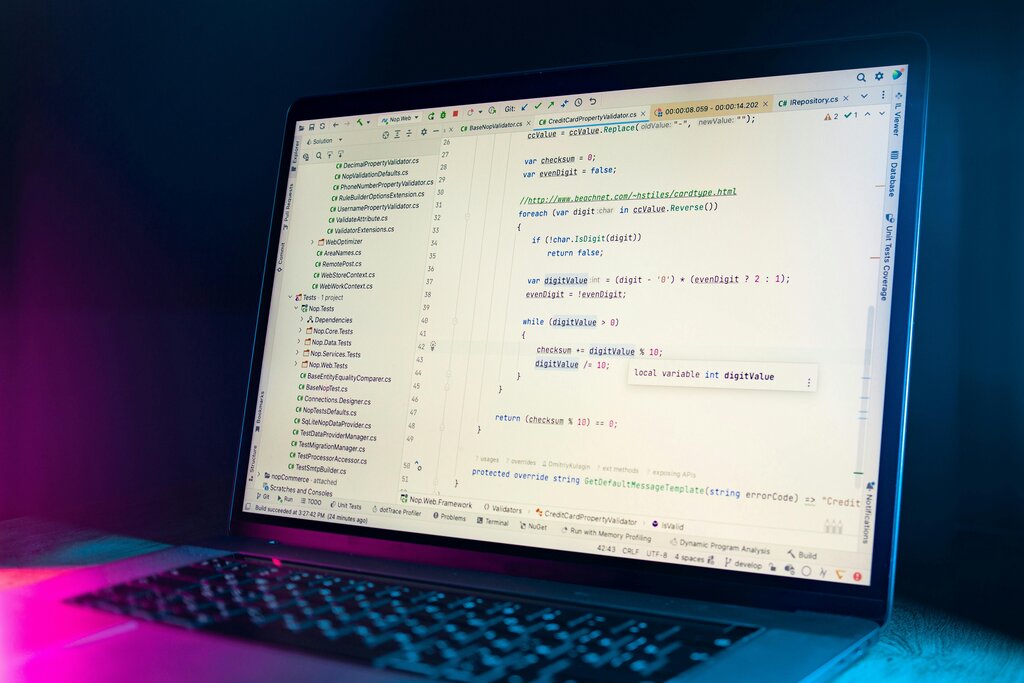
Here's a quick tour of the main sections:
- Editor: This is the large, central pane where you'll write and view your code.
- File Explorer: Located on the left side, this panel shows the files and folders in your current project. You can click on a file here to open it in the editor.
- Activity Bar: The thin vertical bar on the far left contains icons for switching between different views, like the File Explorer, search, and source control.
- Bottom Panel: This area typically houses the integrated terminal, debugging console, and output windows. You can open and close it as needed.
Take a moment to click around and get a feel for how these pieces fit together. You can open a folder on your computer to see how its files appear in the Explorer.
Foundational Features
While we're avoiding advanced topics, it's important to understand the basic AI-powered tools that make Cursor unique. The most prominent is the integrated AI chat panel.
You can ask the AI questions about your code, ask it to generate new code from a description, or get help with debugging an error, all without leaving your editor.
Another key feature is context-aware code completion. As you type, Cursor's AI will suggest not just single words or functions, but entire lines or blocks of code that it thinks you might need. This goes beyond the simple autocompletion found in traditional IDEs because it understands the broader context of your project.
What is the primary characteristic that defines Cursor as an "AI-first" code editor?
Cursor's user interface and functionality are built upon which widely-used code editor?
Now you have a basic understanding of what Cursor is and how to find your way around. In the next section, we'll start putting these tools to use.